The Last of Us Part 2 Accessibility Settings: Every Option
Naughty Dog published its own option-by-option accessibility list for The Last of Us Part II. Here is the whole thing: 82 options across eleven menus, the exact settings each of the three presets switches on, and the menu paths for the ones that are not where you would look.
Naughty Dog published the whole list. Not a sizzle reel, not a summary — an option-by-option document with each setting name, its values and a description of what it does, published on the PlayStation.Blog on June 9, 2020, ten days before the game shipped, and still live on naughtydog.com.
This is that list, reorganised into tables you can scan, with the menu paths from Naughty Dog's own support site for the settings that are not where you would expect them.
The number is not 60
Naughty Dog's headline figure is "more than 60 accessibility settings," and that phrasing is doing quiet work. Count the entries on the list itself and you get more.
| What you are counting | Entries |
|---|---|
| Accessibility options across the eleven menus below | 82 |
| Preset switches (Vision, Hearing, Motor) | 3 |
| Game Difficulty entries the same document files under accessibility | 6 |
| Total named entries on the published list | 91 |
The gap between 60 and 91 is nested sliders and the difficulty menu. Lock-On Strength is a separate slider under Lock-On Aim; Scan Range and Scan Time are separate sliders under Enhanced Listen Mode; the six Audio Volumes sliders are six rows. Count those as part of their parent and you land near 60. Count them as rows and you land at 91. Neither is wrong. Add up the rows in the tables below and you can check the arithmetic yourself.
The six Game Difficulty entries are the Challenge preset plus five custom sliders, and they are a whole subject of their own. They are not repeated here — the Part II difficulty and sliders guide covers what each one does.
Where the menu is, and how to read it
The path is Options > Accessibility, per Naughty Dog's support article on customising these settings. That article also carries a detail the menu does not announce: any accessibility feature you have changed from its default is marked with a dot next to the feature name. If you are handing a controller back to someone else, or trying to work out which of forty toggles you flipped three weeks ago, the dots are the audit trail.
The three presets sit at the top of that menu. Everything else is grouped into the sections below, in the order Naughty Dog lists them.
What the three presets actually switch on
The preset is the fastest way into this menu, and Naughty Dog's list names the settings each one enables:
| Preset | Naughty Dog's stated audience | Settings the list names |
|---|---|---|
| Apply Vision Accessibility Preset | "players who are blind or have low vision" | Text-to-Speech; High Contrast Display; HUD Scale > Large; Lock-On Aim > Auto-Target; Traversal and Combat Audio Cues; Navigation and Traversal Assistance; Ledge Guard; Enhanced Listen Mode; Invisible While Prone > Unlimited; Skip Puzzle Option; adjustments in the Combat Accessibility menu |
| Apply Hearing Accessibility Preset | "players who are deaf or hard of hearing" | Awareness Indicators; Pick-Up Notifications; Dodge Prompts > Frequent; Subtitles > Story + Combat; Subtitle Names; Subtitle Direction; Combat Vibration Cues; Guitar Vibration Cues |
| Apply Motor Accessibility Preset | "players with a physical or mobility disability" | Lock-On Aim > Auto-Target; Auto Weapon Swap; Auto Pick Up; Camera Assist > On; Navigation and Traversal Assistance; Ledge Guard; Infinite Breath; Repeated Button Presses > Hold; Melee Combos > Hold; Weapon Sway > Off; Skip Puzzle Option; adjustments in the Combat Accessibility menu |
Two caveats, both from the source. First, Naughty Dog introduces each of those lists with "such as" — they are representative, not exhaustive, and the Vision and Motor presets both end with an unenumerated "various adjustments in the Combat Accessibility menu." So a preset can switch on things the published list does not name. Second, a preset is a starting point, not a lock: Naughty Dog's own framing is that you can "go through and tweak individual options, even after selecting a preset."
Naughty Dog's support site corroborates one of these independently — its Lock-On Targeting article states that Lock-On Targeting is included in both the Vision and the Motor preset.
Alternate Controls, and Holds and Presses
Naughty Dog describes this as "the first time in a Naughty Dog game" they offered full control customisation, remapping "every command to a different controller input, including touch pad swipes and controller shake."
| Option | Values | What it does |
|---|---|---|
| Customize Controls | — | Remap and fully customise all controls |
| Control Scheme | Default, Right Hand Only, Left Hand Only, Custom Scheme 1-3 | Select a preset layout or build your own |
| Rename Control Scheme | — | Rename a custom scheme |
| Controller Orientation | Default, Left, Right, Upside Down | Rotates the d-pad and both sticks to match how you hold the pad |
| Left Stick and Right Stick | Default, Flipped While Aiming, Flipped Always | Swaps stick functions |
| Boat Controls | Default, Alternate | Alternate moves acceleration to R2 and leaves steering on the left stick |
| Rope/Ladder Movement | Character, Camera | Whether up/down on ladders and ropes is relative to the character or the camera |
| Guitar Strumming Input | Vertical, Horizontal, Taps | Swipe up/down, swipe left/right, or press a button to strum |
| Melee While Aiming | On, Off | Melee with Square while aiming; disables whatever Square was bound to while aiming |
Naughty Dog flags two of these as vision-specific recommendations rather than preferences: Boat Controls Default and Rope/Ladder Movement Camera are both recommended for players using Navigation Assistance to orient themselves.
The Holds and Presses menu exists because, in Naughty Dog's words, "holding or rapidly tapping buttons can be challenging for some players." Seven of the nine entries convert a hold into a toggle or a mash into a hold; Bow Firing swaps the hold for taps instead, and Hold Breath Mode runs the other way.
| Option | Values | Default |
|---|---|---|
| Repeated Button Presses | Tap, Hold | Tap |
| Melee Combos | Tap, Hold | Tap |
| Aiming Mode | Hold, Toggle | Hold |
| Listen Mode | Hold, Toggle | Hold |
| Sprinting | Hold, Toggle | Hold |
| Crafting | Hold, Toggle | Hold |
| Backpack Weapon Swap | Hold, Toggle | Hold |
| Bow Firing | Hold, Taps | Hold |
| Hold Breath Mode | Hold, Toggle | Toggle |
Sprinting is worth knowing about specifically: the list marks it "available with Patch 1.01," with the footnote that an internet connection is required — so it came down with the patch rather than on the disc. Hold Breath Mode is the odd one out in the other direction — it is the only entry here that defaults to Toggle.
Assistance: aim, camera and pickups
| Option | Values | What it does |
|---|---|---|
| Camera Assist | On, Off, Horizontal, Vertical | Reorients the camera toward your movement; can be limited to one axis |
| Lock-On Aim | Off, On, Auto-Target | Locks onto enemies when aiming. Auto-Target also locks onto offscreen enemies |
| Lock-On Strength | 1-10 slider | Pull strength of Lock-On Aim |
| Arc-Throw Lock-on | On, Off | Lock-on for thrown items, enabled separately from Lock-On Aim |
| Arc-Throw Lock-on Strength | 1-10 slider | Pull strength of Arc-Throw Lock-on |
| Auto Weapon Swap | On, Off | Swaps to another holstered weapon when you run dry |
| Auto Pick-Up | On, Off | Picks up nearby ammo and ingredients automatically |
Three details from the source that change how you would set these. Lock-On Aim targets the centre of the body by default and you can push the right stick to move the lock to the head or legs — it is not a fixed headshot cheat. Arc-Throw Lock-on deliberately aims slightly away from enemies while you are in stealth, because the point of a thrown brick is the distraction, and you push the right stick if you want to hit the person instead. And Camera Assist is aimed at "players who are new to action games or have difficulty using Left Stick and Right Stick simultaneously," which is a wider brief than the menu name suggests.
Menu path for the aim settings, per Naughty Dog's support site: Options > Accessibility > Alternate Controls > Lock-On Aim, with Arc-Throw Lock-On in the same submenu.
Magnification, visual aids and motion sickness
| Option | Values | What it does |
|---|---|---|
| HUD Scale | Default, Large | Size of in-game HUD elements |
| HUD Background | Default, Light, Darkened | HUD background darkness |
| HUD Color | White, Yellow, Blue, Red, Green | Colour of text and HUD elements |
| HUD Colorblind Mode | Off, Protanopia, Deuteranopia, Tritanopia | Changes the HUD accent palette |
| HUD Flashing | On, Off | Flashing HUD animations |
| High Contrast Display | Off, Setting 1, Setting 2, Setting 3 | Mutes environment colour and adds contrast colouring to allies, enemies, items and interactive objects |
| Screen Magnifier | Off, Low, Medium, High | Magnifies a section of the screen |
| Translation Prompts | Off, On, Auto | Triangle prompts for in-world text; Auto turns on with a non-English text language or with text-to-speech enabled |
High Contrast Display and Screen Magnifier are both driven from the touch pad rather than the menu once enabled: a swipe left toggles high contrast, and a light double-tap toggles the magnifier, with a held second tap ramping the zoom and locking it on release.
| Motion sickness option | Values | What it does |
|---|---|---|
| Camera Shake | 1-10 slider | Intensity of camera shake |
| Motion Blur | 1-10 slider | Intensity of motion blur |
| Camera Distance | -5 to +5 slider | Third-person camera follow distance |
| Field of View | -5 to +5 slider | Third-person camera FOV |
| Dolly Zoom Effect | On, Off | Turns off the backwards-move-plus-zoom moments |
| Full Screen Effects | On, Off | Screen effects that indicate player status |
| Persistent Center Dot | On, Off | A permanent centre reticle, hidden in cinematics and while aiming |
Field of View is not in the display settings. It is in the Motion Sickness section of the Accessibility menu, which is worth knowing before you go looking for it under graphics.
Navigation, traversal and audio cues
This is the block Naughty Dog built so that blind and low-vision players could finish the game, and it is the most mechanically interesting part of the menu.
| Option | Values | What it does |
|---|---|---|
| Navigation Assistance | On, Off | Press L3 to face the camera toward story progression and mark the path |
| Traversal Assistance | On, Off | Simplified traversal: automatic difficult jumps, automatic ledge climbs and squeezes, automatic vaults on horseback, automatic sprint in certain encounters |
| Ledge Guard | On, Off | Adds audio and vibration feedback at ledges and prevents fatal falls |
| Enhanced Listen Mode | On, Off | Scan for items and enemies from listen mode |
| Scan Range | 10m-30m slider | Maximum scan distance |
| Scan Time | 1s-5s slider | Time for a scan to reach maximum distance |
| Infinite Breath | On, Off | Infinite breath while swimming underwater |
| Skip Puzzle Option | On, Off | Adds SKIP PUZZLE to the pause menu, completing the puzzle |
The button layer matters here, and Naughty Dog's support article spells it out: with both Navigation Assistance and Enhanced Listen Mode enabled, hold R1 for listen mode, then Square scans for enemies and Circle scans for pickups, and L3 in listen mode points you at the most recently scanned target instead of at the story path. The scan returns audio cues at the target's location, and the pitch of the cue changes with the target's height relative to you — that is how vertical position gets communicated without a screen.
Skip Puzzle is at Options > Accessibility > Navigation and Traversal > Skip Puzzle Option, and Naughty Dog calls it "highly recommended for players who are blind or have low vision because some puzzle progression may not be fully accessible" — a rare case of a developer saying plainly that part of its own game did not get there.
| Audio cue option | Values | Covers |
|---|---|---|
| Text-to-Speech | On, Off | Narration of on-screen text; touch pad swipe up requests a status description |
| Traversal Cues | On, Off | Jumpable gaps, climbable ledges, squeeze-throughs, crouch and prone areas, interacts and pick-ups, nearby breakable glass, gaining or losing movement control, Ledge Guard activations |
| Combat Audio Cues | On, Off | Enemy grab and strike prompts, incoming melee, being impaled with an arrow, aiming at an enemy, landing a shot |
| Combat Vibration Cues | On, Off | Incoming enemy melee, aiming at an enemy, landing a shot — three of the five combat cues, as vibration |
| Guitar Vibration Cues | On, Off | A vibration cue when the correct guitar note for story progression is selected |
| Audio Cue Glossary | — | A browsable catalogue of the accessibility audio cues, playable on demand |
Text-to-Speech auto-enables in-game for players whose console language is English and who have text-to-speech switched on at the system level, so it can be on before you ever open the menu. Naughty Dog's footnote is that text-to-speech is available in all supported languages except Thai.
Audio Volumes is its own six-slider menu, and the reason it belongs in an accessibility list is the last two rows: the cues and the narration each get a channel of their own, independent of effects, dialogue and music.
| Audio Volumes slider | What it controls |
|---|---|
| Effects | Sound effects |
| Dialogue | Spoken dialogue |
| Music | Score |
| Cinematics | Cutscene audio |
| Accessibility Audio Cues | The traversal and combat cue layer |
| Text-to-Speech | Narration volume |
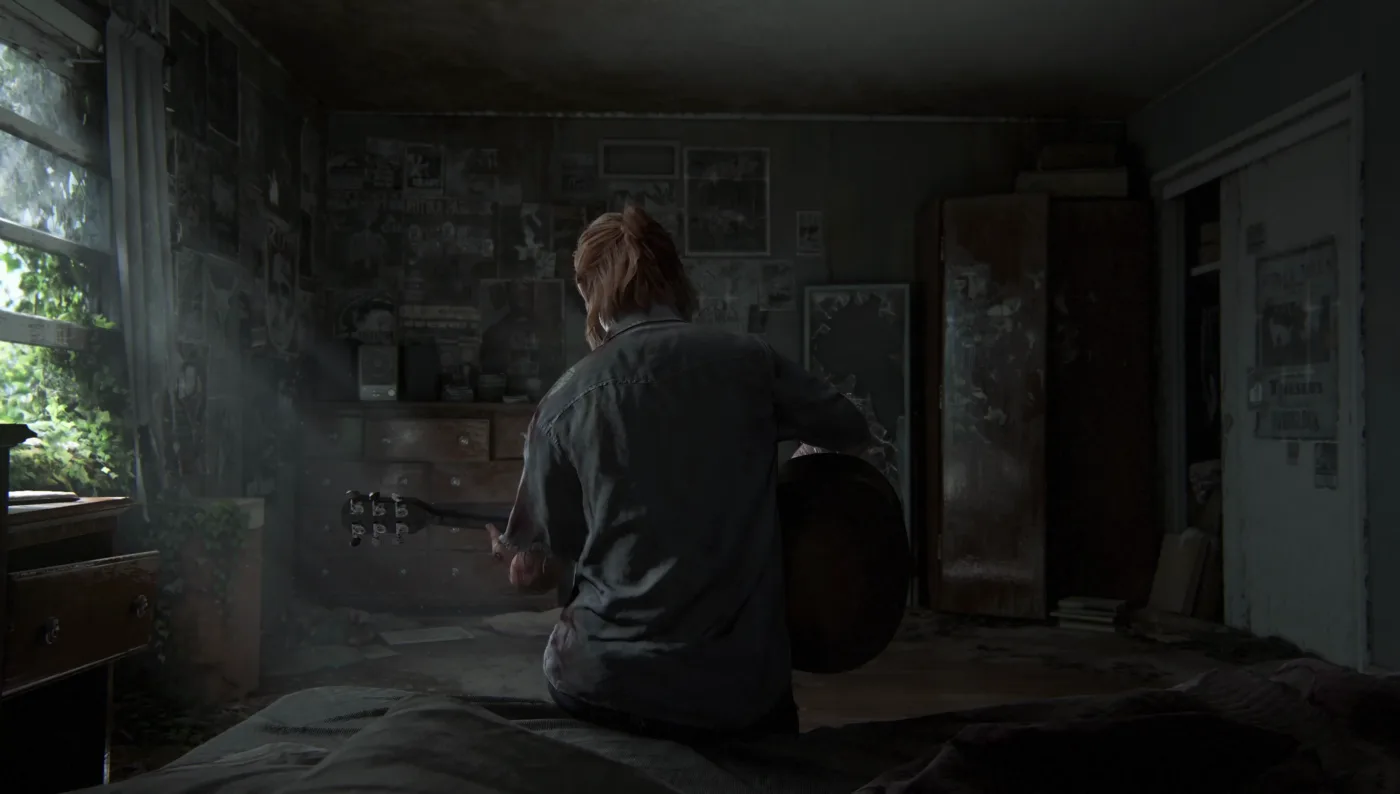
The guitar is not an afterthought in this menu. It has its own input option in Alternate Controls and its own vibration cue toggle, and the Hearing preset switches that cue on by name. If you want the mode rather than the settings, that is the Guitar Free Play guide.
HUD indicators and subtitles
| HUD option | Values | What it does |
|---|---|---|
| Damage Indicators | On, Off | HUD spikes pointing at the damage source |
| Awareness Indicators | Off, Stealth, Always | Warns when enemies are about to spot you and from which direction. Always persists through combat |
| Hints | Off, Sometimes, Frequent | Gameplay hints when you are lost, triggered with L3 |
| Pick-Up Notifications | On, Off | HUD notification when you pick up ammo, ingredients or resources |
| Dodge Prompts | Off, Sometimes, Frequent | Frequency of the L1 dodge tutorial prompt on incoming melee |
Awareness Indicators Always is marked "available with Patch 1.01" on the list and is the setting Naughty Dog specifically recommends for deaf and hard-of-hearing players, because it converts an audio tell — an enemy calling out that they have seen you — into a persistent visual one.
| Subtitle option | Values | What it does |
|---|---|---|
| Subtitles | Off, Story Dialogue, Story + Combat Dialogue | Story covers main characters, important enemy lines and cinematics; Combat adds systemic enemy chatter in stealth and combat |
| Size | Small, Medium, Large | Subtitle text size |
| Background | Off, Default, Darkened | Dark plate behind subtitles |
| Names | On, Off | Speaker name with the subtitle |
| Name Colors | On, Off | A unique colour per speaker, when Names is on |
| Direction | On, Off | An arrow showing the screen-relative direction of an offscreen speaker |
| Color | White, Yellow, Blue, Red, Green | Subtitle text colour |
Story + Combat Dialogue is the one to know about. Part II's enemies call each other by name while they hunt you, and Naughty Dog notes this was the first Naughty Dog game to subtitle all that systemic combat chatter. With subtitles set to Story only, a deaf player loses that entire layer — and it is a layer the game is built around. The Part II enemies guide covers what those callouts actually tell you.
Combat Accessibility is a gated menu
Everything in this section sits behind one master switch — Enable Combat Accessibility — and Naughty Dog's own warning on it is that these settings "can significantly alter the gameplay experience."
| Option | Values | What it does |
|---|---|---|
| Enable Combat Accessibility | On, Off | Master switch for everything below |
| Hostages Don't Escape | On, Off | Enemies you grab will not break free while struggling |
| Allies Don't Get Grabbed | On, Off | Allies escape grabs automatically; does not apply in certain encounters |
| Enemies Don't Flank | On, Off | Enemies stop deliberately working around behind you |
| Reduced Enemy Perception | On, Off | Lower enemy perception in stealth, relative to your chosen difficulty |
| Reduced Enemy Accuracy | On, Off | Lower enemy shooting accuracy, relative to your chosen difficulty |
| Enhanced Dodge | On, Off | The L1 dodge evades more reliably |
| Invisible While Prone | Off, Limited, Unlimited | Invisible to enemies while prone and not aiming; disabled in encounters where stealth is not an option |
| Weapon Sway | On, Off | Camera sway while aiming |
| Slow Motion | Off, While Aiming, Toggle | Reduces game speed; Toggle is bound to a touch pad swipe right |
Two entries have fine print worth reading twice. Invisible While Prone set to Limited ties the invisibility timer to your stealth difficulty setting rather than to a fixed number, so it behaves differently on a custom slider build than it does on a preset. And Reduced Enemy Perception and Reduced Enemy Accuracy are both explicitly "relative to the chosen difficulty" — they scale the curve, they do not replace it.
For how this menu interacts with the hardest challenge level and with the gameplay modifiers, see the Part II difficulty guide.
Audio descriptions are not in the Accessibility menu
Naughty Dog's support site answers this one directly for Part II Remastered, and the two features people conflate sit behind two different paths:
| Feature | Menu path | What it does |
|---|---|---|
| Screen Reader | Options > Accessibility > Screen Reader and Audio Cues | Narrates on-screen text; swipe up on the touch pad to request a description |
| Cinematic Descriptions | Making Of > Commentary > Toggle Cinematic Descriptions | Descriptive audio during cinematics, giving "a spoken description of key visual elements in the scene" |
Cinematic Descriptions lives under Making Of > Commentary, next to the developer commentary track, rather than in the Accessibility menu. The game has audio description; it is simply filed with the other alternate audio tracks.
Note the naming as well: the 2020 Part II feature list calls the text-narration option Text-to-Speech, while the Remastered support article and the Part I feature list both call it Screen Reader. Same function, two names, and Naughty Dog still uses "Text-to-Speech" in its patch notes — Part II Remastered's PS5 patch 2.1.0 lists "various minor Text-to-Speech fixes across multiple languages." If a guide and your menu disagree on the label, that is why.
What Part I and Remastered changed
The 2022 remake inherited the Part II menu and added to it, and Part II Remastered then pulled those additions back into the sequel. PlayStation's published Part I list runs under the same ten section headings as the Part II one, so treat the tables above as the shape of Part I's menu rather than a row-for-row match — individual entries move where the mechanics differ between the two games.
| Feature | Part II (2020, PS4) | Part I (2022, PS5/PC) | Part II Remastered (2024 PS5 / 2025 PC) |
|---|---|---|---|
| The Part II accessibility menu | Yes | Yes, same ten sections | Yes |
| Vision, Hearing, Motor presets | Yes | Yes | Yes |
| Narration of on-screen text | Yes, as Text-to-Speech | Yes, as Screen Reader | Yes, as Screen Reader |
| Cinematic Descriptions (audio description) | No | Yes | Yes |
| Speech to Vibrations | No | Yes, with Patch 1.01 | Yes |
Naughty Dog's own framing of the remaster is that it added "Speech to Vibrations and Cinematic Descriptions, which we previously included in The Last of Us Part I," so the direction of travel is Part I first, sequel second.
Both additions are worth understanding rather than just ticking. Cinematic Descriptions was not written in-house: Naughty Dog partnered with Descriptive Video Works, a service whose background is television, film and game trailers, and shipped the description track across the game's localised languages. Speech to Vibrations plays spoken dialogue through the DualSense as vibration, so a deaf player can feel the delivery of a line — the emphasis and rhythm the subtitle cannot carry — alongside the text.
Naughty Dog also states that No Return, the roguelike mode, "integrates a number of Part II Remastered's accessibility features," so the settings are not campaign-only. What No Return actually is lives in the No Return guide.
PC changes the control half
Part II Remastered reached PC on April 3, 2025, and the control accessibility grew there rather than shrinking. Naughty Dog's PC feature rundown lists "full control remapping, primary and secondary bindings for keyboard and mouse control, an adaptive mode that allows players to combine keyboard and controller inputs, and more." Secondary bindings and a keyboard-plus-controller adaptive mode are meaningful for anyone running a one-handed layout or a mixed input rig, and Naughty Dog lists both as PC-release features.
The DualSense is supported on PC with full haptic feedback, with the caveat Naughty Dog states plainly: a wired connection is required for the full range of DualSense features. That matters for Speech to Vibrations and the vibration cue options, which are haptic features first.
Which platform runs which release is its own tangle — the versions guide has the full table.
Quick Action Checklist
- Open Options > Accessibility. Anything you have already changed carries a dot next to its name.
- Start from a preset if one matches your needs, then tweak. Presets are a starting configuration, not a lock, and the published preset lists are examples rather than the complete set of switches.
- Blind and low-vision: Text-to-Speech / Screen Reader, High Contrast Display, Navigation Assistance and Enhanced Listen Mode together (hold R1, Square for enemies, Circle for pickups, L3 to head for the last scan), Ledge Guard, Skip Puzzle Option.
- Deaf and hard of hearing: Subtitles set to Story + Combat Dialogue, Subtitle Names and Direction on, Awareness Indicators set to Always, Combat Vibration Cues.
- Fine-motor and one-handed: Control Scheme Right Hand Only or Left Hand Only, Repeated Button Presses and Melee Combos set to Hold, Aiming Mode and Listen Mode set to Toggle, Auto Pick-Up, Lock-On Aim with the strength slider tuned.
- Motion sickness: Camera Shake and Motion Blur down, Dolly Zoom Effect off, Persistent Center Dot on. Field of View is in this section, not in the display settings.
- Looking for audio description? It is Making Of > Commentary > Toggle Cinematic Descriptions, not the Accessibility menu — and it exists in Part I and Part II Remastered, not in the 2020 PS4 release.
- On PC, check the secondary bindings and adaptive mode in the control settings, and wire up a DualSense if you want the haptic cue options at full strength.
Frequently Asked Questions
How many accessibility options does The Last of Us Part 2 have?
What do the accessibility presets in The Last of Us Part 2 turn on?
Does The Last of Us Part 2 have audio descriptions?
How do you turn on lock-on aim in The Last of Us Part 2?
How does Enhanced Listen Mode work in The Last of Us Part 2?
Where is the field of view setting in The Last of Us Part 2?
Keep Reading
- The Last of Us Part II: Accessibility Features Detailed — Naughty Dog
- The Last of Us Part II: Accessibility features detailed — PlayStation.Blog
- The Last of Us Part I: full list of accessibility features — PlayStation.Blog
- How do I customize Accessibility settings? — Naughty Dog support
- Does The Last of Us Part II Remastered have Audio Descriptions? — Naughty Dog support
- How do I enable Lock-On Targeting? — Naughty Dog support
- What accessibility options are available for navigating to pickups and enemies? — Naughty Dog support
- Can puzzles be skipped to further story progression? — Naughty Dog support
- Dive Deeper into New The Last of Us Part II Remastered Features — Naughty Dog
- The Last of Us Part II Remastered PC Features, New No Return Content Detailed — Naughty Dog
- The Last of Us Part II Remastered PS5 Patch 2.1.0 — Naughty Dog support
Related Guides
The Last of Us Part 1 Human Enemies: All Six Factions
Six human groups fight Joel and Ellie across eight of Part I's twelve chapters, and they do not carry the same kit. Where each one appears, what the wiki lists them carrying, who wears armor, and what the 2022 remake changed about how they hunt you.
The Last of Us Photo Mode Guide: Every Version Compared
Photo Mode has shipped in four Last of Us releases and the toolkit is different in each. How to open it, what each Part II tab does, what Part I and Part II Remastered added, and the slider settings Naughty Dog's own staff use.
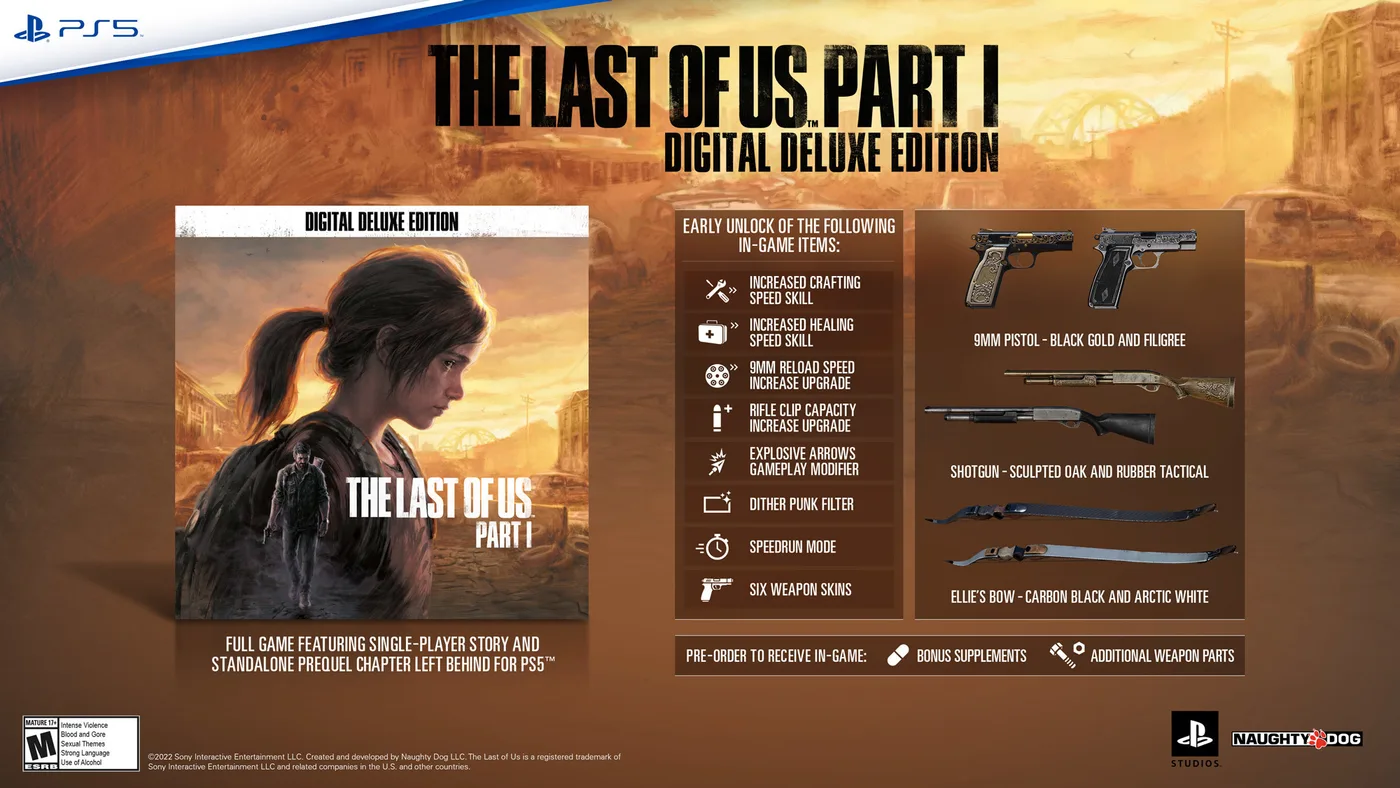
The Last of Us Part 1 Skins: All 55 and What They Cost
Part I kept all 21 skins from the 2013 game, added 18 outfits and 16 weapon skins, and put the lot in one points shop. Here is the listed price of each skin, filter and modifier, what the Digital Deluxe Edition actually unlocks, and the two Steam-only shirts.
The Last of Us Part 2 Crafting Guide: All 12 Recipes
Part II has twelve crafting recipes and neither character gets all of them. Here is every ingredient list, which recipes are locked behind a skill, what one craft yields, and where the ingredients collide.
The Last of Us Infected Guide: How to Beat Every Type
A clicker cannot see you and cannot be strangled. Those two facts decide more encounters than any gun you own. Here is how all four infected stages actually work, and what to spend on each.
The Last of Us Part 2 Remastered Skins: How to Unlock Them
The 2020 release of Part II had no outfits you could wear. Remastered added dozens, split between a points shop and No Return challenges. Here is what each one costs or asks of you, and where the lists disagree.