Fortnite Performance Guide: Best Settings for High FPS
Higher frames mean lower input lag and smoother tracking — a real mechanical edge, not a vanity number. Here's how to chase FPS in Fortnite the right way: Performance Mode, what to cut, what to keep, the framerate cap nobody sets correctly, and the GPU/CPU tips that move the needle.
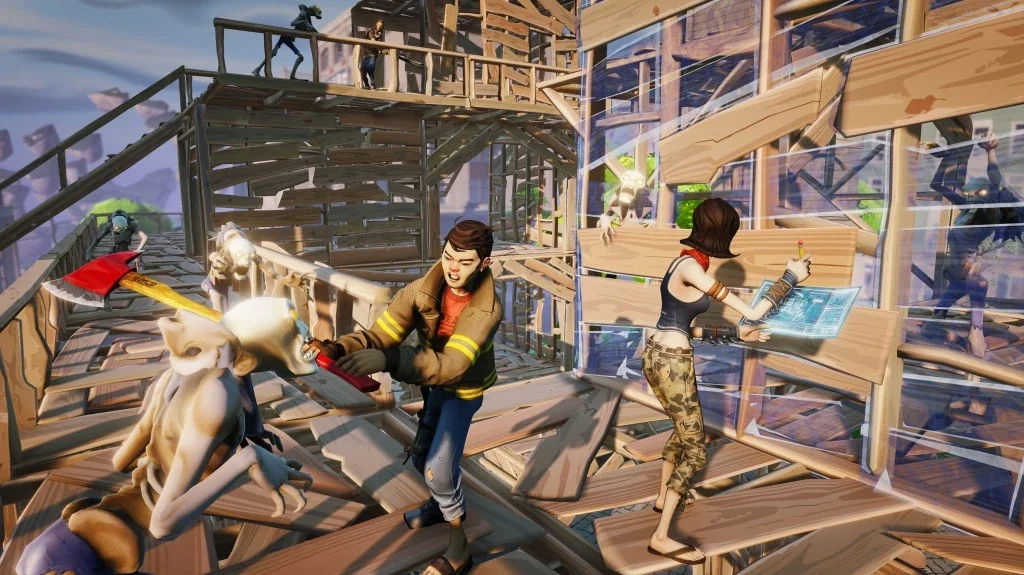
Frames per second is the most misunderstood number in a shooter. People treat it like a benchmark bragging right, but in a game like Fortnite it's a direct mechanical advantage: more frames means the screen updates more often, which means lower input lag, smoother tracking, and seeing an enemy a few milliseconds sooner. In a 1v1 build fight where you're both editing and shooting in the same half-second, that gap decides who wins. Chasing FPS isn't vanity — it's the cheapest competitive upgrade available before you touch your aim.
This guide is PC-focused and about one thing: extracting the highest, most stable frame rate your hardware can hold, with the lowest input lag, while keeping the game readable. We'll cover Performance Mode, which graphics settings actually cost frames versus which are noise, how to set a framerate cap correctly (most people get this wrong), the input-lag side of the equation, and the GPU/CPU tweaks outside the game that matter. The usual caveat: Fortnite renames and reshuffles its settings menu between patches, so treat exact labels as approximate — the principles are what carry across seasons.
Why frames are a real edge, not a vanity number
Three concrete things higher FPS buys you:
- Lower input lag. Each frame is a chance for the game to show you the result of your input. More frames per second means a shorter wait between clicking and seeing the shot, so the game feels more responsive and your aim corrections land faster.
- Smoother tracking. A target moving across a high-FPS screen draws more intermediate positions, so your eyes and hand track it more accurately. On a stuttery low frame rate, fast movement skips, and you're aiming at a guess.
- Information sooner. More frames means an enemy who steps into view shows up a frame or two earlier than on a low frame rate. Tiny, but in a peek-fight it's the difference between shooting first and shooting back.
The key word is stable. A frame rate that swings between 60 and 200 feels worse than a rock-solid 144, because the stutter when it drops breaks your tracking and timing. The whole goal of this guide is a consistent high number you can hold during the most chaotic moment of a match — a full-build endgame with effects everywhere — not a pretty average you only hit standing still in the lobby.
Performance Mode, the biggest single FPS win
If your hardware is anything short of high-end, Performance Mode is the most important toggle in the entire menu. It's a separate rendering path that strips out a large amount of visual fidelity — it changes how the game is rendered rather than just lowering a few sliders — in exchange for a big frame-rate gain and, critically, much lower memory use.
- Who it's for. Older GPUs, laptops, integrated graphics, and low-RAM systems benefit enormously — Performance Mode is what makes Fortnite run well on hardware that otherwise chugs. Many competitive players on capable PCs run it too, purely because it produces a flat, clean, readable image and frees up overhead for a higher, steadier frame cap.
- What you trade. The game looks markedly less pretty — flatter textures, simpler lighting. In a competitive shooter that's a feature, not a cost: flat and plain is easier to parse, and enemies stand out more against a less busy background.
- The download note. Performance Mode often lets you uninstall the high-resolution textures to reclaim a chunk of disk space. If you're tight on storage and committed to Performance Mode, that's free space back.
If you only change one thing after reading this, enable Performance Mode and see how many frames you gain. On a lot of systems it's the difference between an unplayable endgame and a smooth one.
The graphics settings that actually cost you frames
Not every graphics slider matters equally. A handful are heavy frame-eaters and the rest are rounding error. Here's the competitive-leaning setup that maximizes frames and visibility at once:
| Setting | Recommended | Why |
|---|---|---|
| Rendering Mode | Performance Mode (if not high-end) | Biggest single FPS gain; flat, readable image |
| Frame Rate Limit | Matched to your monitor refresh | Stable frames, lower latency (see below) |
| Shadows | Off | Big frame win on most GPUs and enemies stop hiding in dark areas |
| Anti-Aliasing / Post Processing | Off / Low | Cleaner, flatter image that's cheaper to render |
| Textures | Low–Medium | Low for max frames; raise only if you have GPU memory to spare |
| Effects | Low | Cuts the explosion/visual clutter that tanks frames in busy fights |
| View Distance | Epic / Far | Cheap on frames, and you want to see threats render in early — keep it high |
Turning shadows off is the closest thing to a free competitive cheat the game offers: you gain frames and visibility at the same time, because enemies no longer blend into shaded terrain. It's the first graphics toggle to flip, on any hardware.
The one setting people wrongly drop is View Distance — they assume "far render" is expensive. In Fortnite it's relatively cheap on frames and genuinely useful, because seeing players and structures render in from distance is information. Keep it high. Effects is the opposite: it's the setting that quietly murders your frame rate during the exact moment you can't afford it — a busy endgame full of explosions and builds — so keep Effects low even if your average FPS standing still looks fine. You're optimizing for the worst frame of the match, not the best. Our best Fortnite settings guide goes deeper on the visibility side of these toggles.
Set your framerate cap correctly
This is the part almost everyone gets wrong. The instinct is "uncap FPS and get the biggest number possible." That's usually the wrong move, for two reasons.
- Match your cap to your monitor's refresh rate (or a clean multiple of it). A 144 Hz monitor can only show 144 frames a second; pushing 300 FPS into it wastes GPU effort, generates heat, and can introduce screen tearing without giving you anything you can see. Cap at your refresh (144, 240, etc.) so the frames you render are frames you actually use.
- A stable cap below your peak beats an uncapped sawtooth. If your hardware can hit 200 FPS in the open but drops to 110 in a full endgame, an uncapped frame rate stutters every time it swings. Capping at a number you can hold through the worst fights — even if it's below your peak — gives you the consistency that actually helps your tracking. Consistency beats a high average.
- Leave headroom for input lag. Running your GPU pinned at 100% usage (which an uncapped frame rate tends to do) adds latency. A frame cap a touch below what your GPU maxes at keeps it from saturating, which keeps input lag low. This is the latency angle on why uncapped isn't automatically best.
The practical move: find the frame rate you can sustain through a chaotic endgame, set your in-game cap at or just below that (and no higher than your monitor refresh), and enjoy a steady, low-latency frame rate instead of a number that looks big in the lobby and falls apart in the fight that matters.
Low input lag, the other half of the fight
High FPS lowers input lag, but it's not the only lever. Latency is the total delay from your hand moving to the result on screen, and a few settings attack it directly:
- Cap below your GPU's max (covered above) so the GPU isn't saturated — a pinned-100% GPU adds queued-frame latency.
- Use any low-latency rendering option your GPU exposes. Modern GPU drivers and some in-game options have a low-latency / reflex-style mode that reduces the queue of frames waiting to be shown. Turn it on; it's close to free latency back.
- Disable in-game V-Sync for competitive play. V-Sync removes tearing but adds noticeable input lag. Most competitive players run it off and tolerate minor tearing, or use a monitor-side variable-refresh feature instead. If you must avoid tearing, a frame cap a hair under your refresh plus variable refresh is lower-latency than V-Sync.
- Plug into a wired display path and a wired peripheral where you can. Wireless adds small but real latency to mouse and display links; for competitive play, wired is the safe default.
The point: don't stop at "I get high FPS." A high frame rate with V-Sync on and a saturated GPU can still feel sluggish. Frames and latency are two separate dials, and a responsive setup turns both.
GPU and CPU tips outside the game
Some of the biggest, most durable frame gains live outside Fortnite's menu entirely:
- Update your GPU drivers. This is the most overlooked free FPS source. GPU makers regularly ship game-ready drivers, and a current driver can be worth a meaningful frame bump over an old one. Check for updates before you blame your settings.
- Close background apps. Browsers with a hundred tabs, overlays, capture software, and chat apps eat CPU, RAM, and sometimes GPU. Close what you don't need during a session; a busy background is a common cause of mid-match stutter.
- Make sure the GPU is doing the work, not integrated graphics. On laptops especially, confirm Fortnite is set to run on the dedicated GPU rather than the integrated chip — the OS sometimes defaults games to the weaker one, which silently halves your frames.
- Enable your OS game mode and a high-performance power plan. On a laptop, plug it in — battery-saver power profiles throttle the CPU and GPU hard, and you'll never hit your real frame rate unplugged.
- Mind thermals. A GPU or CPU that overheats throttles itself, which shows up as frames that start high and decay over a session. If your FPS is great for ten minutes and then sags, it's likely heat — clean dust, improve airflow, and confirm your cooling before you touch settings again.
None of these are exotic. Updated drivers, a clean background, the right GPU doing the work, and adequate cooling cover the overwhelming majority of "my FPS is bad" cases that aren't just in-game settings.
Is it your GPU or your CPU
If you've done everything above and frames are still short, figure out which part is the bottleneck before you spend money or time. The tell is in where your frames drop.
- GPU-bound: frames are low everywhere and get worse as you raise graphics settings or resolution. Lowering settings helps a lot. Fix: lower graphics (Performance Mode, low effects/shadows), or a better/newer GPU. Stretched resolution is the other lever people reach for here, and it comes with trade-offs of its own.
- CPU-bound: frames are fine in open areas but tank specifically in heavy build fights and busy endgames, regardless of how low your graphics are. Fortnite's late-game — lots of structures, players, and effects to simulate — is famously CPU-heavy, so this is the common one. Lowering graphics barely helps because the GPU wasn't the limit. Fix: a faster CPU/RAM, closing background CPU hogs, and keeping Effects low to reduce the simulation load.
A quick way to check: pull up an FPS/usage overlay and watch utilization in a busy fight. If GPU usage is pinned near 100% and frames are low, you're GPU-bound. If GPU usage sits well below 100% while frames tank in a build fight, your CPU is the limit — and no amount of dropping graphics settings will fully fix it. Knowing which one you're fighting saves you from "optimizing" the dial that isn't the problem. For turning those steady frames into actual wins, our how to get better at Fortnite guide covers the practice side.
Quick Action Checklist
The settings and tweaks that buy real, stable frames and low latency:
- Enable Performance Mode if you're not on high-end hardware — the biggest single FPS win
- Shadows OFF — frames and visibility in one toggle, on any hardware
- Effects, Post Processing, Anti-Aliasing low/off; Textures low; View Distance high
- Cap FPS at your monitor refresh — not uncapped, not higher than your panel can show
- Pick a cap you can hold through a full endgame, not your lobby peak — stable beats high average
- Turn V-Sync off for competitive play and enable a low-latency GPU option
- Update your GPU drivers — the most overlooked free FPS
- Close background apps and confirm the dedicated GPU (not integrated) is running the game
- Plug in laptops, use a high-performance power plan, and check thermals
- Diagnose GPU- vs CPU-bound — endgame-only drops point to your CPU
Frequently Asked Questions
What are the best Fortnite settings for high FPS on PC?
Should I use Performance Mode in Fortnite?
Should I cap my FPS in Fortnite or leave it uncapped?
How do I lower input lag in Fortnite?
Why does my FPS drop in Fortnite build fights and endgames?
How can I boost FPS in Fortnite without new hardware?
Keep Reading
Related Guides
Fortnite Reload Nitemare Island: Map, Loot and Rewards
Nitemare Island came back to Reload on October 8 with something the 2025 version never had: a match modifier that hands you a rival and pays out a Kado Thorne Exotic when you drop them. Here is the map, the three-map rotation it sits in, the loot you can only find there, and what the new Ranked and Map Mastery tracks pay.
Fortnite Blitz Royale Guide: How the 5-Minute Mode Works
Blitz Royale was meant to close on July 15, 2025. Fifteen months later it has its own dev team, a $1,000,000 mobile tournament and a victory emote you can only earn inside it. Here is how a match actually runs: the kit everyone lands with, what Blitz Levels pay out, where the gold loot is, how fast the storm kills, and what Epic has and has not changed this season.

Fortnite Kingdom Hearts Skins: Price, Keyblade and More
Our Chapter 7 Season 4 weapons post named the Kingdom Key and Rebecca's Guns as arrivals Epic had announced but not shipped — 'neither is in the pool yet,' it said, three weeks ago. Update v42.20 shipped both, plus a four-skin Kingdom Hearts bundle tied for the most expensive in the game's history, four new Sprites, and six new Match Overrides. Here's what actually landed, what it costs, and what Epic still hasn't published.
Fortnite OG Season X: The BRUTE and Rift Zones Return
Our OG mode guide explains how the permanent playlist works in general. It doesn't tell you what's live right now, because that changes every season — and on September 3, the tenth one brought back a two-person mech, a fully automatic sniper, and three Rift Zones with rules of their own.
Fortnite Weapon Tier List: How to Rank Any Loot Pool
Any Fortnite tier list is stale the second a patch drops. So instead of memorizing this season's gun names, learn how to rank weapons by class and role — the framework that's S-tier in every season.
Best Fortnite Settings for PC & Console
Half your settings menu is noise; a handful of options decide whether you can see, aim, and build. Here's what to change on PC and console, why, and the one number nobody else can pick for you.