Fortnite Replay Mode: How to VOD Review Your Own Deaths
Fortnite records your matches automatically. Replay Mode is a free improvement tool — here's how it works, what its 250-meter bubble hides from you, and the four questions to answer on every death.
You already know the story you tell yourself after a bad death. "He was cracked." "That was a lag spike." "Third party, nothing I could do." Then you queue again and do the identical thing forty seconds into the next match.
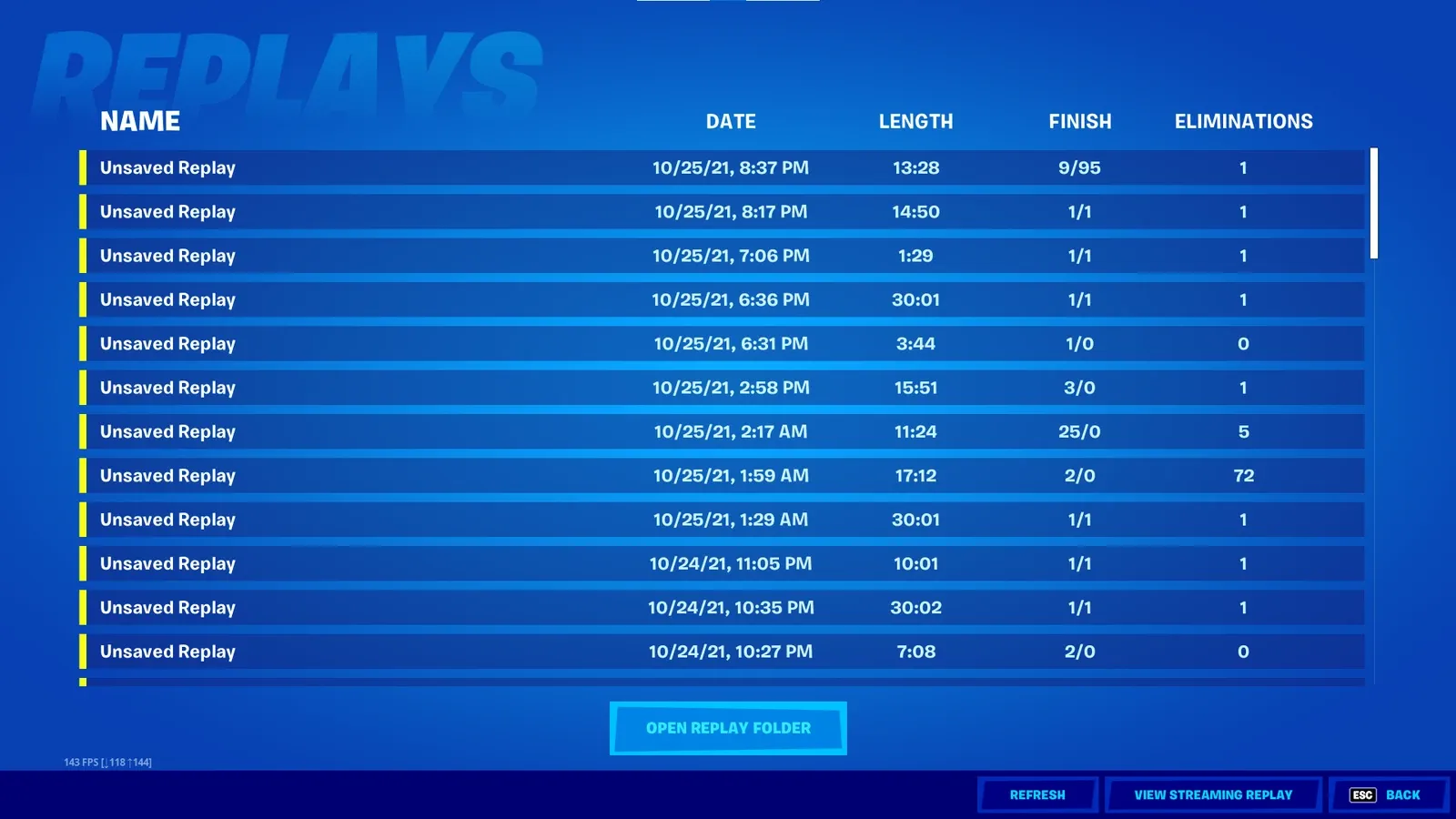
Fortnite has quietly been recording the evidence this whole time. By default the game saves a replay after every Battle Royale and Creative match you play — a full server-side reconstruction of the game, not a video clip — and it sits in the Career tab waiting for you. That's free coaching material sitting in your client.
This guide is about using it as a training tool, not a cinematography toy. Where it lives, the one hard limitation that changes how you review, the cameras worth your time, and the specific questions to answer before you close it and requeue. Standing caveat: Epic reshuffles menu names and tabs between patches, so treat every label here as a starting point you confirm in your own client. The system underneath has been stable for years.
The Replays tab
The reason replay review works isn't mystical. It's that your memory of a fight is not a recording — it's a reconstruction built out of the emotion you felt at the time. You remember getting hit. You do not remember that you'd been standing in the same doorway for nine seconds with your back to open ground, because you weren't thinking about that, which is exactly the problem.
A replay doesn't care how it felt. It shows you the enemy's approach from a camera you didn't have, at a speed you can control, with the option to rewind and check the same twelve seconds four times. The gap between "he came out of nowhere" and "he was sprinting at me in the open for six full seconds and I never turned my camera" is exactly what a replay shows you. Our Fortnite game sense guide covers what to think about in the moment; replays are how you find out what you actually did.
Where replays live and what the game keeps
Replays live under the Career tab, in a Replays section. They cover Battle Royale, Creative, and Limited Time Mode matches, and the game saves them automatically after each game — an autosave you can switch off in Game Settings if you ever want to (you don't).
A few structural things worth knowing before you start relying on it:
- The autosave list is a rolling buffer. New matches push out old ones. If you played something you actually want to study, rename and save it deliberately instead of assuming it'll still be there tomorrow.
- Console keeps a much smaller stack than PC. Console players get a short rolling list of recent matches; PC keeps far more. Either way, saving is what protects a replay from being overwritten.
- On PC the files are real files. They sit in the FortniteGame folder under Saved, then Demos, inside your local app data directory. You can back a replay up by copying it out, and drop it back in later to watch it.
- Switch is out. Replay Mode isn't available on Nintendo Switch. PC, PlayStation, and Xbox are where this tool exists.
- You can watch matches you weren't in. Every match has a session ID, and entering one lets you load that replay. It's how creators pull up a friend's game, and it's how tournament broadcasts work.
The 250-meter bubble that shapes every review
Here's the limitation that changes how you review: your personal replays only contain a 250-meter radius around you. The server recorded what happened near you, not the whole island.
That has real consequences for how you review:
- You can only switch to an enemy's point of view if they were inside that radius. The guy who cross-mapped you from 300 meters is not selectable.
- The game doesn't show you numerical health and shield values for enemies in a personal replay.
- The enemy inventory panel isn't shown, and neither is their material count or build count.
- The Battle Map camera — the top-down view that overlays player paths and storm circles — is not available on personal replays.
So stop trying to run a personal replay like a broadcast analyst. You cannot reliably answer "how much shield did he have." You can answer "when did he first become visible to me, and where was my camera pointing." That second question is the one that actually improves your play, and the 250-meter bubble is more than enough room for it — a full box fight and both teams' approach to it fit inside 250 meters comfortably.
Six cameras, and the two you'll actually use
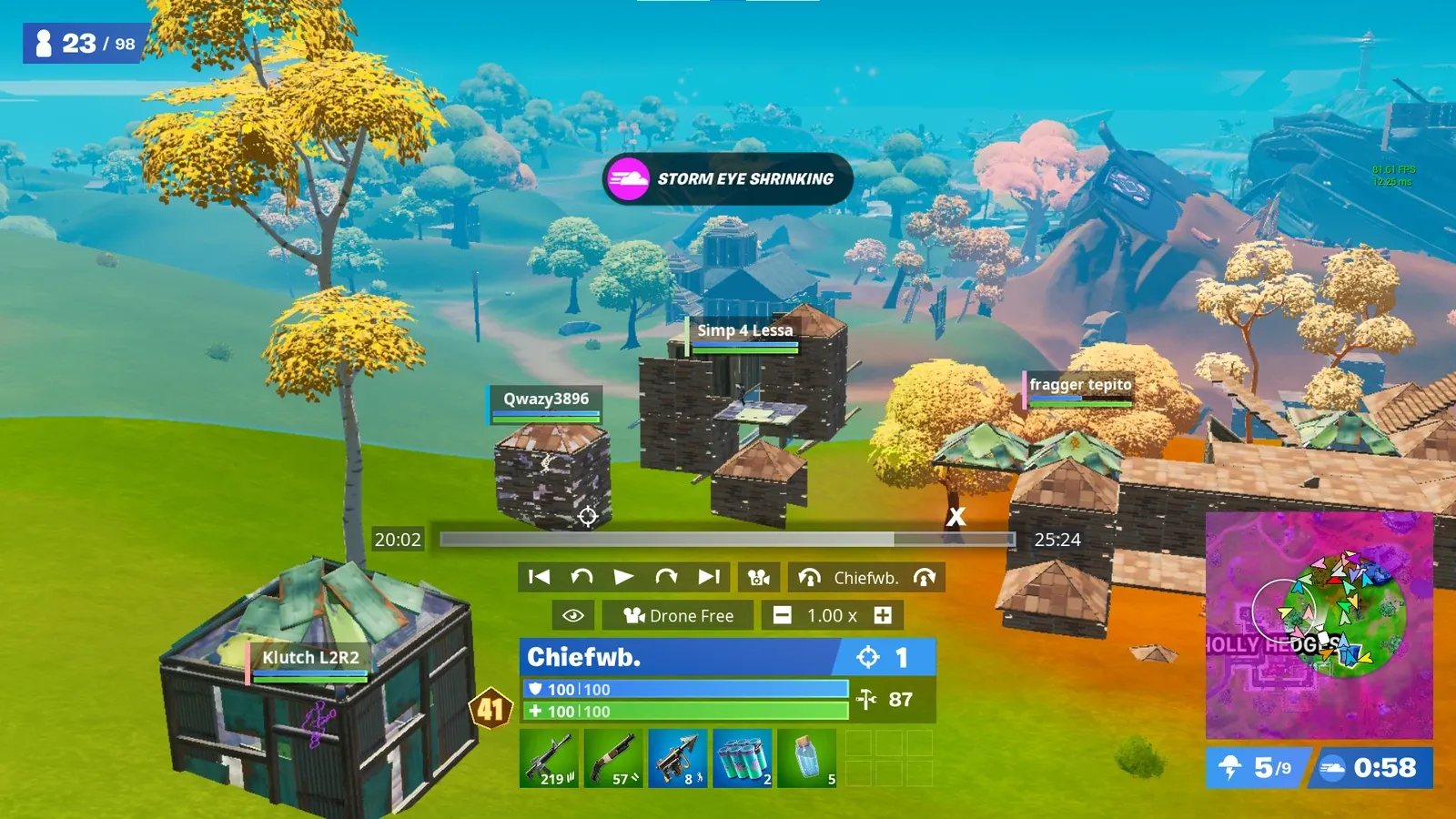
There are six camera modes, and they are not equally useful for review.
- Gameplay — the camera exactly as it was during the match. This is your baseline: it shows you what you could actually see.
- Third Person — follows the player, you can only rotate. Tight and stable, good in boxes.
- Drone Follow — the camera stays pointed at your subject while you fly it around freely.
- Drone Attach — trails the player over the shoulder, adjustable but not locked on.
- Drone Free — total free-cam, no automatic assistance at all.
- Battle Map — top-down with player paths and storm circles overlaid. Tournament replays only.
For review, you want exactly two: Gameplay and Drone Free. Gameplay tells you what information you had. Drone Free tells you what information existed. Watch the death once in Gameplay, then rewind and watch the same window in Drone Free from thirty meters above and behind — the enemy's whole approach usually becomes embarrassingly obvious. That contrast between "what I saw" and "what was there" is the review. The over-the-shoulder drone modes are for making clips look good, which is a different hobby.
The replay settings also include a Focal Length slider running from 10 mm to 200 mm, plus toggles for player outlines and name plates. Turning name plates on and cranking focal length up is genuinely useful for tracking a distant rotating team you never noticed.
The four-question death review

You don't need to watch a whole match. You need roughly the fifteen seconds before you died, and four questions. Answer them out loud, because the honest answer is harder to dodge when you say it.
- When did the enemy first become visible or audible to me? Scrub back until they enter your screen or your audio range in Gameplay cam. If the answer is "eight seconds before I reacted," the problem isn't your aim, it's your camera discipline. This is the question that catches the most deaths.
- Was I in a defensible position when the fight started? Drone Free above yourself and look at the ground you were standing on. Open low ground with three approach angles is a death sentence regardless of how you shoot.
- Did I have the resources to win, and did I use them? Check your own mats, heals, and mobility items at the start of the fight. Losing with 400 wood and a full stack of shields is a decision problem, not a mechanics problem. Same for the mobility item you never popped.
- Was this fight worth taking at all? Look at the player count and the storm timer in the replay HUD. A 50/50 duel at 60 players alive with no zone pressure is a fight you chose to lose. Our third party guide is largely about that judgment.
Answer those four, write one sentence about the pattern, and requeue. Two deaths reviewed properly beats twenty reviewed lazily.
Slow it down until the mistake is obvious
Playback speed in the replay client runs from 0.10x all the way to 4.00x, and that range is doing more work than people realize.
Use 4.00x to skip dead air — the parachute, the looting, the long rotation with nothing happening. Use 0.25x or 0.10x on the two seconds where the fight turned. At a tenth speed you can see the exact frame you started your edit, the exact moment you stopped strafing, whether you swapped weapons before or after taking the first shotgun blast. Full-speed fights are a blur to your eye and always will be; that's not a skill issue, it's a frame rate issue in your head.
There's a specific trick here: run the same three seconds at 0.10x three times, watching one thing each pass. First pass, watch your crosshair only. Second pass, watch your feet and movement. Third pass, watch what the enemy did. Trying to watch all three at once is how you come away thinking "yeah I just missed."
Review rotations, not just fights
Deaths get the attention, but a lot of games are lost twenty seconds before the shooting. Replays are unusually good at exposing that because you can fly the camera to where you should have been.
Pick a game where you got caught in the storm or arrived at the zone with no high ground. Fast-forward to the moment the circle was announced, then Drone Free straight to the new zone edge and look at the terrain between you and it. You'll see the ridge you could have taken, the road you should have crossed early, the team that beat you there by ten seconds. Pair this with our Fortnite rotation guide and it stops being abstract advice — you're looking at the actual map from the actual match where it cost you.
The same trick applies to endgame. Fly the camera up during the final circles and watch how the surviving teams distributed themselves. You'll learn more about endgame positioning from three of those flyovers than from a dozen highlight videos.
Tournament replays are the uncapped version

The replays you pull from the Compete tab are a different animal. Tournament replays have none of the personal-replay limitations: no 250-meter bubble, full enemy health and shield values, visible inventories and material counts, and access to the Battle Map camera with player paths and storm circles overlaid.
That makes them free study material. You can load a tournament match you weren't in, follow a top player for a full game, and see their exact mats, their exact heals, and their exact route on the Battle Map. Not a highlight reel — the full game, including the quiet parts. If you're grinding cash cups and competitive, watching one strong player's full endgame at 0.5x with the Battle Map open is a useful way to study their decisions.
One HUD note that saves confusion: the replay client shows a build count next to health and shield, calculated as the player's total materials divided by 10, since a build piece costs 10 mats. It's showing you how many walls someone can physically place, which is a much more useful pressure read than a raw mats number.
Save it before the patch kills it
This is where good replays get lost, so it gets its own section.
Replays only play back on the patch they were recorded on. A replay isn't a video file — it's a set of instructions the server uses to recreate the match using the current game build. When an update changes the map, the loot pool, or the mechanics, those instructions no longer describe anything the new build can construct. The client will straight up prompt you to delete replays from previous updates.
So the workflow is: if a match matters, save and rename it the same day, and if it really matters, record it to actual video before the next patch drops. Screen-record your own review pass at 0.25x while you're doing it — that footage survives updates, the replay does not.
Build the habit into your warmup instead of treating it as homework. Before you queue, open the last replay, run one death through the four questions, close it. Five minutes. Our warmup and practice routine has room for it, and it is a far better use of those five minutes than another lap of an aim course. Mechanics get you out of the fight. Reviewing gets you out of entering the fight.
Quick Action Checklist
- Open Career then Replays after a session — the game already saved your matches
- Rename and save anything worth studying before the rolling buffer eats it
- Watch each death twice — once in Gameplay cam, once in Drone Free
- Ask the four questions: when was he visible, was my position defensible, did I use my resources, was the fight worth taking
- Use 4.00x to skip dead air, 0.10x on the two seconds that mattered
- Run the same clip three times, watching crosshair, then movement, then the enemy
- Fly to the next zone on a rotation you lost and look at the ground you skipped
- Pull tournament replays from Compete for uncapped info and the Battle Map camera
- Record video of anything important — a patch will invalidate the replay file
- Remember the 250 m bubble — don't chase enemy details a personal replay never stored
Frequently Asked Questions
How do you watch replays in Fortnite?
Why do my Fortnite replays stop working after an update?
What camera modes does Fortnite Replay Mode have?
Why can I not see enemy health or inventory in a Fortnite replay?
What playback speeds does the Fortnite Replay Client support?
Is Fortnite Replay Mode available on all platforms?
Keep Reading
Related Guides
Fortnite Reload Nitemare Island: Map, Loot and Rewards
Nitemare Island came back to Reload on October 8 with something the 2025 version never had: a match modifier that can hand you a rival and pays out a reward from Kado Thorne when you drop them. Here is the map, the three-map rotation it has sat in since the Squid Grounds weekend, the loot Epic lists as Nitemare-specific, and what the new Ranked and Map Mastery tracks pay.
Fortnite Blitz Royale Guide: How the 5-Minute Mode Works
Blitz Royale was meant to close on July 15, 2025. More than fifteen months later it has its own dev team and a victory emote you can only earn inside it, though the $1,000,000 mobile tournament that debuted in it now runs in Reload. Here is how a match actually runs: the kit everyone lands with, what Blitz Levels pay out, where the gold loot is, how fast the storm kills, and what Epic's v43.00 Blitz notes changed on November 1, 2026.

Fortnite Kingdom Hearts Skins: Price, Keyblade and More
Our Chapter 7 Season 4 weapons post named the Kingdom Key and Rebecca's Guns as arrivals Epic had announced but not shipped — 'neither is in the pool today,' it said on September 2. Update v42.20 shipped both on September 17, plus a four-skin Kingdom Hearts bundle that sold in the Item Shop until October 1, four new Sprites, and six new Match Overrides. Here's what actually landed, what it cost, and what has changed since.
Fortnite OG Season X: The BRUTE and Rift Zones Return
Our OG mode guide explains how the permanent playlist works in general. It doesn't tell you what's live right now, because that changes every season — and on September 3, the tenth one brought back a two-person mech, a fully automatic sniper, and the first of a rotating set of Rift Zones with rules of their own.
Fortnite Weapon Tier List: How to Rank Any Loot Pool
Any Fortnite tier list is stale the second a patch drops. So instead of memorizing one season's gun names, learn how to rank weapons by class and role — the framework that's S-tier in every season.
Best Fortnite Settings for PC & Console
Half your settings menu is noise; a handful of options decide whether you can see, aim, and build. Here's what to change on PC and console, why, and the one number nobody else can pick for you.