Fortnite Ping and Packet Loss: Why You Die Behind Cover
Your wall went up, your edit reset, your shot connected — and the server disagreed with all three. Here's how to read your ping and packet loss in-game, test it against Epic's own servers, and fix the parts you actually control.
You pushed the box, you hit the shot, no hitmarker came, and a second later you were in the death cam watching a version of the fight where you never landed anything. Then you noticed the guy who killed you was on a different continent's time zone and decided the servers were cooked.
Sometimes they are. Far more often it's your own line, and the useful part is that Fortnite ships with everything you need to tell those two apart in about ninety seconds. Not vibes — an actual number for your latency and an actual number for your packet loss, plus a set of Epic-run endpoints you can ping from a command prompt to prove where the problem lives.
This is the network guide, not the frame rate guide. If your issue is stutter, low FPS, or input lag from your own machine, that's the Fortnite performance and FPS guide instead — different dial entirely. A rig pushing 240 frames on a bad connection still loses box fights.
The death that happens on someone else's screen
Fortnite, like every shooter that isn't turn-based, lies to you on purpose. When you press W, your client moves you immediately instead of waiting to hear back from the server, because a game where every input waited for a round trip would feel like moving furniture underwater. That's client-side prediction, and it's the right call.
The catch is that the server, not your PC, is the one that decides what really happened. Damage, eliminations, build placements, edit confirms — all of it gets validated server-side. Your ping is simply how long it takes for your version of reality and the server's version to reconcile.
So the practical model to hold in your head: you are always looking at a slightly old copy of where everyone else is. How old depends on your latency. If you're sitting at 90 ms and the player pushing you is at 20 ms, you are seeing him further back in time than he is seeing you. He rounds the corner and gets a head start on the trade that has nothing to do with his aim. That's peeker's advantage, and it's not a conspiracy — it's the unavoidable cost of a responsive-feeling game.
The part players get wrong is assuming high ping is an advantage. It isn't. Your inputs also take that long to reach the server, so the delay is charged in both directions. High ping doesn't make you harder to kill; it makes every fight you take resolve on information you didn't have.
Turn on Net Debug Stats before you blame anything
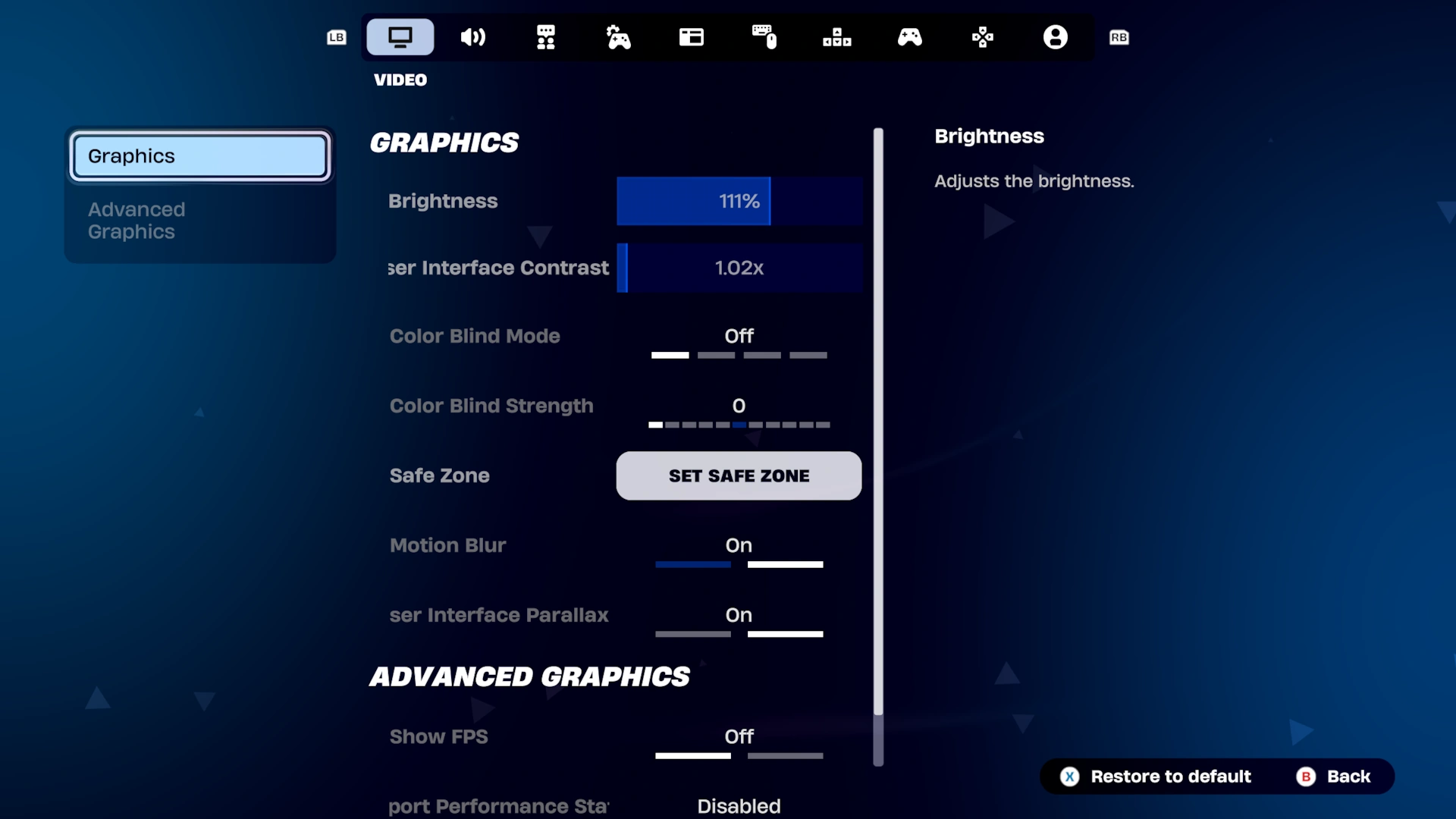
Epic's own support docs spell this out, and almost nobody does it. To see your ping and packet loss live in a match:
- Select your player icon in the upper right to open the social panel.
- Select the gear icon to open Settings.
- Open the Game UI tab.
- Under the HUD section, turn on Net Debug Stat.
Then queue. You have to actually be in a match for the numbers to mean anything — the lobby won't show you real results. The toggle sits alongside the other HUD visibility options like the elimination feed and quest progress, so if you've ever turned off the pickup loot stream, you've already been on this screen.
Leave it on permanently. It costs you a tiny corner of screen space and it converts every "the servers are broken" argument into a number you can screenshot. Once you can see your loss percentage during the exact game where everything felt wrong, you stop guessing.
Ping, packet loss, and jitter are three different problems
They get used interchangeably in voice chat and they are not the same thing at all. Each one breaks something different.
Ping is the round-trip travel time between you and the server, in milliseconds. It's a distance-and-routing number. A steady 80 ms is a handicap you can play around; you'll lose more even trades, but nothing feels broken.
Packet loss is data that never arrived. Not late — gone. The server never heard the input, so as far as the game is concerned it never happened. This is what's behind "I definitely hit that edit and nothing happened." Anything above 0% is worth chasing. Loss is categorically worse than latency, because latency delays your input and loss deletes it.
Jitter is the variance in your ping. It's the least discussed and, for a game built on build-and-edit timing, arguably the most damaging. Here's the claim I'll defend: a flat 80 ms is more playable than an average of 45 ms that spikes to 200. Your hands can calibrate to a consistent delay — every good player on a distant server does exactly that. Nothing calibrates to randomness. If your average looks fine but the game feels awful in bursts, you have a jitter problem, not a ping problem, and the fix is usually the physical connection rather than the region.
The physics floor no booster can beat
Light in fiber travels at roughly two thirds of its speed in a vacuum — call it about 200 km per millisecond. Since ping is a round trip, every 100 km between you and the datacenter costs you about 1 ms, and there is no product on earth that sells you a discount on that.
Run the numbers on a real route. New York to Los Angeles is about 3,900 km in a straight line, which puts the theoretical floor around 40 ms even over a perfectly direct fiber path with zero equipment in between. Real routing is never straight and every hop adds processing time, so a genuinely good coast-to-coast connection lands in the 60s. That's the good outcome.
This is the honest frame for every "ping booster" subscription you've seen advertised on a Fortnite clip. A routing service can sometimes help if your ISP is handing your traffic to a congested exchange point and sending it a stupid way around. It cannot move the datacenter closer to your house. If you're playing on a server on another continent, no software fixes that — only picking a different region does.
The eight regions, and what Auto actually does
Fortnite runs eight matchmaking regions:
| Region | Abbreviation | Coverage |
|---|---|---|
| NA-East | NAE | Canada (Atlantic), US Atlantic Coast, the Caribbean |
| NA-Central | NAC | Central United States and Mexico |
| NA-West | NAW | Canada (Pacific), US Pacific Coast |
| Europe | EU | Europe and North Africa |
| Oceania | OCE | Australia, New Zealand, South Pacific islands |
| Brazil | BR | South America |
| Asia | ASIA | Russian Far East, Japan, Korea, Greater China, Southeast Asia |
| Middle East | ME | Arabian Peninsula, East Africa, South Asia |
You change it in Settings → Game tab → Language and Region → Matchmaking Region, then hit Apply. The dropdown shows your live ping in milliseconds next to each region, which makes it a free latency test you can run from the lobby. Auto picks the region with the best ping for you, and Epic's official recommendation is to leave it there — with the caveat that if you're still getting latency issues, manually trying neighbouring regions is worth doing.
Two things that quietly ruin people's ping and never get mentioned:
- The party leader's region wins. When you queue as a group, the game connects everyone to the region the party leader is in. Your NA-East duo partner passing the lead to a friend in Europe puts the whole squad on EU, and you'll spend the session wondering why your edits feel syrupy. If someone in your trio has noticeably worse ping than usual, check who's holding the crown before you check anything else.
- Your current region is displayed in the lobby, top right corner, below your V-Bucks count. Ten seconds of looking beats twenty minutes of theorising.
For competitive, it matters more. Tournaments that aren't region locked — Cash Cups among them — let players compete in the same event across different regions, while region-locked events only let you play in the region you've designated as your home region. If you're grinding cash cups and competitive, know which category your event falls into before you move regions chasing easier lobbies.
Test your ping outside the game
This is the step that separates "Fortnite is stuttering" from "my internet is bad," and Epic makes it easy by publishing a ping endpoint for every datacenter:
- NA-East —
ping-nae.ds.on.epicgames.com - NA-Central —
ping-nac.ds.on.epicgames.com - NA-West —
ping-naw.ds.on.epicgames.com - Europe —
ping-eu.ds.on.epicgames.com - Oceania —
ping-oce.ds.on.epicgames.com - Brazil —
ping-br.ds.on.epicgames.com - Asia —
ping-asia.ds.on.epicgames.com - Middle East —
ping-me.ds.on.epicgames.com
On Windows, open a command prompt and run ping ping-nae.ds.on.epicgames.com -n 50 (swapping in whichever region you play). That sends 50 packets and reports your average latency and how many were lost. On macOS, open Network Utility, go to the Ping tab, enter the endpoint, set it to 50 pings, and run it.
Fifty packets is the important part. A four-packet default test tells you almost nothing about a connection that drops traffic in bursts. Run 50 during your normal play hours, then run 50 again at a quiet hour. If the evening test loses packets and the morning test doesn't, that's a congestion story — and Epic says outright that sudden ping spikes are usually down to how your ISP is routing traffic through internet exchange points that can be congested or down.
That output is also your leverage. "The game feels bad" gets you a script from ISP support. "I'm dropping 4% of packets to this specific host across 50 pings, here's the log" gets you an actual technician.
Why bad connections wreck building specifically
Every shooter suffers from latency. Fortnite suffers differently, because building is the highest-frequency server-validated action in any mainstream competitive game. A single box fight can be dozens of placements, edits, and resets — each one a request the server has to accept or reject.
That's why the symptoms look like this:
- The wall that "didn't go up." It went up on your screen instantly, because your client predicted it. The server saw the other player's wall arrive first in its own timeline and awarded the piece to them. You watched your build appear and then evaporate.
- The edit that reset late. You hit the edit, confirmed, and shot — but the reset reached the server after your shot did, so your bullet met a wall that was still solid server-side. On a clean connection those two events are ordered correctly; with loss or a spike, they aren't.
- Taking damage through a piece you already placed. Same mechanism, opposite direction. Their shot was validated before your wall was.
None of that is a mechanics problem, which is why grinding edit courses won't fix it. What does help on a bad night is changing which fights you take. Widen your timing windows: prefer high-ground retakes and pressure from range over 50/50 box fights that come down to who edited first by 60 milliseconds. Fast piece control is the single most latency-sensitive skill in the game, so on a night where your loss percentage is nonzero, stop playing the version of Fortnite that depends on it.
Zero Build players don't escape this, they just get a different flavour: no build desync, but the same hit-registration disagreements and the same peeker's advantage, with less cover to hide the difference. Our Zero Build guide covers the positioning side.
The fixes that actually work
Epic's own troubleshooting list, plus the parts worth emphasising:
- Use a wired ethernet connection. Wi-Fi can introduce jitter and loss through signal interference, which a cable avoids.
- Restart your modem and router. It's the joke fix and it works far more often than it should, particularly for loss that appeared out of nowhere.
- Move the router. Closets, basements, and blocked spaces are exactly where routers end up and exactly where they perform worst.
- Update your router firmware, and if it's ancient, consider that a faulty or aged router can be the whole problem.
- Switch Wi-Fi bands if you must be wireless. 2.4 GHz reaches further but is crowded with every other device in the building; 5 GHz is faster with shorter range. Test both — the right answer is entirely dependent on your walls.
- Clear the household bandwidth. Someone streaming 4K or running a large download on the same connection is a real, measurable effect, not a superstition.
- Call your ISP with numbers. If the problem is upstream routing, nothing you do at home fixes it, and the 50-packet log is what makes that conversation productive.
The launcher argument almost nobody uses
This one is straight out of Epic's packet loss documentation and I've never once seen it mentioned in a settings video. If you're on PC and seeing packet loss specifically:
- Open the Epic Games Launcher.
- Click your profile icon and select Settings.
- Scroll down and expand Fortnite.
- Check the box for Additional Command Line Arguments.
- Type
-limitclientticksinto the field.
It throttles network updates from your client, which can reduce loss on a connection that can't keep up with the full update rate. Two honest caveats. First, it's aimed at packet loss, not latency — if your Net Debug Stats show 0% loss and a high ping, this does nothing for you and you should skip it. Second, throttling your update rate is a trade, not free performance: you're sending the server fewer updates to help them all arrive.
But it's an official, free, first-party mitigation, which puts it several tiers above the paid "ping optimiser" software that gets advertised at Fortnite players. Try Epic's own switch before you subscribe to anything.
What ping is not an excuse for

Here's the part that costs people more rank than their connection ever did.
Latency only matters in roughly the last two seconds of a fight you already chose to take. It has no effect on where you landed, whether you rotated early, whether you had mats for the endgame, or whether you pushed a team with a third party sitting on the ridge behind you. Those are the deaths that make up the bulk of anyone's losses, and they are all decisions made in conditions where a hundred milliseconds is irrelevant.
There's a clean way to test this on yourself. Open your last ten deaths in Replay Mode and sort them into two piles: fights that came down to hit registration or an edit that didn't land, versus fights you entered from bad ground, with no mats, into more players than you counted. I've never seen anyone run that exercise and come back with the first pile bigger.
Fix your connection because a fixable handicap is worth fixing and because the numbers take ten minutes to gather. Then go back to losing games for the normal reasons, like everyone else.
Quick Action Checklist
- Turn on Net Debug Stat — Settings, Game UI tab, HUD section — and leave it on
- Check loss before ping. Anything above 0% loss outranks a high but stable latency number
- Read your region in the lobby, top right under the V-Bucks count
- Check who's party leader — the group connects to the leader's region, not yours
- Use the region dropdown as a ping test — it shows live ms for all eight regions
- Run 50 packets at Epic's endpoint for your region during your normal play hours
- Run wired ethernet if there is any physical way to do it
- Restart the modem and router before assuming the servers are at fault
- Try
-limitclientticksin the launcher's command line arguments if — and only if — you have measurable packet loss - On a bad-connection night, change the fights you take instead of forcing box fights you'll lose to timing
Frequently Asked Questions
How do you see your ping in Fortnite?
What are all the Fortnite server regions?
Is packet loss worse than high ping in Fortnite?
Why does my Fortnite ping suddenly spike?
Does the party leader affect which server Fortnite connects to?
What does -limitclientticks do in Fortnite?
Keep Reading
- Epic Games — Fortnite latency and ping troubleshooting, including per-region ping endpoints
- Epic Games — How to check for packet loss in Fortnite and the -limitclientticks argument
- Epic Games — How to change your matchmaking region in Fortnite
- Fortnite Wiki — Server Regions, abbreviations, coverage and party leader behaviour
- Fortnite Wiki — Settings reference, including Net Debug Stats and Matchmaking Region
Related Guides
Fortnite Reload Nitemare Island: Map, Loot and Rewards
Nitemare Island came back to Reload on October 8 with something the 2025 version never had: a match modifier that can hand you a rival and pays out a reward from Kado Thorne when you drop them. Here is the map, the three-map rotation it has sat in since the Squid Grounds weekend, the loot Epic lists as Nitemare-specific, and what the new Ranked and Map Mastery tracks pay.

Fortnite Blitz Royale Guide: How the 5-Minute Mode Works
Blitz Royale was meant to close on July 15, 2025. More than fifteen months later it has its own dev team and a victory emote you can only earn inside it, though the $1,000,000 mobile tournament that debuted in it now runs in Reload. Here is how a match actually runs: the kit everyone lands with, what Blitz Levels pay out, where the gold loot is, how fast the storm kills, and what Epic's v43.00 Blitz notes changed on November 1, 2026.

Fortnite Kingdom Hearts Skins: Price, Keyblade and More
Our Chapter 7 Season 4 weapons post named the Kingdom Key and Rebecca's Guns as arrivals Epic had announced but not shipped — 'neither is in the pool today,' it said on September 2. Update v42.20 shipped both on September 17, plus a four-skin Kingdom Hearts bundle that sold in the Item Shop until October 1, four new Sprites, and six new Match Overrides. Here's what actually landed, what it cost, and what has changed since.
Fortnite OG Season X: The BRUTE and Rift Zones Return
Our OG mode guide explains how the permanent playlist works in general. It doesn't tell you what's live right now, because that changes every season — and on September 3, the tenth one brought back a two-person mech, a fully automatic sniper, and the first of a rotating set of Rift Zones with rules of their own.
Fortnite Weapon Tier List: How to Rank Any Loot Pool
Any Fortnite tier list is stale the second a patch drops. So instead of memorizing one season's gun names, learn how to rank weapons by class and role — the framework that's S-tier in every season.

Best Fortnite Settings for PC & Console
Half your settings menu is noise; a handful of options decide whether you can see, aim, and build. Here's what to change on PC and console, why, and the one number nobody else can pick for you.