Minecraft Command Blocks Guide for Beginners
Command blocks are the cheat code Minecraft hands you on purpose — a block that runs any command, on a button press or on a loop, with no mods. Most beginners never touch them because the wiki makes them look terrifying. They aren't. Here's how to get one, what the three colors actually do, and three builds you can make in five minutes.
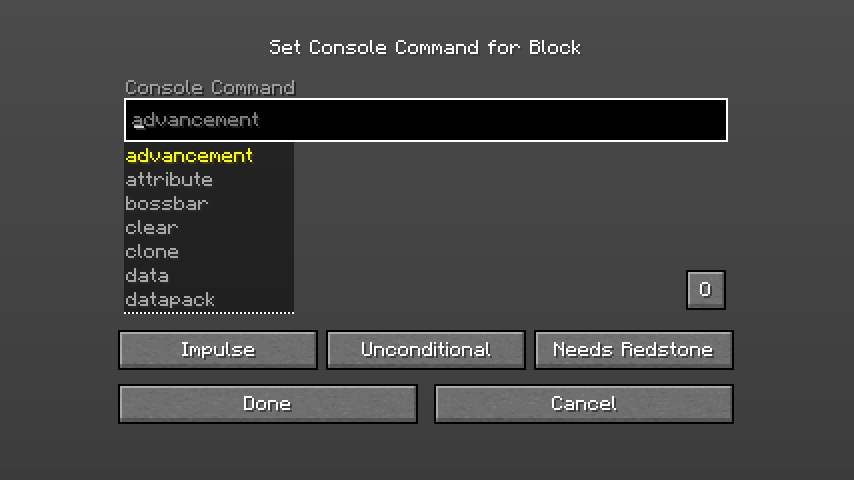
A command block is a block that runs a command for you. That's the whole concept. Anything you can type into chat with a slash — give yourself items, teleport, change the time, summon a mob, fill a region with blocks — a command block can do automatically, on a button press, on a redstone pulse, or on an endless loop. No mods, no datapacks, nothing to install. It's built into the game.
Most beginners bounce off command blocks because every tutorial drops the word "conditional" and a wall of @e[type=...] selectors in the first thirty seconds and you nope out. Forget all that. You need to understand exactly three things — how to get one, what the three colors do, and two little toggles — and then you can build teleporters, item dispensers, and effect machines tonight. We'll do the scary selector stuff only where you actually need it.
What a command block actually is
A command block looks like a normal block, but inside it lives a single command and a few settings. When the block "activates," it runs its command as if an operator typed it. That's it. The settings are just when and how it runs:
- The type (impulse, chain, or repeat) controls the trigger pattern — once, in sequence, or every tick.
- The condition (conditional or unconditional) controls whether it cares if the block before it succeeded.
- The redstone mode (needs redstone or always active) controls whether it waits for a redstone signal.
Three knobs. Once you know what each one does, the rest is just learning which commands to type, and those you can copy.
How to get a command block
Here's the first thing that trips people up: command blocks are not craftable. There is no recipe. You cannot make one at a crafting table, and you won't find one in the creative inventory's normal tabs. You get one by running a command, which means you need cheats enabled (operator permissions) on the world.
On both editions, the command is:
/give @s command_block
(@s means "self" — you. On Java you can also write the long form /give @s minecraft:command_block.) Run that with cheats on and a command block drops into your inventory.
A few hard rules that catch everyone:
- You need operator/cheats access to use
/give, and you need to be in Creative mode to place a command block, open it, or break it. In Survival you can't interact with one even if it's already placed. - On a server, you must be an op and the server must allow command blocks (
enable-command-block=trueinserver.properties). - You open the command block's GUI by right-clicking it in Creative. That brings up the text box where you type the command, plus the buttons for the type, condition, and redstone mode.
So the realistic setup for learning is: a single-player Creative world with cheats on, or a world where you've toggled cheats. Get one block, place it, right-click it, and you've got the editor open.
The three types: impulse, chain, repeat
Click the type button in the top-left of the command block GUI and it cycles through three colors. Each one is a different trigger behavior, and the color tells you which is which at a glance.
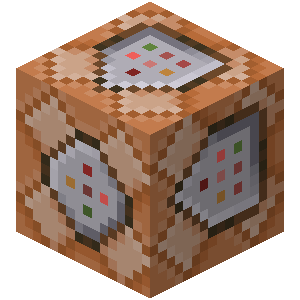
- Impulse (orange) — runs once. This is the default and the one you'll use most. It fires its command a single time each time it gets activated (a button press, a redstone pulse). Press the button again, it fires again. Perfect for "do this thing when I push the button": give an item, teleport, set the time.
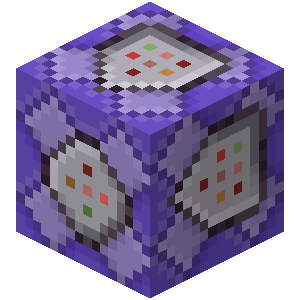
-
Repeat (purple) — runs every tick. While it's active, it executes its command every single game tick — 20 times a second. This is for things you want to happen continuously: constantly checking if a player is standing on a pressure plate, reapplying a potion effect, keeping the time locked. Powerful, but be careful — a repeat block running a heavy command 20 times a second can lag your world.
-
Chain (cyan) — runs in sequence. A chain block does nothing on its own. It only runs right after the command block pointing into it runs (you point command blocks by placing them facing each other). This lets you queue up a sequence: block A runs, then chain block B runs, then chain block C, all in order, in the same tick. You build multi-step machines by lining up one impulse or repeat block feeding into a row of chain blocks.
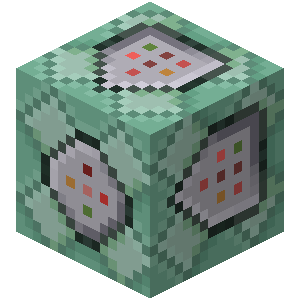
The mental model: impulse for one-shots, repeat for loops, chain to string steps together. Ninety percent of beginner builds are a single impulse block on a button. You won't touch chains until you're stringing several commands into one action.
Conditional vs unconditional
The second button toggles between Unconditional and Conditional, and it only matters when you chain blocks together.
- Unconditional (the default) means the block runs no matter what happened before it. Standalone blocks should always be unconditional.
- Conditional means the block runs only if the command block behind it (pointing into it) succeeded. If the previous command failed — say it tried to teleport a player who wasn't there — a conditional block downstream skips its command.
You use conditional to build "if this worked, then do that" logic across a chain. Example: an impulse block checks whether a player is in a region, and a conditional chain block after it only fires if that check passed. For your first builds, leave everything unconditional — you'll know when you need the other mode, and it's a one-click change.
Needs redstone vs always active
The third button toggles how the block gets switched on.
- Needs Redstone means the block only runs when it receives a redstone signal — a button, lever, pressure plate, redstone torch, or any powered component next to it. This is the default for impulse and repeat blocks, and it's what you want for anything triggered by player action. Button press sends a pulse, block fires.
- Always Active means the block runs without any redstone, immediately and continuously (for repeat blocks) or once on placement (for impulse). This is the default for chain blocks, and it's how you make a repeat block that just runs forever the moment you place it — no button, no wiring.
So a repeat block set to Always Active is your "run this command forever, starting now" setup — great for locking the time of day or keeping a region cleared. A single impulse block set to Needs Redstone on a button is your "run this when I press the button" setup. Those two combinations cover almost everything a beginner builds.
Useful starter commands
Here are the commands that pay off immediately in a command block. Drop one of these into the text box and you've got a working machine.
| Command | What it does |
|---|---|
/give @p diamond 64 | Gives the nearest player 64 diamonds (swap diamond for any item) |
/tp @p 100 64 -200 | Teleports the nearest player to coordinates X=100, Y=64, Z=-200 |
/time set day | Sets the world to daytime |
/weather clear | Stops rain and storms |
/effect give @p speed 999999 2 | Gives the player Speed II effectively forever |
/setblock ~ ~1 ~ stone | Places a stone block one above the command block |
/fill ~-2 ~ ~-2 ~2 ~ ~2 air | Clears a 5x5 area of blocks at the block's level |
/gamemode creative @p | Switches the nearest player to Creative |
Two pieces of syntax worth knowing right now:
- Target selectors are the
@shorthand:@p= nearest player,@s= the command block's executor (effectively the nearest player for a command block too in most cases),@a= all players,@e= all entities. For solo builds,@pis your workhorse. - Relative coordinates use the tilde
~.~ ~1 ~means "right here, but one block up." It's relative to the command block's own position, which makes builds portable — copy the block anywhere and it still works.
Build 1: a button item-giver
The "hello world" of command blocks. Press a button, get items.
- Place a command block. Right-click it, set the type to Impulse (orange) and the redstone mode to Needs Redstone.
- Type
/give @p diamond 64into the command line and confirm. - Place a button or a lever on the side of the command block (or wire one to it with redstone).
- Press the button. The nearest player — you — gets 64 diamonds. Press again for more.
Swap diamond for any item ID (netherite_ingot, golden_apple, oak_log) and the count for any number. This is the backbone of "kit" buttons on minigame maps.
Build 2: a teleporter
A pad you step on that whisks you somewhere. This is where command blocks start feeling like magic.
- Pick your destination and note its coordinates (press F3 on Java, or enable Show Coordinates in world settings on Bedrock).
- Place a command block under or beside where the pad will be. Set it to Impulse, Needs Redstone.
- Type
/tp @p 100 64 -200(your destination X Y Z). - Put a pressure plate on top of the command block (or wire a plate to it). Stepping on the plate sends the redstone pulse, the block fires, and you're teleported.
For a two-way teleporter, build the same thing at the destination pointing back at the origin. For a "teleport everyone" door, change @p to @a. This exact pattern is how adventure maps move you between scenes.
Build 3: an always-on effect loop
A region that constantly buffs (or affects) whoever's in it — a spawn area with permanent Speed, say.
- Place a command block, set it to Repeat (purple) and Always Active (no button needed — it starts the moment it's placed).
- Type
/effect give @a speed 2 1 true— this gives all players Speed for 2 seconds, and because the repeat block reapplies it 20 times a second, the effect never actually wears off. Thetruehides the particle spam. - That's it. Anyone in range now has permanent Speed while the block runs.
To make it region-limited rather than world-wide, you'd swap @a for a selector with a radius like @a[distance=..20] (everyone within 20 blocks). That's your first taste of selector arguments — and a reason to keep a repeat block's command light, since it's running constantly.
Java vs Bedrock syntax
Command blocks work on both editions, but the command syntax differs in small ways that will trip you up if you copy a command from the wrong edition.
- Item IDs: Java often wants the namespaced
minecraft:prefix (/give @s minecraft:diamond), though it's usually optional. Bedrock generally uses the short ID (/give @s diamond). - The
/effectcommand order is different. Java is/effect give @p speed 30 1(target, effect, seconds, amplifier). Bedrock is/effect @p speed 30 1— there's nogivekeyword, the target comes first. - Selectors are mostly shared (
@p,@a,@e,@s), but selector arguments diverge: Java uses@a[distance=..20], Bedrock uses@a[r=20]for radius. /setblockand/fillexist on both but block-state syntax differs (Java uses bracket block states likestone[...]; Bedrock uses a trailing data value or block-state JSON)./locate,/tp,/time set,/weather,/gamemodebehave the same on both for basic use.
The practical rule: figure out which edition you're on, and when you copy a command from a tutorial, check the /effect order and the selector-argument style first — those are the two that break most often across editions.
Quick Action Checklist
- Turn on cheats in a Creative world (you need operator access)
- Run
/give @s command_blockto get one — they aren't craftable - Place it and right-click in Creative to open the GUI
- Learn the three types: impulse (orange, once), repeat (purple, every tick), chain (cyan, in sequence)
- Leave blocks unconditional until you're chaining logic
- Use Needs Redstone for button triggers, Always Active for forever-loops
- Start with
/give,/tp,/time set, and/effect— they pay off instantly - Build a button item-giver, then a pressure-plate teleporter
- Check the
/effectorder and selector arguments when copying commands across Java vs Bedrock
Frequently Asked Questions
How do you get a command block in Minecraft?
What are the three types of command blocks?
What is conditional mode on a command block?
How do you make a teleporter with command blocks?
What does Always Active mean on a command block?
Are command block commands different on Java and Bedrock?
Keep Reading
Related Guides
Minecraft Rails and Minecarts Guide: Powered Rail Spacing
Everyone quotes the same minecart number — 8 blocks per second — and everyone quotes it slightly wrong. The cap is per axis, the spacing between powered rails has four different right answers depending on what is in the cart, and the gold bill for a track swings by a factor of ten based on whether you're sitting in it. Here are the actual figures.
Minecraft Crafter Guide: Auto-Crafting Without a Single Mod
The Crafter is the block that finally killed the 'just install a mod' answer to vanilla auto-crafting — and it's also the least intuitive redstone block Mojang has shipped. Here's the recipe, the slot-disabling trick everyone skips, the comparator rule that isn't the chest rule, and the hopper math that caps every build you'll make.
Redstone Basics: A Beginner's Guide to Minecraft's Wiring
Redstone is Minecraft's electricity, and most beginners bounce off it because nobody explains the one rule that makes it click: signal strength. Learn that, learn five components, and you can build doors, traps, and farms.
Minecraft Game Rules List: Every Rule and Its New Name
Java 1.21.11 renamed every game rule: keepInventory is keep_inventory now, doDaylightCycle is advance_time, and doFireTick is gone entirely. Here is the full list for Java 26.3 and Bedrock 26.50, with old names, new IDs, menu labels, defaults, and the 19 Bedrock rules that switch your achievements off for good.
Minecraft Survival Guide for Beginners: Your First Days
You have about ten minutes of daylight before the sun sets and the world tries to kill you. Here is exactly what to do with them — punch a tree, build a tool chain, and get a roof over your head before the zombies arrive.
Best Minecraft Enchantments, Ranked — The Ones Worth Your XP
Mending is the enchantment that ends the grind — gear that repairs itself forever. Everything else is a fight over your XP and anvil uses. Here is what actually earns a slot, ranked, with the real max levels.