PUBG Best Graphics Settings for High FPS
Pros don't run PUBG on low settings because their rigs are weak — they do it because flat, ugly graphics show enemies faster and feed a frame rate that makes tracking easier. Here's the exact PC tuning for max FPS and visibility.
PUBG pros run the game on settings that look like a PlayStation 2 game, and it's not because their machines can't handle better. A competitive PUBG config is a deliberate trade: you throw away the pretty foliage, the soft shadows, and the cinematic post-processing because every one of those is somewhere an enemy can hide and every frame they cost is a frame your aim doesn't get. Flat, ugly, and fast wins gunfights. Lush and cinematic loses them.
This is the PC tuning guide for exactly that — maximum frame rate and maximum visibility, in that priority order, because the two mostly point the same direction. We'll cover the settings that set your baseline, the ones to crush for frames, the handful worth keeping up because they help you see, the render-scale dial almost nobody touches, and the launch options that round it out. The rule behind every choice: does this setting help me spot and hit an enemy, or does it just look nice?
Why pros play PUBG on low settings
A high, stable frame rate is the single biggest competitive advantage a setting can give you, and it's not about the number bragging rights. More frames means lower input latency, smoother tracking of a moving target, and a clearer picture during the fast camera movement of a close fight. A player at a high, steady frame rate is reacting to a more current picture of the world than a player whose frames are dropping into the 50s every time foliage fills the screen.
The second reason is visibility. PUBG's environments are cluttered — grass, bushes, trees, haze, dark interiors — and the prettier settings actively work against you. Shadows pool in corners where players crouch. Post-processing adds bloom and color grading that wash out a distant silhouette. Heavy foliage gives a prone enemy more to hide in. Turning that stuff down doesn't just buy frames; it strips the camouflage off the people trying to kill you.
The mental model: PUBG graphics settings are not a quality dial, they're a visibility-and-frames dial. "Maxed out" is the worst competitive setting, because it spends your GPU budget and your screen clarity on things that help the enemy hide. You are tuning to win, not to screenshot.
The two settings that set your baseline
Before the per-setting tweaks, two choices anchor everything else.
Resolution and display mode. Run the game in Fullscreen (exclusive fullscreen) rather than windowed or borderless when you want the lowest input latency — it gives the game direct control of the display. Run your monitor's native resolution; dropping resolution to chase frames blurs distant targets, and you have a better tool for that (render scale, below). If you have a high-refresh monitor, this is where its value gets unlocked, so feed it frames.
Overall preset, then go manual. Start from the Very Low preset to get a clean, fast baseline, then selectively raise only the two or three settings that earn it for visibility. This is faster and less error-prone than dragging everything down from Ultra and missing one. Very Low is the floor most competitive configs build up from, not the config itself.
Turn these down or off for frames
These settings cost frames and, worse, several of them actively hurt visibility. Crush them:
- Post-Processing — Very Low / off. This is the big one. Post-processing adds bloom, color grading, and ambient effects that wash out distant enemy silhouettes and cost frames. Lowest setting, every time. It's the highest-value single change for both FPS and visibility.
- Shadows — Low (or Very Low). Shadows are expensive and they pool darkness in exactly the interior corners players hide in. Keep them low. Some players run them slightly above the floor purely so they can read an enemy's own shadow cast on the ground, but never high.
- Effects — Very Low. Explosions, smoke, and particle effects at high quality can tank your frames during the busiest, most important moments of a fight. Low keeps you smooth when it counts.
- Foliage — Very Low. Lower foliage means less grass and brush for a prone enemy to disappear into, and fewer objects for your GPU to draw. A double win — frames and visibility both.
- Motion Blur — off. Always. It smears the screen during the exact camera movement when you most need a sharp picture. There is no competitive case for motion blur in a shooter.
- V-Sync — off. V-Sync adds input latency to eliminate screen tearing. In a competitive shooter, latency loses more than tearing costs. Leave it off (a hardware sync like G-Sync/FreeSync is the better tearing fix if you have it).
The settings to keep high for visibility
A few settings earn their cost because they directly help you see and hit enemies. Don't blanket-low these:
- View Distance — high (Ultra if your frames allow). This controls how far out the world and players render. Crank it so you can spot distant enemies and read the terrain you're rotating into. It's one of the few "high" settings that's purely an advantage.
- Anti-Aliasing — medium to high. AA cleans up the jagged, shimmering edges that make a faraway enemy hard to resolve against a busy background. It's relatively cheap and it genuinely helps you pick a distant target out of the noise, so don't slam it to the floor.
- Textures — medium or higher if your VRAM allows. Higher textures help you distinguish a real player from environment clutter at range and don't cost frame rate much if you have the VRAM. Drop them only if you're VRAM-limited and stuttering.
The pattern: the settings worth keeping up are the ones about information at range — view distance, anti-aliasing, textures. The ones to crush are about atmosphere — post-processing, shadows, effects, foliage, motion blur. Sort every setting into one of those two buckets and the config writes itself.
Render scale: the frame rate dial everyone forgets
Render scale (sometimes "screen scale" or "resolution scale") is the most underused performance setting in PUBG. It renders the 3D world at a percentage of your screen resolution and then scales it to fit, while the HUD stays sharp. At 100% you're rendering full native; below 100% you trade some sharpness for a real frame-rate gain; above 100% (supersampling) you spend frames for a crisper image.
How to use it:
- Keep it at 100% if you can hold your target frame rate there. Below 100% blurs distant targets, which fights everything we just did with view distance and AA.
- Drop it slightly only if you're frame-starved after the tweaks above. A small reduction can rescue your frame rate on an older GPU without the blur of dropping your actual monitor resolution.
- Don't bother going above 100% for competitive play. Supersampling looks great and costs frames you'd rather spend on latency and smoothness.
Render scale is the dial to reach for after you've already crushed post-processing, shadows, and effects. It's the fine-tune that gets a borderline rig over the frame-rate line, not the first lever you pull.
Launch options and out-of-game tuning
A few things outside the in-game menu round out a fast PUBG config:
- Cap your frame rate near your monitor's refresh. An uncapped frame rate that swings wildly feels worse than a stable cap. Capping a few frames under your refresh rate (especially with G-Sync/FreeSync) keeps frame times consistent and latency low.
- Set PUBG to high priority in your OS and close background apps. Browser tabs, overlays, and chat apps quietly eat CPU. PUBG is CPU-sensitive in busy fights, so give it room.
- Update your GPU drivers and use the vendor's low-latency mode. NVIDIA Reflex (where supported) and the equivalent low-latency options shave input lag for free. Driver updates routinely include game-specific optimizations.
- Be careful with launch options. PUBG and its anti-cheat are sensitive to launch parameters, and aggressive command-line flags can cause crashes or trip anti-cheat. Stick to officially supported options and don't paste random
-flagsfrom a forum — the in-game settings and a frame cap do almost all the real work, safely.
The honest version: the in-game settings above are 90% of your frame rate. Launch options and OS tuning are the last few percent, and they carry more risk-per-reward, so set the safe ones (frame cap, drivers, low-latency mode, closing background junk) and don't chase exotic flags.
A sane starting config
Bring it together. Start here, then adjust to hit a stable frame rate at or near your monitor's refresh:
| Setting | Set to | Why |
|---|---|---|
| Display mode | Fullscreen | Lowest input latency |
| Resolution | Native | Use render scale to chase frames instead of blurring everything |
| Overall quality | Very Low (then go manual) | Clean fast baseline to build up from |
| Post-processing | Very Low / off | Biggest visibility + FPS win |
| Shadows | Low | Frames, and stops darkness pooling in hiding spots |
| Effects | Very Low | Keeps you smooth during busy fights |
| Foliage | Very Low | Less cover for prone enemies, more frames |
| Motion blur | Off | Smears the screen exactly when you need it sharp |
| V-Sync | Off | Removes input latency (use G-Sync/FreeSync instead) |
| View distance | High / Ultra | Spot distant enemies and read terrain |
| Anti-aliasing | Medium–High | Resolves distant targets against busy backgrounds |
| Textures | Medium+ (VRAM permitting) | Distinguish players from clutter at range |
| Render scale | 100% (drop only if frame-starved) | Native sharpness; the last dial to touch |
Once your visuals are tuned for frames and visibility, the rest of the win is your sensitivity and your aim. Pair this config with the settings and sensitivity guide to dial in your mouse, the recoil control guide to tame your spray, and the advanced tips for the habits that out-rank raw aim. On console? The graphics menu works differently, so see the console settings guide instead.
Quick Action Checklist
- Run Fullscreen at native resolution; feed a high-refresh monitor frames
- Start from the Very Low preset, then raise only what helps you see
- Post-processing to the floor — it's the biggest visibility and FPS win
- Shadows, effects, and foliage low; motion blur and V-Sync off
- Keep view distance high, anti-aliasing medium–high, textures medium+ if VRAM allows
- Leave render scale at 100% unless you're frame-starved, then drop it slightly
- Cap your frame rate near your refresh rate and enable a low-latency mode
- Update GPU drivers and close background apps; avoid risky launch flags
- Aim for a stable frame rate over a high-but-spiky one
Frequently Asked Questions
What are the best graphics settings for high FPS in PUBG?
Why do PUBG pros play on low settings?
What is render scale in PUBG and should I lower it?
Should I turn off V-Sync and motion blur in PUBG?
Which PUBG settings should I keep high for visibility?
Are PUBG launch options safe to use for more FPS?
Keep Reading
Related Guides

What Is POBG? PUBG's Maintenance Mode Mini-Game
Update 42.3's patch notes name-drop a feature called POBG: Maintenance Mode and move on. It is not new — KRAFTON built it for April Fools 2021 as a chicken-uprising arcade shooter voiced by a villain called PlayerOmnom, then brought it back again as a full event mode in Update 37.1, August 2025. Here is what the 42.3 notes actually confirm about this third appearance, and what they leave unstated.
PUBG Crosshair Customization and Settings Sharing
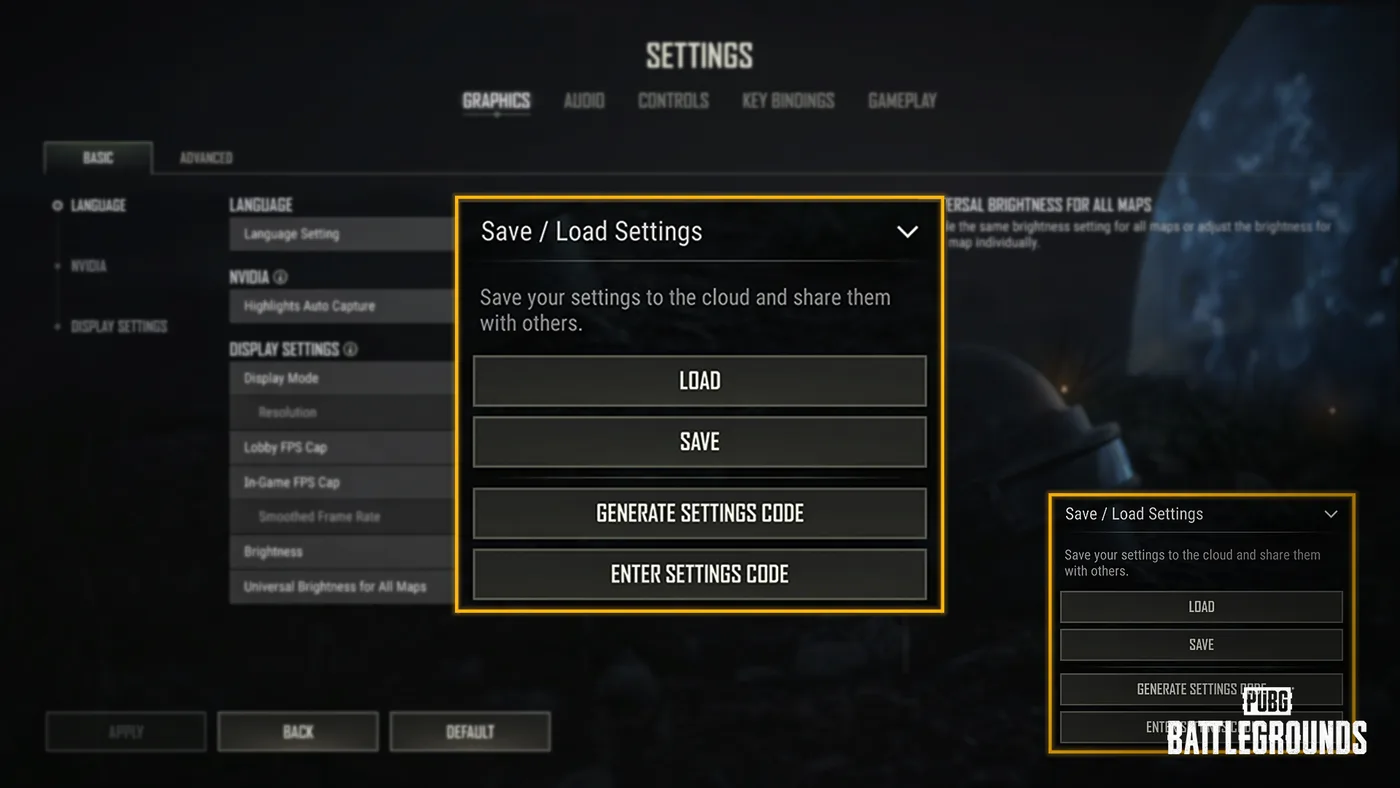
Update 42.3 led with the RPD and the LMG Meta Rotation, but the same patch notes added a crosshair editor with four weapon profiles and a settings code that copies your setup onto someone else's machine. Here is every option KRAFTON listed, the two carve-outs that limit it, what a shared code does and does not carry, and the rest of the settings rebuild that shipped alongside it.
PUBG Secondary Password: How to Set It Up for Ranked
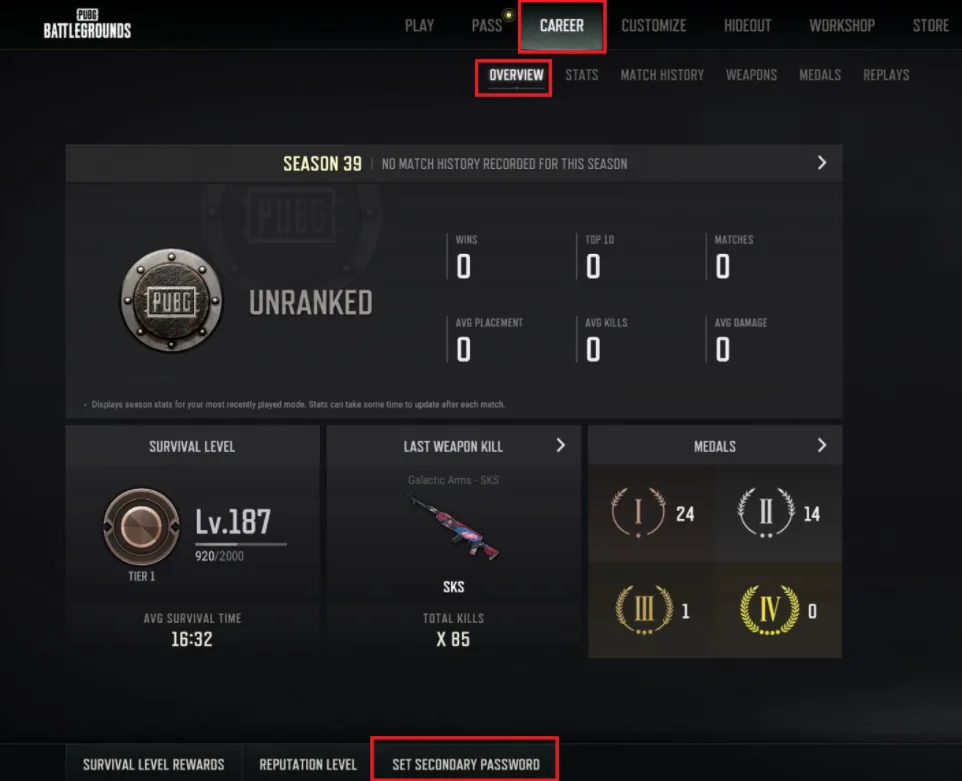
Since Update 39.2 went live on 7 January 2026, PC players cannot enter Rank Mode without a 6-8 digit secondary password tied to a real mobile number — and neither can anyone in their party. Here is the setup flow, the 24-hour re-entry rule, the SMS limits that strand people mid-setup, the reset path when the phone number is gone, and the account-theft unban allowance that having one turns from once-ever into twice a year.
What Is PUBG: Playgrounds? Community Modes Explained
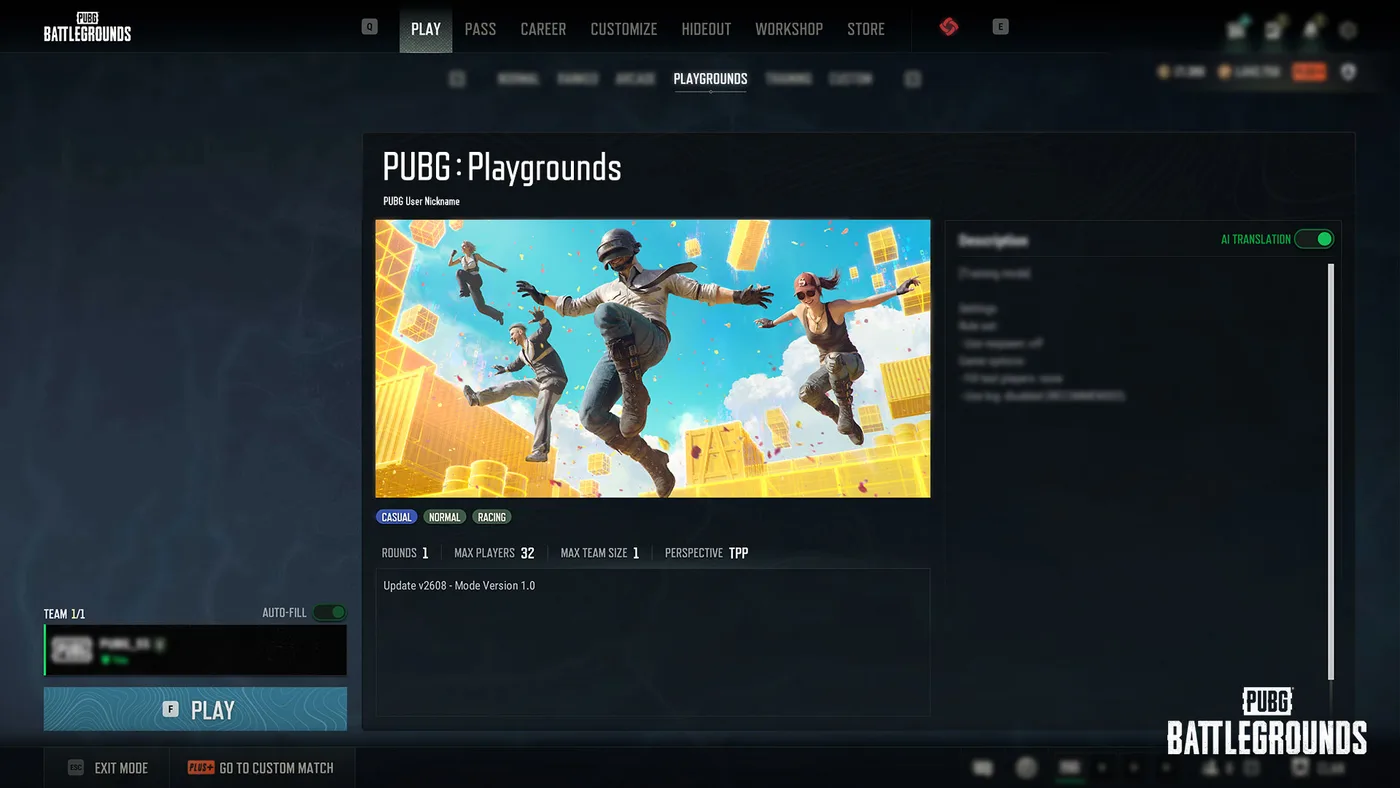
Update 42.3 gave community-created PUBG modes their own tab in the Play menu and their own matchmaking. Here is what PUBG: Playgrounds contains, the tag system it sorts modes by, the gameplay data KRAFTON uses to decide which modes get in, and the $95,000 CurseForge contest whose submission window closes on 2 September.
Best Weapons in PUBG: Tier List
Every PUBG tier list is out of date the moment a balance patch drops. So here's the list, ranked by role, plus the durable logic to re-tier any gun yourself when the next patch shakes things up.
Best PUBG Loadouts & Attachments
A naked M416 and a fully kitted M416 are basically two different guns. Here's how to build the strongest two-gun loadouts in PUBG and the attachment priority that turns loot into recoil control.