Roblox DataStore Guide: How to Save Player Data (Without Losing It)
The fastest way to make players quit your Roblox game is to wipe their progress. Here's how DataStoreService actually works — reading and writing data, why UpdateAsync beats SetAsync, the pcall and BindToClose habits that stop data loss, and the official limits you can't ignore.
Nothing tanks a Roblox game faster than eating someone's progress. They grind for two hours, log off, come back the next day, and their coins, level, and inventory are gone. That player isn't coming back, and they're telling their friends. Saving player data correctly isn't a nice-to-have — it's the difference between a game with a returning player base and a leaderboard that resets every session. And the tool that does it, DataStoreService, is one of the most misused systems in all of Roblox development.
If you've done the Studio basics and can write a first Luau script, this is the system that takes you from "I made a game" to "I made a game people keep playing." The good news: the core is four methods and two habits. The bad news: skip those two habits and you will lose data, quietly, until players complain. This guide hands you the working scripts and the discipline that keeps saves intact.
What a DataStore actually is
A data store is persistent cloud storage Roblox runs for your experience. When a server shuts down, everything in the game's memory vanishes. A data store is the one place you can write a value and have it still be there next session, on a different server, days later. It's a giant key-value table on Roblox's servers: you hand it a key (usually something unique per player, like their UserId) and a value (their save data), and read that value back later with the same key.
You reach it through a service, the same way you reach any Roblox service. You ask for DataStoreService, then ask it for a specific named store:
local DataStoreService = game:GetService("DataStoreService")
local playerData = DataStoreService:GetDataStore("PlayerData")
That "PlayerData" name is yours to pick — it's like naming a spreadsheet. You can have many separate stores (one for coins, one for inventory, one for settings) or, more commonly, pack everything for a player into a single table under one store. One critical rule that trips up everyone: data stores are server-only. They run inside a regular Script (on the server), never a LocalScript. The official docs are blunt about it — attempting client-side access in a LocalScript throws an error. That's a security feature: if clients could write to your data store, cheaters would hand themselves a billion coins. All save logic lives on the server, in ServerScriptService.
Turn it on first: the Studio toggle everyone misses
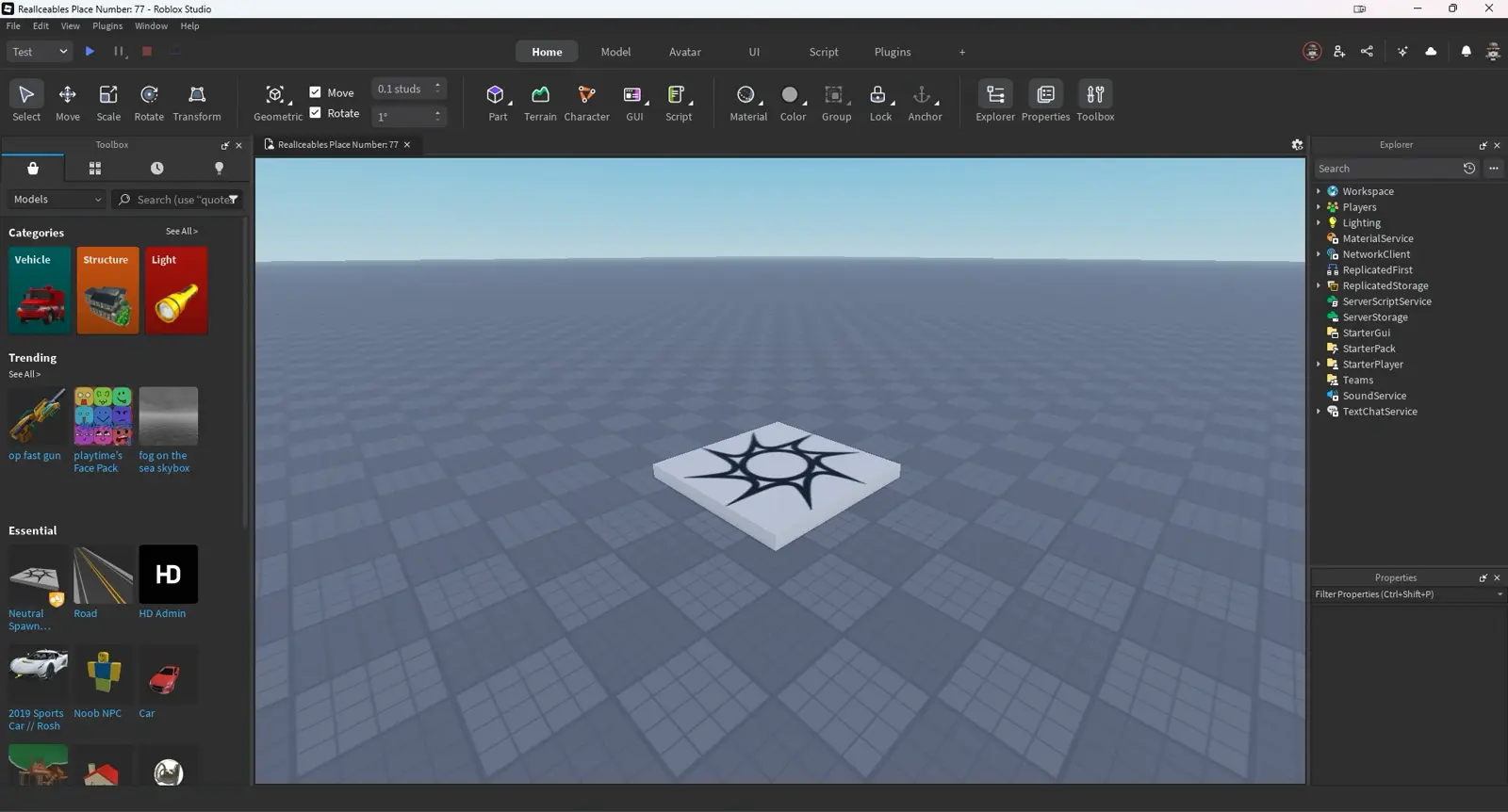
Here's the single most common "why isn't my DataStore working in Studio" answer, and it has nothing to do with your code. By default, Roblox Studio is not allowed to touch live data stores. You have to flip a switch.
Open File ⟩ Experience Settings, go to the Security tab, and enable Enable Studio Access to API Services, then click Save. Until you do, every data store call in Studio will fail — and you'll waste an hour debugging perfectly good code.

One more thing that catches beginners: data stores only exist once your experience has been saved or published to Roblox. They're cloud storage tied to a real, uploaded experience — a place you've only opened locally has no cloud to write to. A word of caution straight from Roblox: be careful enabling Studio API access on a live game, because your Studio testing will read and write the same real player data your players use. The standard practice is a separate test version of the experience for messing around.
Reading and writing: the four methods
DataStoreService gives you a small set of methods. These are the four you'll actually use day to day:
| Method | What it does |
|---|---|
| GetAsync(key) | Reads the current value stored under a key. Returns nil if nothing's there yet. |
| SetAsync(key, value) | Creates or overwrites the value at a key. Fast, but blunt. |
| UpdateAsync(key, fn) | Reads the latest value, runs your function on it, then writes the result. The safe choice. |
| RemoveAsync(key) | Deletes the entry at a key and returns the value it held. |
There's also IncrementAsync(key, delta) for bumping a stored integer (handy for global counters) and GetOrderedDataStore for sorted data like global leaderboards, but the four above cover most player-saving work.
The word Async in every name is doing real work. Each of these is a network call to Roblox's servers — it leaves your game, travels to the cloud, and comes back. That takes time, and it can fail (server hiccup, rate limit, outage). That single fact drives the two habits in the rest of this guide. Treat every data store call as something that might not come back the way you expect and you'll write resilient code; treat them like instant local variables and you'll lose data.
A complete save-and-load script
Let's wire up the real thing: load a player's saved coins when they join, save them when they leave. Drop this in a Script inside ServerScriptService.
local DataStoreService = game:GetService("DataStoreService")
local Players = game:GetService("Players")

local coinStore = DataStoreService:GetDataStore("PlayerCoins")

-- When a player joins: build their leaderstats and load their saved coins
Players.PlayerAdded:Connect(function(player)
	local leaderstats = Instance.new("Folder")
	leaderstats.Name = "leaderstats"
	leaderstats.Parent = player

	local coins = Instance.new("IntValue")
	coins.Name = "Coins"
	coins.Parent = leaderstats

	-- Read their saved value (server-only, can fail, so wrap it)
	local success, savedCoins = pcall(function()
		return coinStore:GetAsync(player.UserId)
	end)

	if success then
		coins.Value = savedCoins or 0  -- new players have no save yet (nil)
	else
		warn("Failed to load coins for " .. player.Name)
	end
end)

-- When a player leaves: save their current coins
Players.PlayerRemoving:Connect(function(player)
	local coins = player.leaderstats and player.leaderstats.Coins
	if not coins then return end

	local success, err = pcall(function()
		coinStore:SetAsync(player.UserId, coins.Value)
	end)

	if not success then
		warn("Failed to save coins for " .. player.Name .. ": " .. tostring(err))
	end
end)
Read it top to bottom. On PlayerAdded, you build the leaderboard stat, then read their saved value using their UserId as the key (every account has a unique, permanent UserId — it's the natural key for per-player data). A brand-new player has no save, so GetAsync returns nil, and savedCoins or 0 cleanly defaults them to zero. On PlayerRemoving — which fires as a player leaves — you write their current value back. This already works, and it already follows the most important rule: every data store call is wrapped in pcall. We'll get to why that matters and where this version still has a gap.
UpdateAsync vs SetAsync: the one that saves you
The script above uses SetAsync, which is fine to learn on. But Roblox itself recommends UpdateAsync for anything that runs across multiple servers, and your game will run across many servers the moment it gets popular. Here's the difference, straight from the reasoning in the official docs.
SetAsync is fast, but blunt: it overwrites whatever's there, no questions asked. If two servers try to write the same key at the same time — say a player rejoins on a new server before the old one finished saving — one write can stomp the other and cause data inconsistency. UpdateAsync is the careful version: it reads the current value from the server that last updated it, hands that value to a function you provide, and writes whatever you return. Because it reads-then-writes as one operation, two servers can't silently clobber each other.
Rewriting the save with UpdateAsync:
local success, err = pcall(function()
	coinStore:UpdateAsync(player.UserId, function(oldValue)
		-- oldValue is whatever's currently saved; return the new value to store
		return coins.Value
	end)
end)
For a simple overwrite the callback just returns the new value, so it looks like more typing for the same result. The payoff shows up when your save logic needs the old value — only saving if the new score is higher, or merging an inventory. UpdateAsync hands you the current data to make that call safely. Rule of thumb: prototype with SetAsync, ship with UpdateAsync.
Wrap everything in pcall (non-negotiable)
Notice every data store call above sits inside pcall(function() ... end). This is not optional, and it's the line beginners skip. Roblox's own guidance says it plainly: these calls are network requests that can fail, so wrap them in pcall().
pcall ("protected call") runs a function and catches any error instead of letting it crash your whole script. It returns two things: a boolean for whether it worked, and either the result or the error message.
local success, result = pcall(function()
	return coinStore:GetAsync(player.UserId)
end)

if success then
	-- result holds the data; use it
else
	-- the request failed; result holds the error. Don't overwrite good data with garbage.
	warn("DataStore read failed: " .. tostring(result))
end
Why this is do-or-die: imagine you don't use pcall, a GetAsync fails on join, and your code blindly sets the player's coins to whatever it got back. A failed read followed by an unguarded write is exactly how games nuke save files — you overwrite real data with garbage. With pcall, a failed read means you simply don't trust the result and don't overwrite anything. The player keeps their data; you log a warning and move on. Every GetAsync, SetAsync, and UpdateAsync in a real game lives inside a pcall. No exceptions.
BindToClose: the fix for disappearing saves
Here's the subtle bug that bites games that "work fine in testing." When the last player leaves a server, or when Roblox shuts a server down (low population, an update), the server can close before your PlayerRemoving save finishes its network round-trip. The player walked away, the save fired, and the server died mid-request. Their progress is gone, and you'll never see it in testing because you're usually not the last one out.
game:BindToClose() is the safety net. You hand it a function, and Roblox runs that function and waits for it (up to roughly 30 seconds) before fully shutting the server down — giving your saves time to finish.
game:BindToClose(function()
	for _, player in ipairs(Players:GetPlayers()) do
		local coins = player.leaderstats and player.leaderstats.Coins
		if coins then
			pcall(function()
				coinStore:SetAsync(player.UserId, coins.Value)
			end)
		end
	end
	task.wait(3)  -- small buffer so in-flight requests can land
end)
This loops every player still in the server at shutdown and saves them, so nobody gets dropped because they happened to be the last one out. Combined with your PlayerRemoving save, you've now covered both the normal case (one player leaves a busy server) and the dangerous case (the server itself goes down). One caveat: BindToClose doesn't run in Studio's normal play-test the way it does on live servers, so test this behavior in a real published place, not just locally.
The limits you can't ignore
Data stores are generous but not infinite, and hitting a wall mid-game shows up as failed saves. The numbers below are from Roblox's official limits documentation — don't design past them.
- Value size: up to 4,194,304 characters per key (about 4 MB). That's huge for a single player's save, but you can blow it if you store something absurd like every chat message ever. Save state, not history.
- Key name and data store name: 50 characters max each. A UserId fits easily; just don't build keys out of long strings.
- Request limits scale with players, at two separate levels. Each server carries its own budget: for a standard data store the defaults are 60 + (players in that server × 40) requests per minute for reads, the same again for writes, and a much tighter 5 + (players × 2) for lists. Your experience as a whole then shares a second cap of 300 + (concurrent users × 40) reads and 300 + (concurrent users × 20) writes per minute. Worth knowing if you took the
UpdateAsyncadvice above: a singleUpdateAsynccall decrements both the read and the write budget. - Throughput is capped per key, not per experience — roughly 25 MB/minute reads and 4 MB/minute writes against any one key, across every server in the game.
The practical takeaway: don't save on a timer firing every second, and don't re-read the same key over and over. The standard pattern is to load once when a player joins, keep their data in memory during the session, and write back on leave and at shutdown. That keeps you nowhere near the limits while never losing progress. The how to make a Roblox game walkthrough covers where saving fits in the build.
Why your data isn't saving: the usual suspects
When saves silently fail, it's almost always one of these, in rough order of how often it's the culprit:
- API access toggle is off. No
Enable Studio Access to API Services= nothing saves in Studio. Check this first, every time. - You're testing in an unpublished place. No cloud exists yet. Save/publish to Roblox first.
- The code is in a LocalScript. Data stores are server-only; move it to a Script in
ServerScriptService. - No
BindToClose. Saves vanish when the last player leaves or the server shuts down. Add the safety net above. - No
pcall, so a failure crashed the save script silently. Wrap every call andwarnon failure so you can actually see the problem in the Output window. - The key changed. If you save under
player.UserIdbut read underplayer.Name, you'll never find the data. Names can change; UserIds don't — use the UserId.
A game that reliably saves is the foundation for a real experience — the DevEx and monetization guide covers turning that into income, and the beginner's guide to Roblox helps if any platform basics still feel shaky.
Quick Action Checklist
Ship a save system that actually holds, start to finish:
- Enable File ⟩ Experience Settings ⟩ Security ⟩ Enable Studio Access to API Services, then Save
- Make sure your experience is published/saved to Roblox (data stores need a real cloud-hosted place)
- Put all save logic in a Script inside
ServerScriptService— never a LocalScript - Get the store with
DataStoreService:GetDataStore("YourName")and key onplayer.UserId - Load data on
PlayerAddedwithGetAsync; default new players to0/empty when it returnsnil - Save on
PlayerRemoving; preferUpdateAsyncoverSetAsyncfor live multi-server games - Wrap every data store call in
pcallandwarnon failure — never overwrite good data after a failed read - Add
game:BindToClose()to save everyone still in the server at shutdown - Stay under the limits: load once, keep data in memory during the session, write on leave — don't save every second
- Test in a published place, since
BindToClosebehaves differently in Studio
Frequently Asked Questions
Why is my Roblox DataStore not saving?
Should I use SetAsync or UpdateAsync in Roblox?
Do I have to use pcall with Roblox data stores?
What is BindToClose in Roblox and why do I need it?
What are the size and request limits for Roblox data stores?
Keep Reading
Related Guides
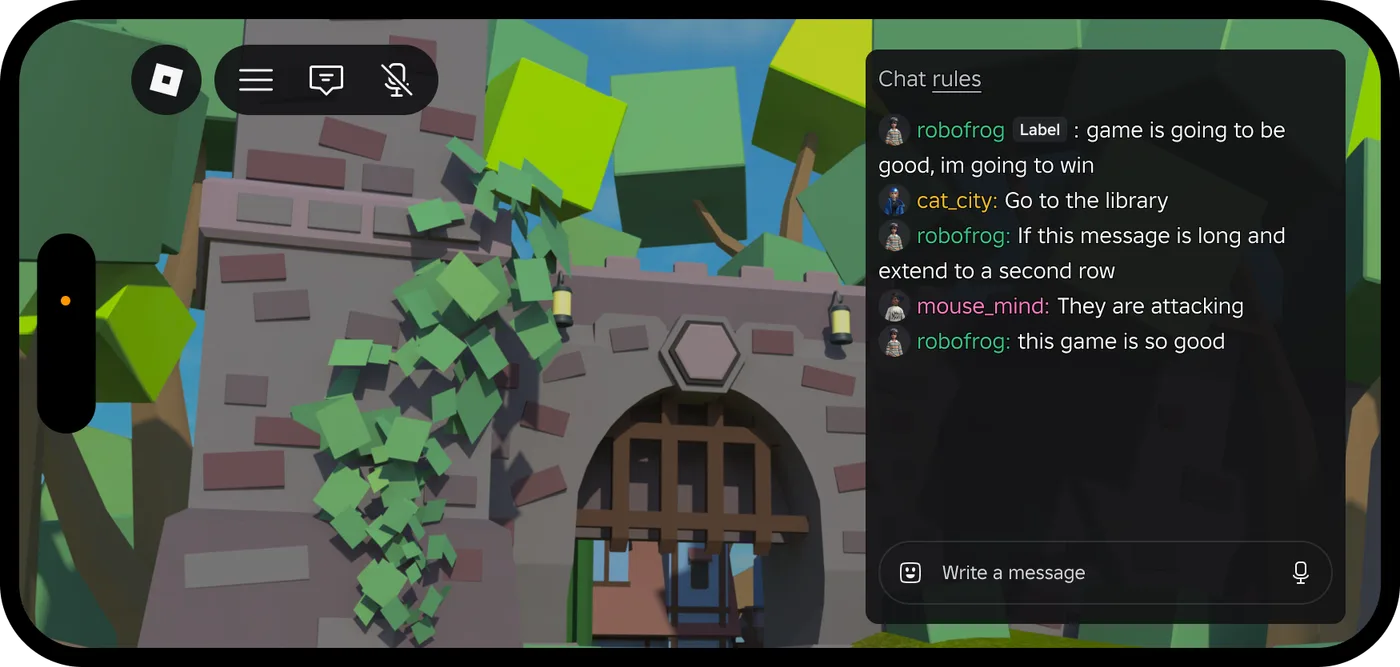
Roblox Platform-Integrated Chat: Migrate Your Custom Chat
On October 21, 2026, Roblox announced that chat message text will stop being readable from game code. It is opt-in today, the default from February 2027 and required from May 2027. Here is what stops working, the replacement for each custom chat feature, which one has no replacement yet, and how to test it in Studio now.
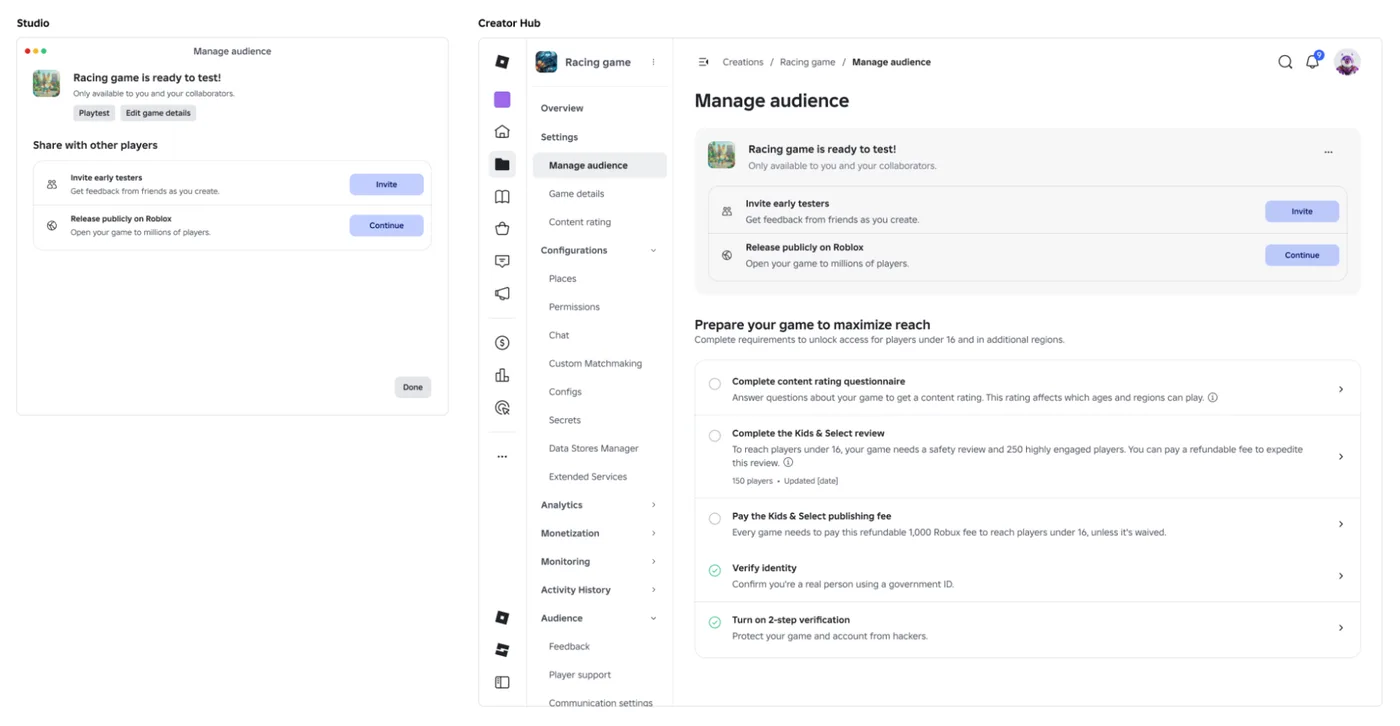
Roblox Early Testers and the New Publish Flow: What Changed
Since October 12, 2026, you can let up to 10 friends play your unreleased, unrated Roblox game, and Roblox is rolling out a path that lets a game with no age-restricted content reach age-checked players 16 and older by answering one question instead of the full questionnaire. Here is who can be an early tester, what replaced the Private and Limited audience settings, what the one question actually covers, and what still takes the long road to players under 16.

Roblox BadgeService Guide: Award, Check, Debug
Call AwardBadgeAsync on a player who isn't currently in your server and it fails one of five documented requirements — silently, the same way it fails for a disabled badge or a place outside the badge's own experience. Here is every BadgeService method, which four are dead, the rate limit two of them share despite a 10x difference in batch size, and the deprecated check that Roblox says will now always return true.
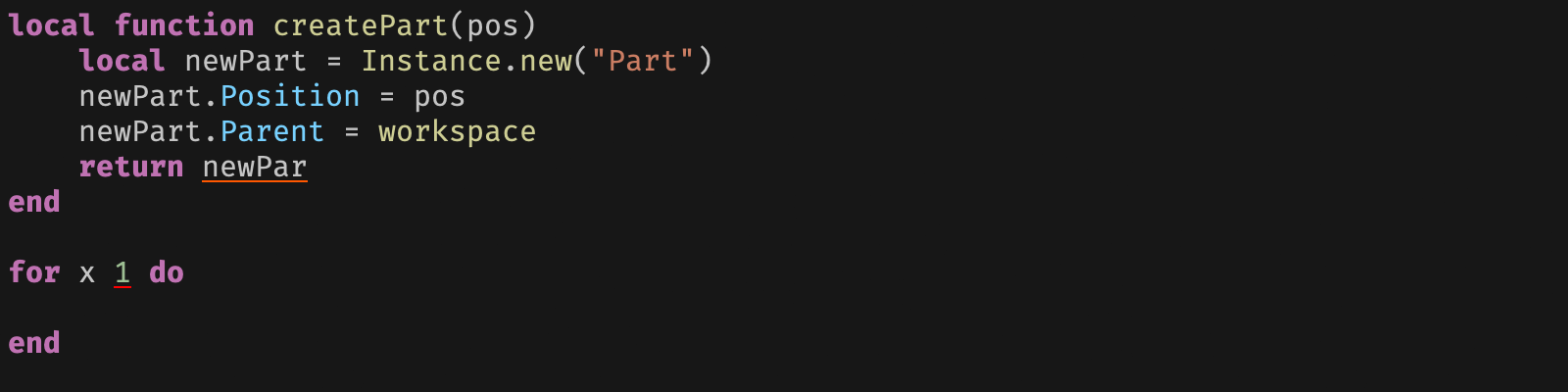
Roblox Luau Type Checking: nocheck, nonstrict, strict
Roblox says every script used to default to no typechecking. That is no longer how it works: a Workspace property now sets the default mode, projects using only nocheck and nonstrict were moved to the New Type Solver automatically, and strict mode projects were not. Here is what each mode reports, what the new solver changed, and the annotation syntax that covers most code.

Best Roblox Games to Play in 2026
Roblox's front page is engagement bait. This is the filtered version: the games with real, sustained player counts and actual staying power, sorted by what you're in the mood for.
How to Get Robux Safely (Legit Ways + Scams to Avoid)
There is no free Robux generator. There never was. Here are the actual legit ways to get Robux without overpaying, the earning methods that really work, and the scams that exist purely to steal your account.