Roblox TweenService Guide: Smooth Animation Done Right
Doors that teleport open are the tell of a first game. TweenService replaces every janky hand-rolled animation loop with five lines — Create an instance, a TweenInfo, a goal table, then Play — and the engine interpolates every frame for you.
You can spot a first Roblox game in about three seconds: the door teleports from closed to open like a PowerPoint slide, the shop panel blinks into existence, and the coin counter jumps from 40 to 90 with no in-between. Now click a shop button in any front-page game — it grows slightly under your cursor, the panel slides in and settles, everything arrives instead of appearing. None of that is hand-animated. It's TweenService, the built-in interpolation engine, and the core trick is five lines of Luau.
Here's the part that should annoy you if you've been faking animations with loops: those five lines come with sane defaults baked in. Call TweenInfo.new() with zero arguments and the official docs guarantee you a one-second animation using the Quad easing style in the Out direction. Most of the "polish" you've admired in other people's games is closer than you think — you just need to know which knobs exist. If you can already write a basic Luau script and find your way around Studio, this guide gets you from teleporting doors to buttery movement today.
Why tweens beat every hand-rolled loop
The self-taught way to animate a door is a for loop: move the part a fraction of a stud, wait a beat, repeat forty times. It works, technically, the way a shopping cart works as a race car. The motion is tied to your loop timing instead of the actual frame rate, it stutters when the server hiccups, the speed is linear and lifeless, and your script sits there babysitting the loop the whole time.
A tween flips the model. You don't describe the steps — you declare the destination ("this part's Position should end up here"), the timing ("over half a second, easing out"), and the engine interpolates every frame between now and then on its own. Your code moves on immediately. And tweens aren't just for parts: Roblox's UI animation docs call out GuiObject properties like Position and Size (UDim2), Rotation and the transparency family (numbers), and the Color3 properties like BackgroundColor3 and TextColor3 as prime tween targets. Doors, cameras, health bars, shop panels — one API animates all of it.
The five-line tween: Create, then Play
The entire workflow is: get the service, describe the timing, point at an instance with a goal table, then play.
local TweenService = game:GetService("TweenService")

local door = workspace.Door
local info = TweenInfo.new(0.5) -- half a second, Quad ease-out defaults
local tween = TweenService:Create(door, info, {
	Position = door.Position + Vector3.new(0, 8, 0),
})

tween:Play()
TweenService:Create() takes exactly three things — the instance to animate, a TweenInfo, and a dictionary where each key is a property name and each value is the goal — and hands back a Tween object. Nothing happens until you call Play() on it.
Two details worth tattooing somewhere. First, the goal table can hold multiple properties at once — slide a panel while fading it in by putting both Position and BackgroundTransparency in the same table, and they animate together on the same clock. Second, the returned tween keeps read-only Instance and TweenInfo properties, so you can't retarget a tween after creating it. A tween is a specific instance moving toward a specific goal; if you want a different goal, you create a different tween. Cheap to make, so make as many as you need.
TweenInfo: six numbers that control everything
TweenInfo.new() accepts six parameters, in this exact order, with these documented defaults:
- Time — how many seconds the tween runs. Default
1. - EasingStyle — the shape of the motion curve. Default
Enum.EasingStyle.Quad. - EasingDirection — which end of the animation gets the curve's character. Default
Enum.EasingDirection.Out. - RepeatCount — extra plays after the first. Default
0. A negative value loops the tween indefinitely, which is the sanctioned way to make a forever-spinning pickup. - Reverses — if
true, the tween plays back to the start after reaching the goal. Defaultfalse. Pair it with a repeat for a pulsing effect. - DelayTime — seconds to wait before starting. Default
0.
All together, a bouncing, thrice-repeating, reversing tween that waits half a second before it starts:
local info = TweenInfo.new(
	2,                          -- Time
	Enum.EasingStyle.Bounce,    -- EasingStyle
	Enum.EasingDirection.Out,   -- EasingDirection
	3,                          -- RepeatCount
	true,                       -- Reverses
	0.5                         -- DelayTime
)
Honest advice: in a real project, something like ninety percent of your calls will be TweenInfo.new(0.2) through TweenInfo.new(0.5) with the defaults doing the rest. UI feedback lives in that under-half-second range — any longer and buttons feel like they're wading through syrup.
Easing style is the personality
The easing style is the difference between motion that feels engineered and motion that feels alive. Roblox ships eleven of them: Linear, Sine, Quad, Cubic, Quart, Quint, Exponential, Circular, Back, Bounce, and Elastic.
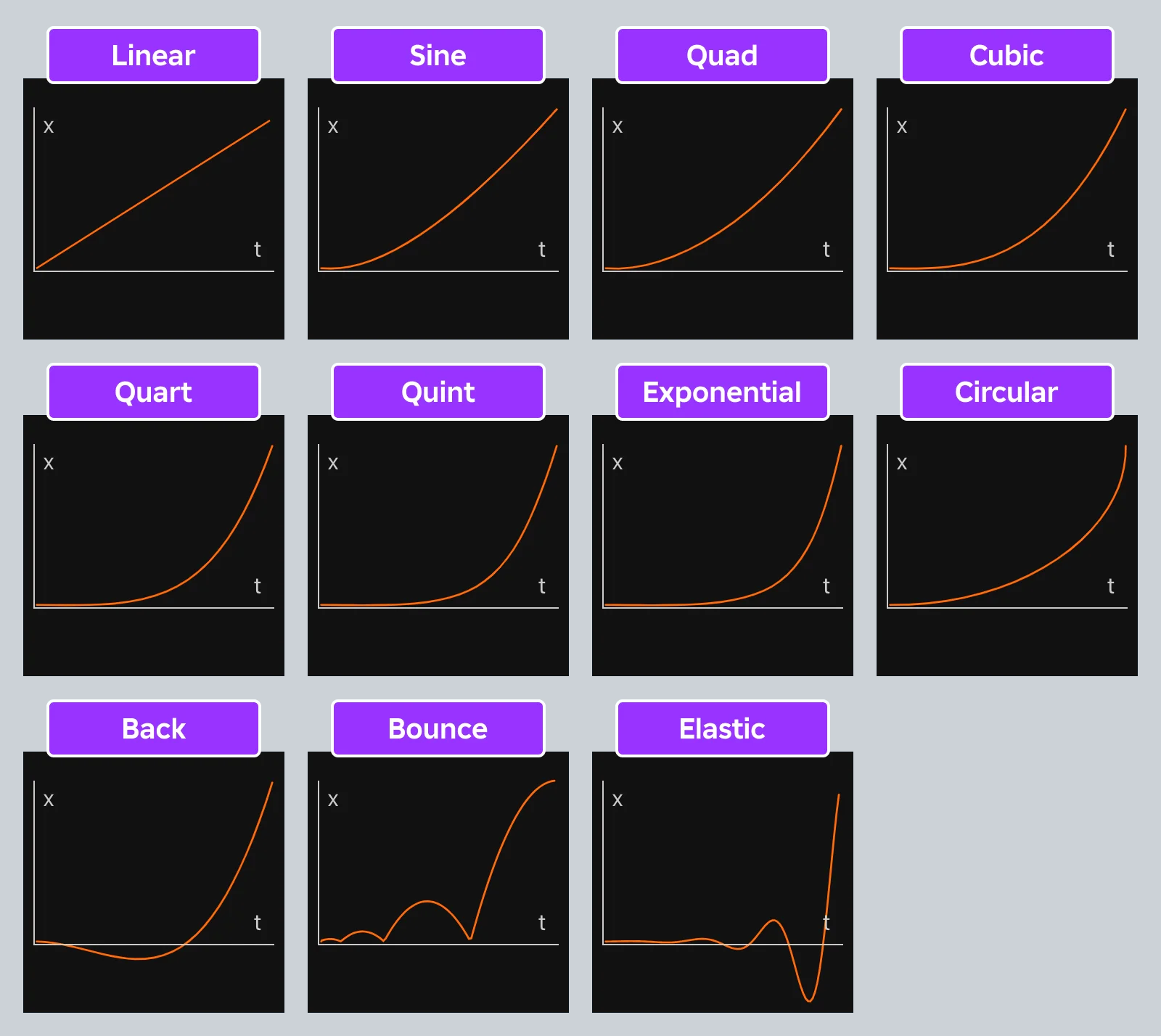
A working shorthand instead of eleven paragraphs: Linear is constant speed — right for conveyor belts and loading bars, wrong for almost everything organic, because nothing in the physical world moves at constant speed. Sine and Quad are the subtle ones; Quad being the default is no accident. Cubic through Quint to Exponential are the same idea with progressively harder acceleration. Back overshoots the target slightly and settles, which makes UI feel springy. Bounce hits the goal and bounces like a dropped ball, and Elastic wobbles past it like a plucked rubber band — both are loud, playful effects you deploy on purpose, not defaults you leave on.
Easing direction: In, Out, InOut
Every style can be applied in three directions: In puts the curve's character at the start (slow launch, fast arrival), Out puts it at the end (fast launch, gentle landing), and InOut splits it across both halves.
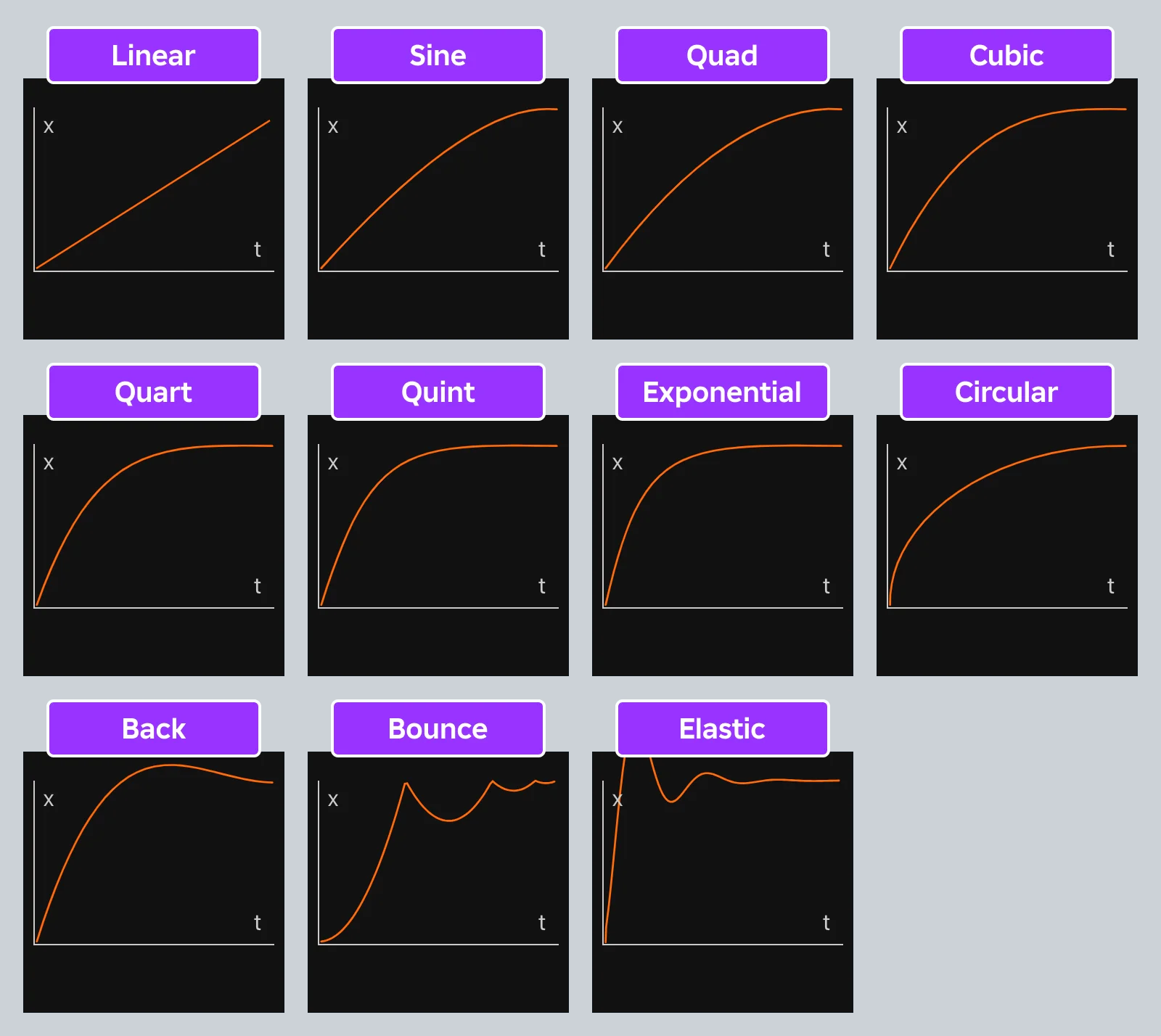
The rule of thumb that covers most cases: things entering the screen or approaching the player should ease Out — they show up responsive, then settle politely. Things leaving can ease In, accelerating away. InOut is for big stately moves like camera pans, where both a hard launch and a hard stop would feel wrong. If you ever want the raw curve math without animating anything, TweenService:GetValue(alpha, easingStyle, easingDirection) returns the eased version of any 0-to-1 alpha — handy for driving custom effects off the same curves.
Play, Pause, Cancel: the difference that bites
A tween exposes three playback controls, and two of them look interchangeable until one ruins your evening.
Pause() freezes the tween mid-flight and keeps its progress. Call Play() again and it resumes from where it stopped, finishing the remaining duration. Cancel() also stops the tween — but it resets the tween's progress variables. The official docs are specific about the consequence: play a five-second tween, cancel it partway, call Play() again, and the tween takes the full five seconds to finish from wherever the part currently sits. Cancel doesn't rewind the part; it wipes the tween's memory of how far along it was, and the whole configured duration gets re-spent on the remaining distance — which also means the effective speed changes. If the motion afterward looks weirdly slow, this is why.
You can always ask a tween where it stands via its read-only PlaybackState property, which reports an Enum.PlaybackState — playing, paused, completed, cancelled, and friends. Which sets up the genuinely useful part:
Chaining tweens with Completed
Sequenced animation — open the chest, then pop the loot text, then fade it out — is where beginners reach for task.wait(0.5) stacked like Jenga blocks. Don't. Every tween fires a Completed event when it stops, and the event hands you the Enum.PlaybackState it stopped with:
local open = TweenService:Create(lid, info, { CFrame = openCFrame })

open.Completed:Connect(function(playbackState)
	if playbackState == Enum.PlaybackState.Completed then
		showLootText() -- runs only if the tween actually finished
	end
end)

open:Play()
That state check matters: Completed also fires when a tween is cancelled, so gating on Enum.PlaybackState.Completed keeps your chain from continuing after an interrupt. If you'd rather write sequences top-to-bottom, tween.Completed:Wait() yields the script until the tween ends — three tweens with three Wait() calls reads like a storyboard.
Once you're chaining animations in more than one place, stop copy-pasting. Roblox's own UI animation guide demonstrates wrapping your tween helpers in a ModuleScript so every button and panel in the game shares one animation vocabulary:
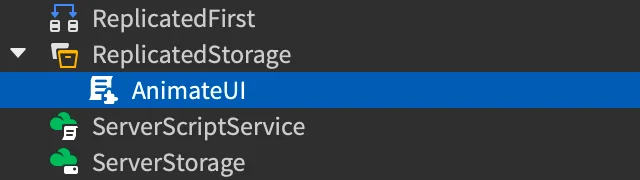
One AnimateUI-style module with fadeIn, slideTo, and pulse functions beats forty scripts each reinventing TweenInfo.new(0.3), and it means changing your game's animation feel later is a one-file edit.
Tween conflicts and other gotchas
The classic head-scratcher: you play two tweens that both animate the same property of the same instance, and one of them just... dies. That's documented behavior, not a bug — when tweens conflict over a property, one gets cancelled and fires Completed with a cancelled playback state while the newest instruction takes over. The practical defense is to keep a reference to the running tween and Cancel() it yourself before playing a replacement, so the handoff happens on your terms instead of mid-frame.
A few more sharp edges from the docs and the school of hard knocks:
- Tween UI in scale, not pixels. Goal sizes like
UDim2.fromScale(0.22, 0.11)behave on every screen; pixel offsets that look right on your monitor break on a phone. This is the same discipline as everything in the UI design basics guide. - Set the AnchorPoint before position or rotation tweens. A rotation tween spins around the anchor; centering it (
0.5, 0.5) first is the difference between a smooth spin and a wild orbit. - Fade groups with CanvasGroup. Fading a whole panel by tweening five separate transparency properties drifts out of sync; parent them under a CanvasGroup and tween one
GroupTransparencynumber instead. - Hover effects need an exit. A
MouseEntergrow tween without aMouseLeaveshrink tween leaves half your buttons stuck big. Create both up front and play the matching one.
local button = script.Parent
local grow = TweenService:Create(button, TweenInfo.new(0.2), { Size = UDim2.fromScale(0.22, 0.11) })
local shrink = TweenService:Create(button, TweenInfo.new(0.2), { Size = UDim2.fromScale(0.2, 0.1) })

button.MouseEnter:Connect(function() grow:Play() end)
button.MouseLeave:Connect(function() shrink:Play() end)
And for completeness: TweenService also ships a SmoothDamp() method that chases a moving target with velocity-based smoothing — a different tool for a different job (think cameras following players), worth knowing exists before you build it yourself.
Where tweens should run: client vs server
Tweens run wherever the script runs, and the placement decision is about smoothness versus authority. A tween played in a LocalScript renders on that player's machine at their frame rate — perfectly smooth, zero network involvement. A tween played in a server Script updates the property server-side, and every step has to replicate across the network, so players on shaky connections watch your elegant Quad curve arrive as a slideshow.
The clean pattern for anything cosmetic: the server decides that something happened and announces it through a RemoteEvent; each client receives the signal and plays the tween locally. Reserve server-side tweens for motion that's actually gameplay-authoritative — a door whose position must block every player identically — and accept the visual cost there. UI tweens have no excuse: UI exists per-player, so animate it client-side, always.
None of this is exotic. Tweens are the highest polish-per-line-of-code tool in the entire engine, and they're the reason a finished-feeling game reads as finished. Five lines. Go make your doors stop teleporting.
Quick Action Checklist
- Replace every hand-rolled animation loop with
TweenService:Create(instance, tweenInfo, goalTable)followed byPlay() - Memorize the
TweenInfo.neworder and defaults: Time1, Quad, Out, RepeatCount0, Reversesfalse, DelayTime0 - Keep UI feedback tweens between roughly 0.2 and 0.5 seconds; use a negative RepeatCount for infinite loops
- Pick easing deliberately: Out for entrances, In for exits, InOut for camera moves, Back/Bounce/Elastic only on purpose
- Remember
Cancel()resets progress — a resumed tween re-spends its full duration — whilePause()keeps its place - Chain sequences with
Completed, and gate follow-ups onEnum.PlaybackState.Completedso cancels don't cascade - Never let two tweens fight over one property — cancel the old one yourself before playing the new one
- Tween UI in scale (
UDim2.fromScale), set AnchorPoint before rotating, and fade panels via CanvasGroup - Play cosmetic tweens on the client; keep server tweens for gameplay-authoritative motion only
Frequently Asked Questions
What is TweenService in Roblox?
What are the six TweenInfo parameters and their defaults?
How do I make a Roblox tween loop forever?
What is the difference between Pause and Cancel on a Roblox tween?
Why does my Roblox tween stop when another tween plays?
Keep Reading
Related Guides
Roblox Early Testers and the New Publish Flow: What Changed
Since October 12, 2026, you can let up to 10 friends play your unreleased, unrated Roblox game, and Roblox is rolling out a path that lets a game with no age-restricted content reach age-checked players 16 and older by answering one question instead of the full questionnaire. Here is who can be an early tester, what replaced the Private and Limited audience settings, what the one question actually covers, and what still takes the long road to players under 16.
Roblox BadgeService Guide: Award, Check, Debug
Call AwardBadgeAsync on a player who isn't currently in your server and it fails one of five documented requirements — silently, the same way it fails for a disabled badge or a place outside the badge's own experience. Here is every BadgeService method, which four are dead, the rate limit two of them share despite a 10x difference in batch size, and the deprecated check that Roblox says will now always return true.
Roblox Luau Type Checking: nocheck, nonstrict, strict
Roblox says every script used to default to no typechecking. That is no longer how it works: a Workspace property now sets the default mode, projects using only nocheck and nonstrict were moved to the New Type Solver automatically, and strict mode projects were not. Here is what each mode reports, what the new solver changed, and the annotation syntax that covers most code.
Roblox Text Filtering: FilterStringAsync Done Right
Chat is filtered for you. Pet names, sign text, shop names and anything you pull off an external API are not — and Roblox documents that it takes games down until filtering is added. Here is the actual API, the getter that is now dead, and the pattern that ships.
Best Roblox Games to Play in 2026
Roblox's front page is engagement bait. This is the filtered version: the games with real, sustained player counts and actual staying power, sorted by what you're in the mood for.
How to Get Robux Safely (Legit Ways + Scams to Avoid)
There is no free Robux generator. There never was. Here are the actual legit ways to get Robux without overpaying, the earning methods that really work, and the scams that exist purely to steal your account.