Roblox Memory Leaks: Why Your Game Gets Laggier the Longer a Server Lives
Your game runs great for the first ten minutes and turns to soup by minute forty — same map, same player count, nothing added. That is a memory leak, and on Roblox it is almost always event connections your code never disconnected. Here is how to measure it with the Developer Console and the Stats service, the four leaks that cause 90% of it, and a cleanup pattern that stops the bleeding.
Your game runs beautifully in Studio. It runs beautifully in a live test. Then somebody posts a clip from a server that's been up for an hour and the thing is moving like it's underwater — same map, same twelve players, nothing new spawned. You didn't ship a bad frame; you shipped a slow bleed.
That pattern — performance that degrades with server uptime rather than with player count or map size — is the signature of a memory leak. And on Roblox, the culprit is nearly always the same thing. Straight from Roblox's own performance docs: "The engine never garbage collects events connected to an instance and any values referenced inside the connected callback."
Read that twice. An event connection you forget about is not a small mistake the garbage collector eventually cleans up. It is a permanent reservation on every value the callback touches, held for the life of the server.
The lag that only shows up after 40 minutes
The reason this class of bug survives testing is that nobody tests for it. You playtest for four minutes, everything's fine, you ship. Leaks need time and churn — players joining and leaving, characters respawning, rounds restarting. A round-based game that resets every three minutes will accumulate two hundred round cycles before anyone complains.
There are three separate symptoms people mash together and shouldn't:
- Memory climbing and never coming down. That's a leak. Fixable in code, and this guide is about that.
- High but flat memory. That's just an expensive game — too many textures, too much terrain. Different problem, different fix (asset budget, streaming).
- Bad frame time from the first second. That's a per-frame cost problem, not a leak. Profile it, don't hunt for it here.
Diagnose which one you have before you change a line of code. Otherwise you'll spend a weekend disconnecting events on a game that was never leaking.
How to see a leak instead of guessing
Press F9 in Studio, in a Studio test session, or in a live game and you get the Developer Console — logs, network, script performance, and the one you want, the Memory tab. Two numbers matter more than the rest:
- LuaHeap — memory your scripts are holding. Roblox's docs are direct about it: "High or growing consumption suggests a memory leak."
- InstanceCount — how many instances exist. Also from the docs: "Consistently growing numbers of instances suggest references to some instances in your code are not being garbage collected."
The Memory tab also breaks usage down by label (GraphicsMeshParts, GraphicsTexture, Sounds, and so on) and PlaceScriptMemory gives you a script-by-script breakdown, which is how you go from "something leaks" to "that script leaks."
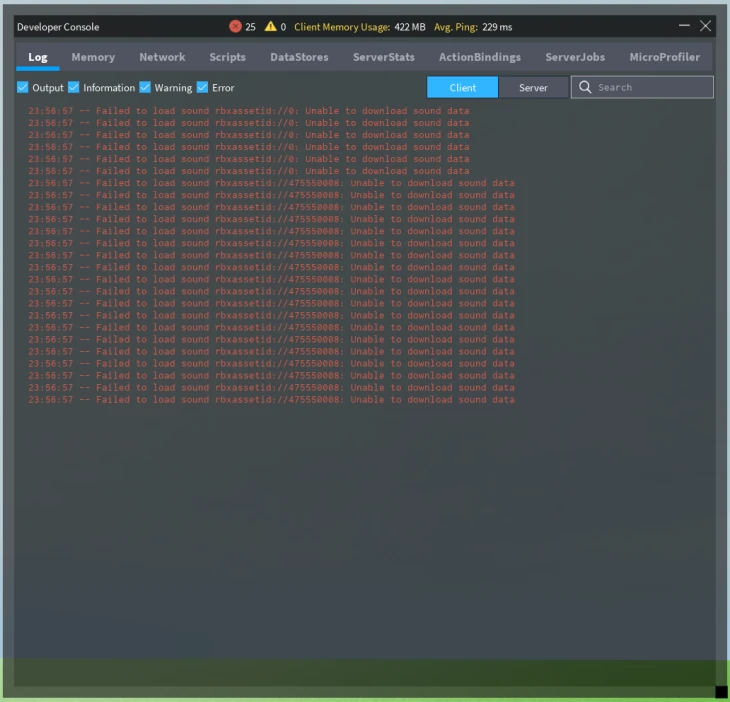
Staring at a live graph is fine for a spot check, but the honest test is a logged sample over time. The Stats service exposes the same numbers to code:
local Stats = game:GetService("Stats")

task.spawn(function()
	while task.wait(30) do
		print(string.format(
			"total %.1f MB | lua %.1f | instances %.1f | signals %.1f | count %d",
			Stats:GetTotalMemoryUsageMb(),
			Stats:GetMemoryUsageMbForTag(Enum.DeveloperMemoryTag.LuaHeap),
			Stats:GetMemoryUsageMbForTag(Enum.DeveloperMemoryTag.Instances),
			Stats:GetMemoryUsageMbForTag(Enum.DeveloperMemoryTag.Signals),
			Stats.InstanceCount
		))
	end
end)
Enum.DeveloperMemoryTag covers everything from GraphicsTexture to TerrainVoxels, but for script leaks you only care about four: LuaHeap, Instances, Signals, and Script. Run that loop, play the game the way players actually play it for twenty minutes, and read the column. Sawtooth is healthy — it climbs, the collector runs, it drops. A staircase that only goes up is your bug.
Leak 1: connections you never disconnect
This is the big one, and it hides inside code that looks completely reasonable:
local Players = game:GetService("Players")
local RunService = game:GetService("RunService")

Players.PlayerAdded:Connect(function(player)
	player.CharacterAdded:Connect(function(character)
		local humanoid = character:WaitForChild("Humanoid")

		RunService.Heartbeat:Connect(function()
			-- check stamina, apply effects, whatever
			updateStamina(humanoid)
		end)
	end)
end)
Nothing here is syntactically wrong. It's also a time bomb. Every respawn adds another Heartbeat connection, and the old ones never go away — they keep firing every frame, each one holding a reference to a dead character's Humanoid. Twenty deaths across a session and that player is running twenty stamina loops against nineteen corpses. Frame time and memory both climb, forever.
The fix is to hold onto the RBXScriptConnection the Connect call returns and shut it down when its subject dies:
player.CharacterAdded:Connect(function(character)
	local humanoid = character:WaitForChild("Humanoid")
	local heartbeat

	heartbeat = RunService.Heartbeat:Connect(function()
		updateStamina(humanoid)
	end)

	humanoid.Died:Once(function()
		if heartbeat.Connected then
			heartbeat:Disconnect()
		end
	end)
end)
Two things worth stealing from that snippet. RBXScriptConnection carries a Connected boolean, so you can check state instead of blindly calling Disconnect twice. And :Once() is the version of :Connect() that fires a single time and disconnects itself — for one-shot events like Died or Completed, it removes a whole category of cleanup bug for free.
Rule of thumb: if you connect inside a callback that runs more than once, you have to disconnect. Connections made once at script startup, to a signal that lives as long as the game, are fine to leave alone.
Leak 2: the player who left but never really left
Here's the one that catches experienced devs. When a user leaves, Roblox does not automatically clean up their Player object and character model. The docs say it plainly: the engine "doesn't automatically destroy their representative Player object and character model, so connections to the Player object and instances under the character model... still consume memory if you don't disconnect them."
In a game with real churn — 40-player servers, people joining and bouncing every couple of minutes — that adds up faster than any other leak on this list, because every departed player takes an entire character rig with them into limbo.
There's an engine-level switch for it. Set Workspace.PlayerCharacterDestroyBehavior to Enum.PlayerCharacterDestroyBehavior.Enabled and the engine destroys player and character objects after the user leaves. Do that and clean up your own per-player state on PlayerRemoving:
local Players = game:GetService("Players")
local sessionData = {}
local playerConnections = {}

Players.PlayerAdded:Connect(function(player)
	sessionData[player] = { coins = 0, kills = 0 }
	playerConnections[player] = {}
end)

Players.PlayerRemoving:Connect(function(player)
	for _, connection in ipairs(playerConnections[player] or {}) do
		connection:Disconnect()
	end
	playerConnections[player] = nil
	sessionData[player] = nil
end)
If you're saving progress, that PlayerRemoving handler is also where your DataStore write belongs — save first, then nil the table entry.
Leak 3: tables that only grow
Same idea, no instances involved. Roblox's docs flag inserting into tables without ever removing as a memory problem in its own right, "especially for tables that track user data when they join."
The offenders are predictable: a combatLog you table.insert into on every hit, a visitedPlaces list keyed by player that never gets nilled, a debug history array somebody added during testing and forgot. None of it is big on its own. All of it is permanent.
Two habits fix it. Cap anything append-only — if a log only ever needs the last 100 entries, evict from the front when it hits 100. And key per-player tables by the Player object, then nil that key on PlayerRemoving, as in the snippet above. If your state lives in a ModuleScript shared across systems, that's even more important, because module state persists for the entire server lifetime by design.
Leak 4: parts you spawn and forget
Bullets, shell casings, hit sparks, debris chunks, floating damage numbers. Anything your game spawns per-action needs a guaranteed death, and "the effect finishes playing" is not a death — a finished particle emitter is still a part sitting in Workspace.
The built-in answer is the Debris service:
local Debris = game:GetService("Debris")

local casing = template:Clone()
casing.Parent = workspace
Debris:AddItem(casing, 3) -- gone in 3 seconds, guaranteed
Debris:AddItem(item, lifetime) is the current, non-deprecated call — the lowercase addItem and the MaxItems property are the deprecated leftovers. Omit the lifetime and you get 10 seconds by default, which is almost never what you want for a bullet.
The modern alternative is a delayed task, which has the advantage of being cancellable:
local thread = task.delay(3, function()
	casing:Destroy()
end)

-- if the round ends early:
task.cancel(thread)
Use Debris for fire-and-forget cosmetics. Use task.delay when something might need to be called off — a round reset, a player leaving mid-animation.
Destroy vs Disconnect: what actually happens
People treat these as interchangeable cleanup verbs. They aren't, and the difference is where a lot of "but I destroyed it" leaks live.
Instance:Destroy() handles connections to that instance's own events. Roblox's deferred-events documentation spells out the behavior: "Any other method of disconnection besides Disconnect(), such as calling Destroy() on the Instance, disconnects the signal immediately, but runs the associated event handler for any events that are still pending."
What Destroy() does not do is reach into a connection on some other signal that merely references your instance in its closure. Go back to the Heartbeat example: destroying the character doesn't touch that RunService.Heartbeat connection, because the connection belongs to RunService, not to the character. It keeps running, keeps holding the Humanoid, and now you have a leak whose subject doesn't even exist anymore.
So: Destroy() the instances you created, Disconnect() the connections you created. Doing one does not do the other.
A cleanup pattern that scales
Once a system has more than three or four things to tear down, tracking them by hand stops working. The community answer — you'll see it as Maid, Janitor, or Trove — is a small object that collects everything and kills it in one call. You don't need a library; here's the whole idea in twenty lines:
local Cleanup = {}
Cleanup.__index = Cleanup

function Cleanup.new()
	return setmetatable({ _items = {} }, Cleanup)
end

function Cleanup:add(item)
	table.insert(self._items, item)
	return item
end

function Cleanup:destroy()
	for _, item in ipairs(self._items) do
		if typeof(item) == "RBXScriptConnection" then
			item:Disconnect()
		elseif typeof(item) == "Instance" then
			item:Destroy()
		elseif type(item) == "function" then
			item()
		end
	end
	table.clear(self._items)
end
Now a per-character system becomes one object with one teardown:
local cleanup = Cleanup.new()
cleanup:add(RunService.Heartbeat:Connect(onHeartbeat))
cleanup:add(humanoid.Died:Connect(onDeath))
cleanup:add(highlightPart)

-- when the character goes away:
cleanup:destroy()
The win isn't cleverness, it's that adding a fifth connection later doesn't require remembering a fifth line in a teardown function fifty lines away. typeof() (not type()) is what distinguishes Roblox datatypes like RBXScriptConnection and Instance — worth knowing if you're still shaky on the Luau fundamentals.
When it's not memory, it's frame time
If the Memory tab is flat and the game still feels bad, stop hunting leaks and open the MicroProfiler with Ctrl+F6 (Cmd+F6 on Mac) in Studio or the desktop client. It shows you where each frame's milliseconds actually go, which is the difference between "my code allocates too much" and "my code runs too often."
The two problems do converge, though: those duplicated Heartbeat connections from leak #1 are both a memory leak and a frame-time problem, which is why a leaking game feels progressively worse rather than just running out of memory at some cliff. Fix the connections and both graphs get better at once. For the server side, the Developer Console's ServerJobs tab and its steps-per-second reading tell you whether the server itself is falling behind.
If you're building anything with per-frame client code — a custom camera rig, an aim system, a HUD updater — assume you'll need this eventually and get comfortable in Roblox Studio with the console open. The habit of glancing at LuaHeap before you publish costs ten seconds and saves the "why does your game lag" review.
Quick Action Checklist
- Press F9 and watch LuaHeap and InstanceCount over 20 minutes of real play — a staircase up is a leak
- Log
Stats:GetMemoryUsageMbForTagfor LuaHeap, Instances, Signals and Script on a 30-second timer - Disconnect every connection made inside a callback that runs more than once
- Use
:Once()instead of:Connect()for one-shot events likeDiedandCompleted - Check
connection.Connectedbefore disconnecting if the teardown can run twice - Set
Workspace.PlayerCharacterDestroyBehaviortoEnabledso departed players don't linger - Nil per-player table entries in
Players.PlayerRemoving— after your DataStore save - Cap append-only tables (logs, histories) instead of letting them grow forever
- Give every spawned effect part a guaranteed death via
Debris:AddItemortask.delay - Remember:
Destroy()covers that instance's own events, not connections on other signals - Wrap multi-part systems in a Cleanup/Maid object so teardown is one call
- If memory is flat but frames are bad, open the MicroProfiler with Ctrl+F6 instead
Frequently Asked Questions
Why does my Roblox game get laggier the longer the server runs?
How do I find a memory leak in Roblox?
Do I need to disconnect connections in Roblox?
Does Destroy() disconnect connections in Roblox?
What happens to a Player object when someone leaves a Roblox game?
What is the default Debris lifetime in Roblox?
What is a Maid or Janitor in Roblox scripting?
How do I open the MicroProfiler in Roblox?
Keep Reading
Related Guides
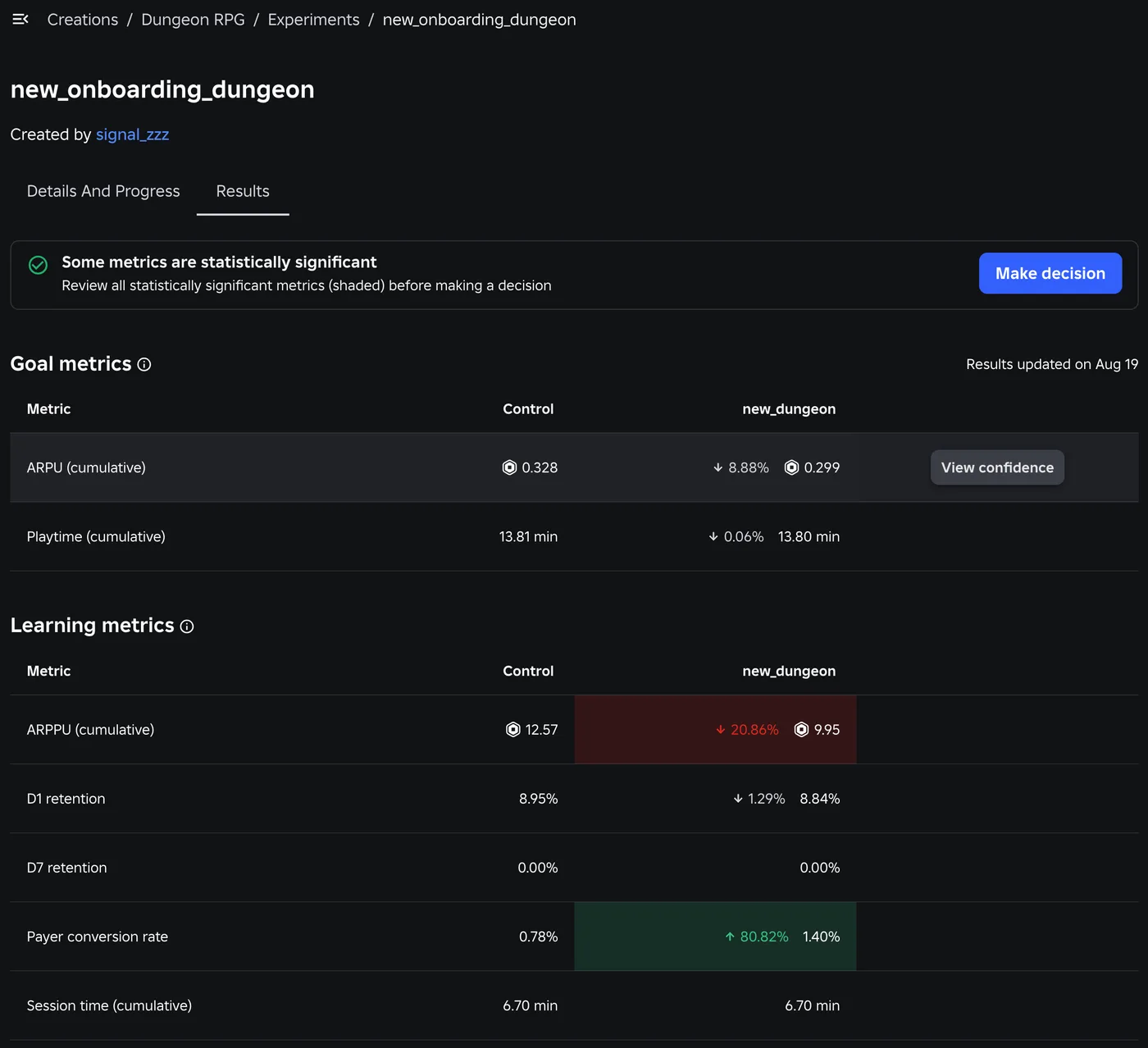
Roblox A/B Testing: Experiments and ConfigService Guide
Roblox has a built-in A/B testing system: configs hold the values, Experiments splits players between them, and since October 1, 2026 early harm detection watches the first 24 hours. Here is the rollout math, the one method call that decides who gets enrolled, the harm thresholds, and what Make decision actually does to your configs.
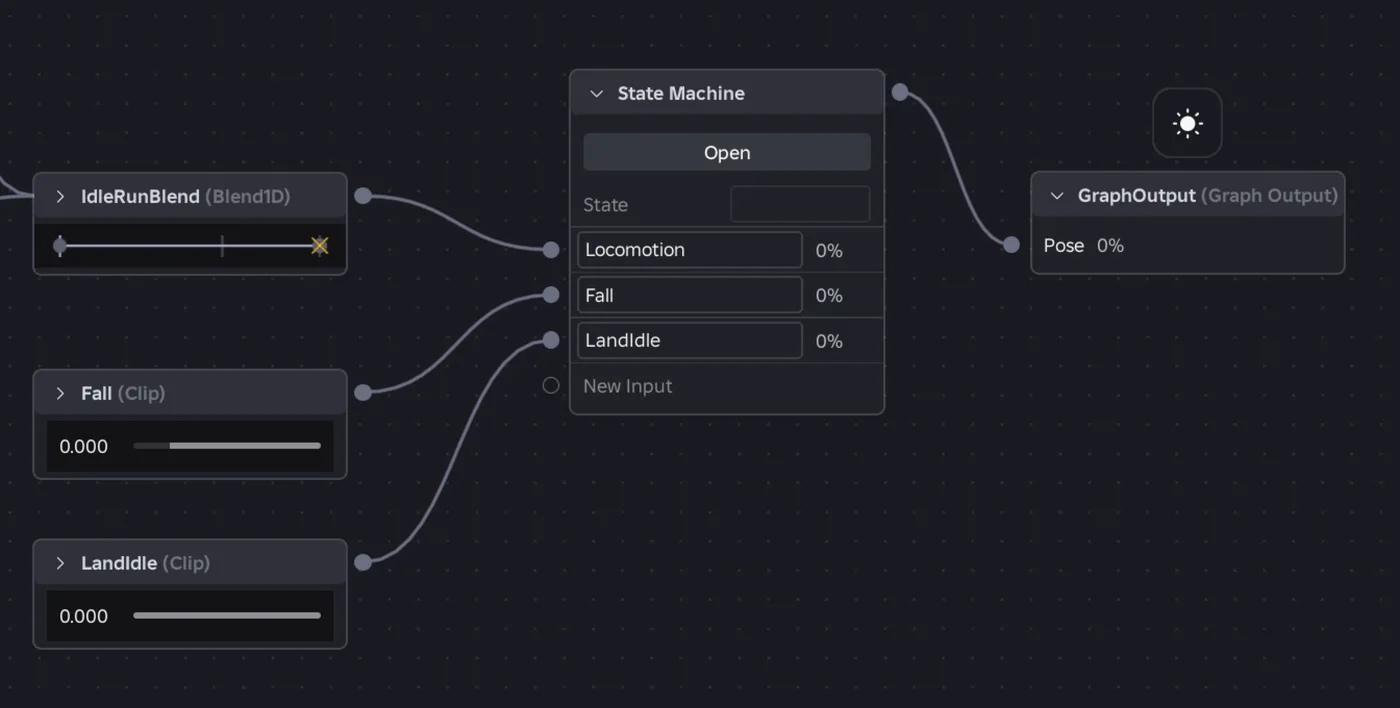
Roblox Animation Graph Editor: Blends and State Machines
Animation graphs left beta on July 15, 2026, and on October 8 Roblox added State Machine nodes and Expressions as a Studio beta. Here is how a graph loads like any animation, what each of the 15 node types does, how SetParameter drives it, what the beta features can't do in a live game yet, and who runs the graph under each authority mode.
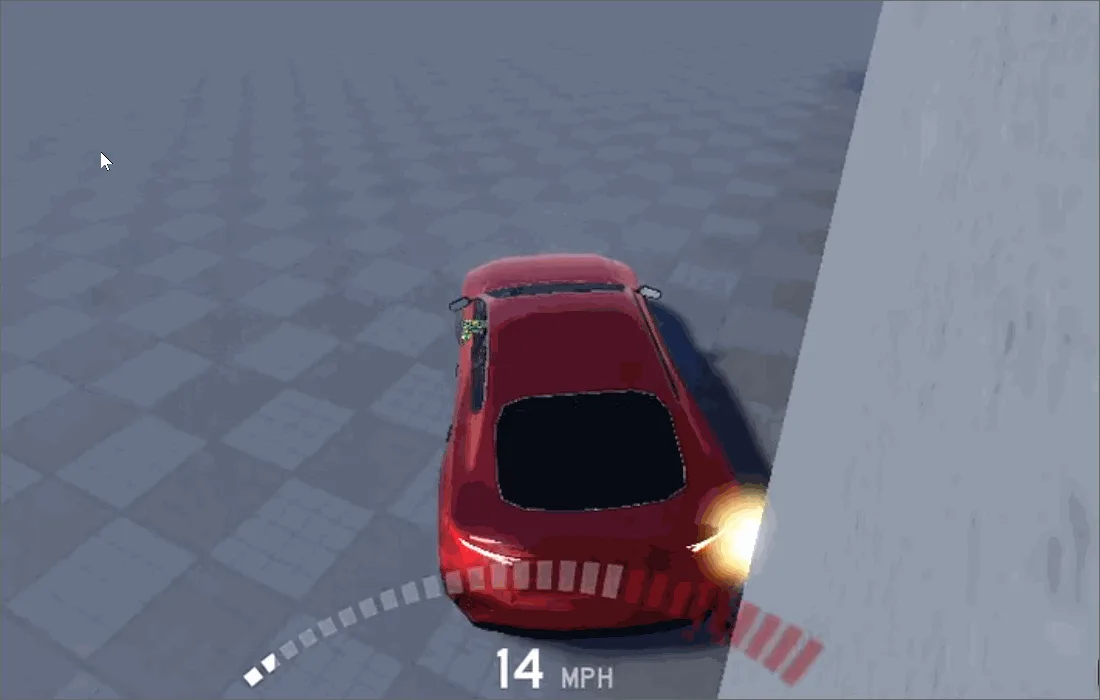
Roblox Collision Summaries: Impact Speed, Point and Normal
Touched tells you what your part hit. BindToCollisionSummaries, live since October 6, 2026, tells you where, from which direction and how hard. Here are the seven fields, why one bump arrives as several summaries, the Normal field Roblox's own pages describe two ways, and the network-ownership rule that decides which machine sees a summary at all.

Roblox Localization: How to Translate Your Game
Since June 2026, any player can switch on Automatic Translations and read your game through Roblox's machine translator, whether or not you ever opened the Localization page. Here is what gets translated, how to stop it on text that should stay put, the five kinds of text automatic capture never sees, and the Translator and real-time APIs that cover the rest.

Best Roblox Games to Play in 2026
Roblox's front page is engagement bait. This is the filtered version: the games with real, sustained player counts and actual staying power, sorted by what you're in the mood for.
How to Get Robux Safely (Legit Ways + Scams to Avoid)
There is no free Robux generator. There never was. Here are the actual legit ways to get Robux without overpaying, the earning methods that really work, and the scams that exist purely to steal your account.