Roblox Sound & Music Guide: Audio That Sounds Professional
Audio is the fastest way to make a Roblox game feel finished and the fastest way to make it feel cheap. Here is the full stack: where to parent a Sound, how rolloff actually works, how to mix with SoundGroups, and what the modular AudioPlayer objects change.
Mute a bad Roblox game and it gets slightly worse. Mute a good one and it falls apart. That asymmetry is the whole argument for taking audio seriously: sound is the only system in your game that players never consciously credit and always subconsciously judge. Nobody leaves a review saying the footstep rolloff was well tuned. They just say the game "feels polished," which is the same sentence with the credit stripped out.
Here is the part most tutorials still get wrong, though. Roblox now ships two audio systems, and the one every YouTube tutorial teaches — the Sound object — is officially marked as the legacy path in Roblox's own documentation. The Sound, SoundGroup, and SoundEffect classes are all flagged as discouraged in favor of the newer modular audio objects. That does not mean Sound is broken or going away tomorrow. It means you should know both, know why the new one exists, and know which one your project should be built on.
The Sound object you learned is now the legacy path
Open the Roblox Creator Documentation page for Sound objects and the very first thing on the page is a warning box pointing you at the newer audio objects. Same for SoundGroup. Same for the dynamic effects page. That is about as loud a signal as Roblox gives without deprecating an API outright.
The reason is architectural. A Sound object is a single black box: it holds the asset, decides where the audio comes from based on what it is parented to, and pipes straight to the player's speakers. There is no way to intercept the stream halfway, split it, route it to two different destinations, or feed a microphone into it. The new objects break that black box into real audio-engineering parts — a player, a speaker, a microphone, an output device, and wires between them — so you can build routing that was previously impossible.
If you are shipping a small obby or a tycoon and just need music plus a few effects, the Sound object is still completely fine and it is fewer steps. If you are building anything with proximity voice, dynamic mixes, per-player audio, or recorded streams, start on the modular stack. Either way, the concepts below — rolloff, mixing, ducking — carry across both.
Two audio stacks, and which one to build on
The legacy stack: Sound, SoundGroup, SoundEffect
Three classes, and they nest the way you would expect. A Sound holds an asset ID and plays it. A SoundGroup acts as a mixer that many Sounds can be assigned to. A SoundEffect (reverb, equalizer, compressor, and six others) is inserted into either a Sound or a SoundGroup to process it. You can build a fully mixed, ducked, reverb-zoned game with nothing but these three, and thousands of successful games have.
The modular stack: AudioPlayer, Wire, Emitter, Listener
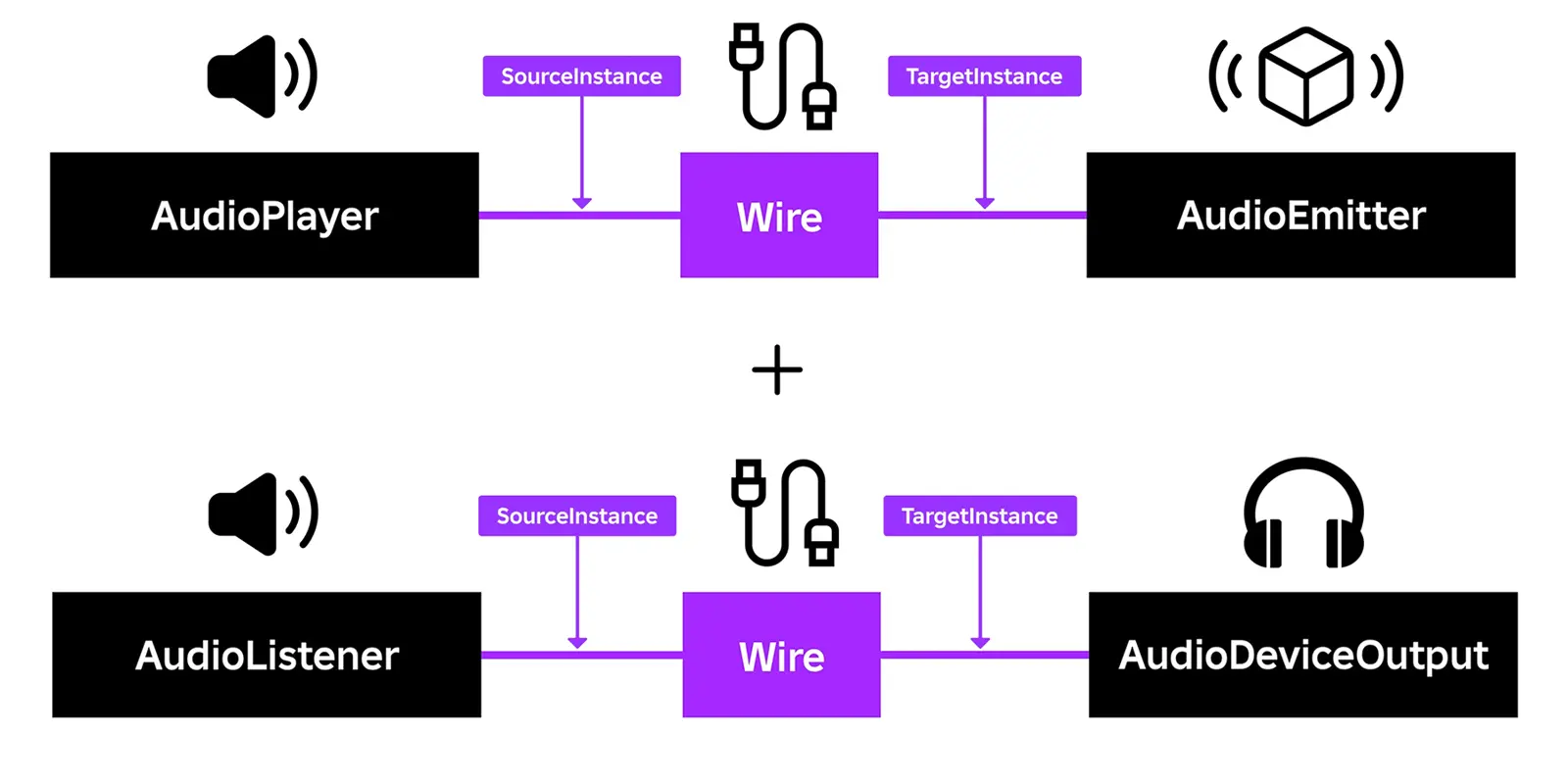
The new system is a signal chain you assemble yourself. An AudioPlayer loads and plays the asset. An AudioEmitter is a virtual speaker that pushes audio into 3D space. An AudioListener is a virtual microphone that picks it back up. An AudioDeviceOutput represents the real speakers or headphones on the player's machine, and AudioDeviceInput represents their real microphone. A Wire carries a stream from one object to another using its SourceInstance and TargetInstance properties.
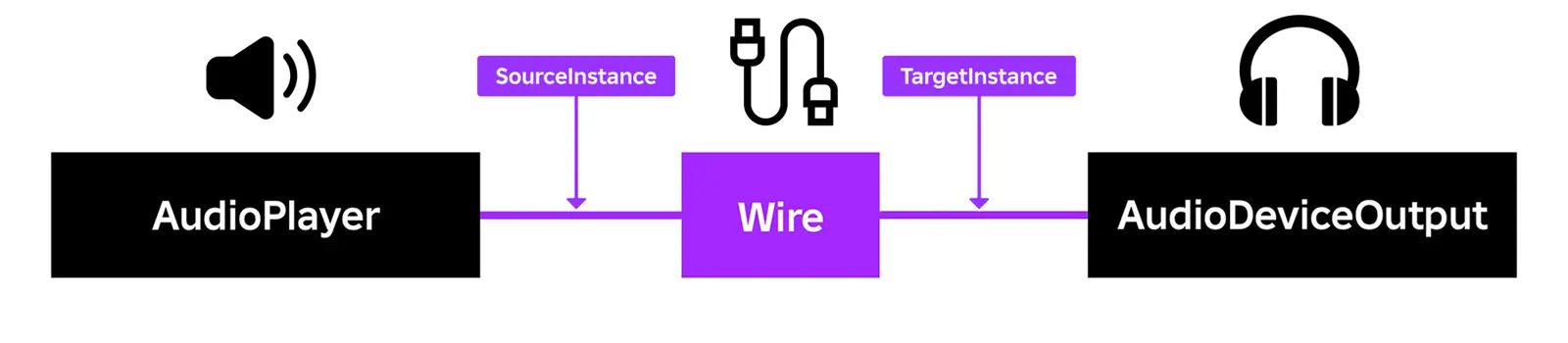
The count tells you the tradeoff. Non-directional 2D audio — menu music, UI clicks — needs three objects: an AudioPlayer, an AudioDeviceOutput, and one Wire between them. Directional 3D audio needs six: the player, an emitter, a listener, an output device, and two wires. That is genuinely more setup than dragging one Sound onto a part. What you buy is a stream you can tap, branch, and process anywhere along the chain.
There are also two objects with no legacy equivalent at all: AudioTextToSpeech, which converts text into a synthetic voice, and AudioSpeechToText, which does the reverse. Neither is achievable with a Sound object, which is a decent shorthand for why the new stack exists.
Getting audio you are actually allowed to use
Before any of this matters you need audio. Two legitimate routes.
The Creator Store tab in the Studio Toolbox has an Audio category with over 100,000 professionally produced sound effects and music tracks from Roblox and its audio partners, free to use. Right-click any asset and choose Copy Asset ID to grab the ID for pasting into an AudioPlayer. Worth knowing: if you just click an audio asset instead, Studio inserts it as a legacy Sound instance, which is a quiet way to end up on the old stack by accident.
The second route is importing your own, and the rule is simple and non-negotiable: you must have the legal rights to it. Ripping a track off YouTube because "it's just a Roblox game" is how you get assets pulled and accounts actioned. Compose it, buy it, or use royalty-free libraries with a license you can point at.
One myth to kill while we are here. Roblox's asset privacy system — the Restricted versus Open Use setting — applies only to Images, Decals, and Meshes. Audio is explicitly not governed by it. If your audio is not loading in a game, asset privacy is not the cause, so stop looking there and check your asset ID and moderation status instead.
The import limits that trip people up
Roblox's documented import requirements are specific, and hitting one of them is the most common reason an upload fails:
- Format must be mp3, ogg, wav, or flac, as a single track or stream.
- Under 20 MB and under 7 minutes in duration.
- Sample rate of 48 kHz or lower.
- Channels set to mono, or stereo 2.0, 3.0, or 5.1 surround.
Quota is tied to verification. If you are ID verified you can import 2,000 free audio assets per 30 days; unverified accounts get 100 per 30 days. Studio also transcodes every upload to standardize playback, so a file that plays fine locally can still get rejected if an old export tool wrote a malformed header. If an import keeps failing and the file meets every rule above, re-export it from updated software before you file a bug report.
Where you parent the Sound decides what players hear
This is the single most important concept in Roblox audio and the one beginners skip. A Sound object has no position property. Its position is wherever you parented it, and the parent type changes the emission model entirely.
Parent it to a block, sphere, or cylinder BasePart and audio emits outward from the entire surface of that part, with volume scaling by both distance and the part's size. Parent it to an Attachment, MeshPart, TrussPart, WedgePart, or CornerWedgePart and it emits from a single point. Parent it directly to Workspace or SoundService and it plays everywhere at constant volume and pan, regardless of where the player stands or which way they face.
Volumetric audio, the big-room trick
Volumetric is the most realistic option and the most underused. Enable the VolumetricAudio property on SoundService, then parent a Sound to a block, sphere, or cylinder. Now the part's size is an audio parameter. Stand inside the part and the sound surrounds you evenly in both ears, like headphones. Walk out and it gradually gets quieter and more directional, moving around your head as you turn.
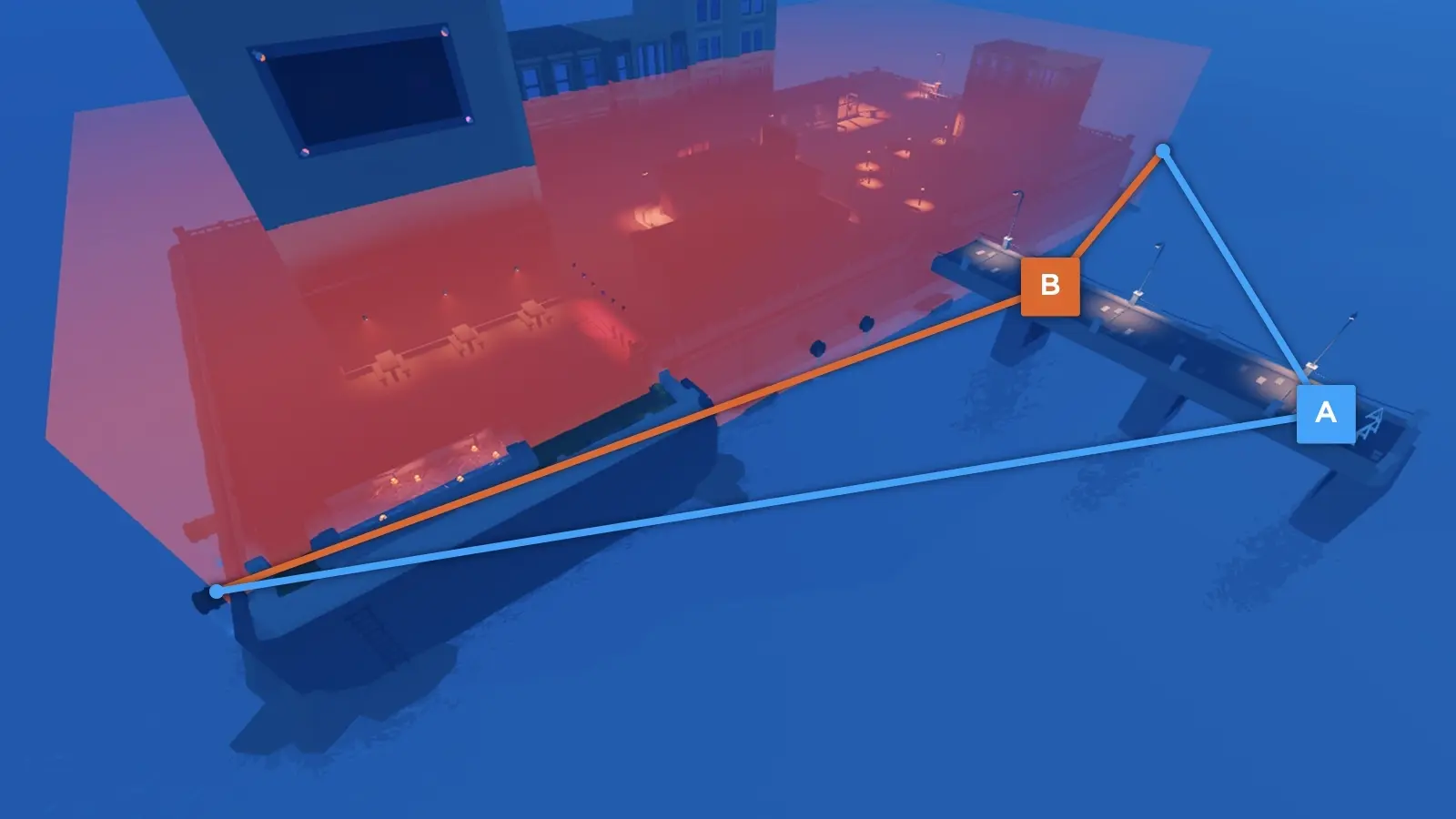
Roblox's own example is a city-sized part playing ambience: a player close to it hears roughly equal loudness in both speakers, while a distant player hears it quieter and sharply directional. That is exactly what you want for rain zones, a stadium crowd, a forest, or a concert stage. And because larger parts decay slower, you can shape an entire ambience region by scaling one invisible block instead of scripting distance checks.
Point source audio for hits and dialogue
Point source is the opposite: everything radiates from one exact spot. Parent the Sound to an Attachment, truss, wedge, or corner wedge, set SoundId, and you are done. Use it for explosions, impacts, gunshots, machinery, and NPC dialogue — anything where the player should be able to snap their camera toward the source and be right. If you are already using attachments to hang particle effects on a weapon, put the sound on the same attachment and the two stay locked together for free.
Background audio and music
For music that should never change with position, insert the Sound directly into SoundService, set SoundId, and enable Playing. If it is the only track in the place, enable Looped so you never get dead silence. Keeping every background Sound in one container is not a rule, just the thing you will thank yourself for at forty tracks.
Rolloff, the property pair that fixes most bad audio
RollOffMinDistance is the distance in studs at which volume starts dropping as the listener moves away. RollOffMaxDistance is the distance at which they can no longer hear it at all. Between those two numbers, RollOffMode decides the shape of the curve, and it takes one of four enum values:
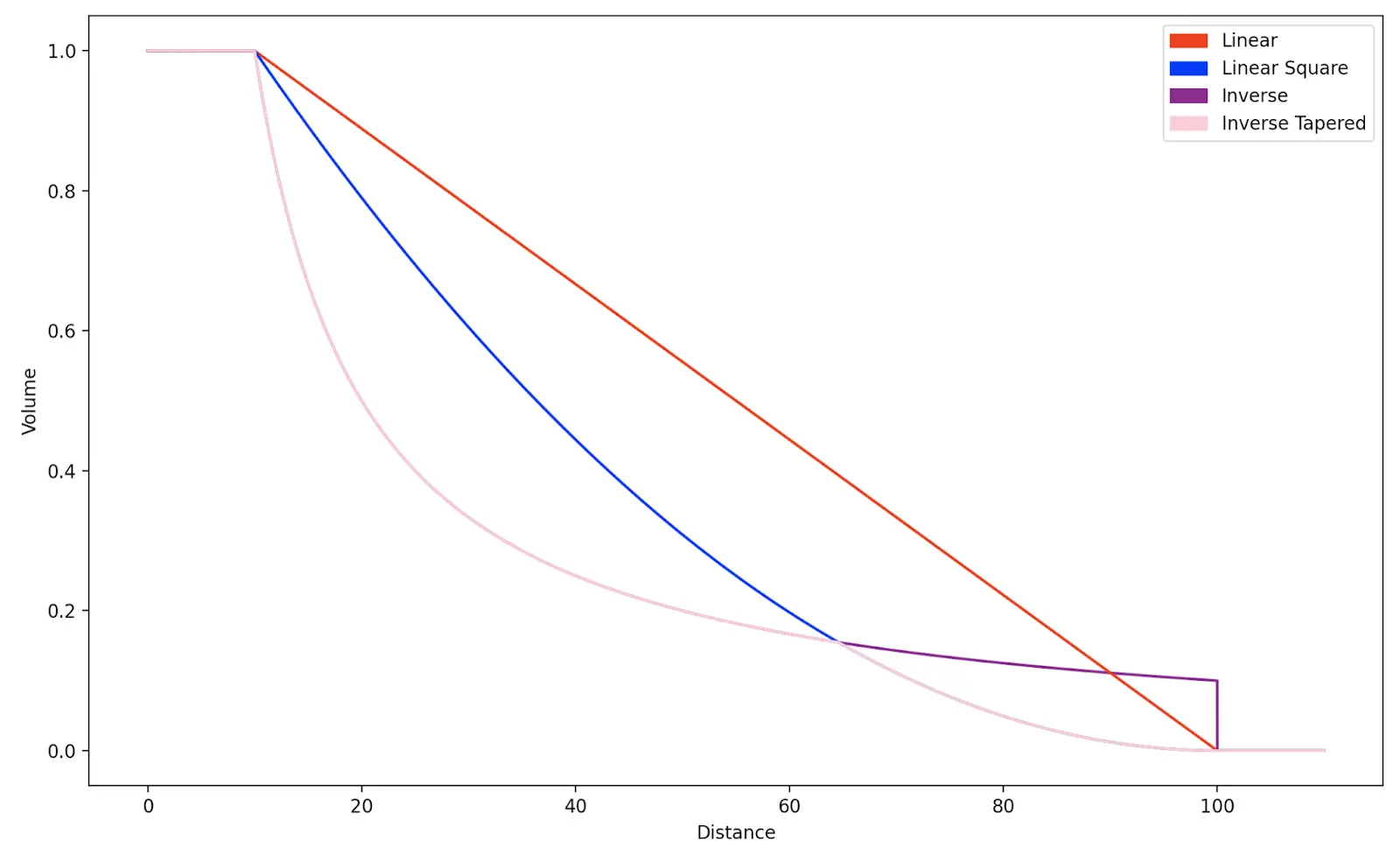
- Inverse (the default) drops sharply right after the minimum distance, then flattens out as it approaches maximum.
- Linear fades evenly across the whole range.
- InverseTapered follows the inverse curve near the minimum and a linear-square curve near the maximum.
- LinearSquare fades on a linear squared relationship, approaching silence at the maximum.
Here is the practical bit worth memorizing, straight from the docs: with Inverse and Linear modes, a low RollOffMaxDistance makes audio cut off abruptly the instant the listener crosses it. That hard snap is the single most recognizable amateur-audio tell in Roblox games. The fix is not a script, it is a bigger RollOffMaxDistance. Give the tail room to breathe and the same sound reads as professional.
Volume, pitch, and looping without a script
Volume runs from 0 (silence) to 10 (booming), and it is multiplicative — a value of 4 is four times as loud as 1. The documentation's own guidance is that if your source audio is already loud, you rarely need to go above 2. Most "why is this Roblox game screaming at me" moments are a creator who typed 5 into a field that wanted 1.
PlaybackSpeed changes speed and pitch together, and the math is clean: 2.0 plays twice as fast and one octave higher, 0.5 plays twice as slow and one octave lower. This is a free variation generator. Take one impact sound, randomize PlaybackSpeed between roughly 0.9 and 1.1 per hit, and a repeated effect stops sounding like a copy-paste.
TimePosition reports, in seconds, where playback currently sits. You can read it to trigger events in sync with a track — Roblox's own sample enables a particle emitter only while TimePosition is between 5 and 20 seconds — or write to it to start a clip partway in. If you already know your way around basic Lua scripting, TimePosition is the hook for beat-synced gameplay.
Looped simply replays the audio on completion. Turn it on for anything ambient, off for anything that fires once.
Sound groups are your mixing board
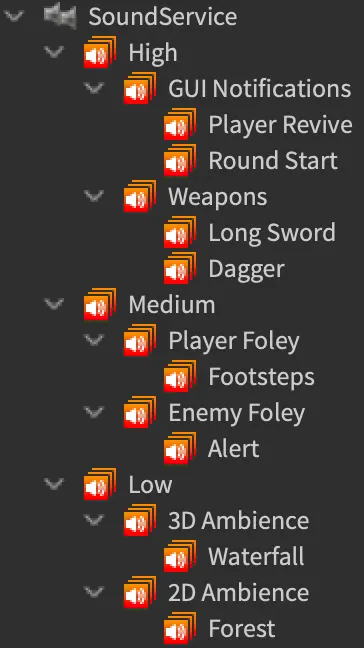
A SoundGroup is an audio mixer. Insert one under SoundService, rename it something honest like SoundEffects or BackgroundMusic, and assign Sounds to it.
Assignment is the part that catches people: SoundGroups do not work like Models or Folders. You do not drag a Sound into a group. You select the Sound, click its SoundGroup property field, then click the group in the Explorer. The Sound stays parented wherever it needs to be for spatial reasons, and the group reference is a separate link. That separation is the entire point — placement controls where audio comes from, grouping controls how loud and processed it is.
Group Volume is a multiplier from 0 to 10 applied on top of each Sound's own volume. A Sound at 0.5 inside a group at 0.5 plays at an effective 0.25. So you can audition "what if all my music were twice as loud" by typing 2 into one field instead of editing forty objects.
Groups also nest. Drag one group onto another and you get a mix tree, which is how real game audio is organized.
Ducking with a CompressorSoundEffect
Ducking is when one sound automatically pushes another down so the important one wins. Dialogue plays, music dips. A notification chimes, ambience steps back. It is what separates a mixed game from a loud one.
You do it with a CompressorSoundEffect inserted into the group you want to duck, with its SideChain property pointed at the Sound or SoundGroup that should take priority. Four properties control the behavior, with these documented ranges:
- Threshold — the decibel level where ducking kicks in, from -80 (full compression) to 0 (full volume).
- Attack — how fast the duck happens, 0.001 to 1 second.
- Release — how fast it recovers, 0.001 to 1 second.
- Ratio — how much ducking occurs, from 1 (no compression) to 50 (fifty times the compression).
There are no universally correct values here because every source recording has a different level. Start conservative, play the game, and adjust — you want the music to lean back, not disappear.
Dynamic effects that earn their keep
Roblox ships nine dynamic effects: Equalizer, Compressor, Reverb, Chorus, Distortion, Echo, Flange, Pitch Shift, and Tremolo. Insert any of them into a Sound or a SoundGroup. Three do most of the real work.
EqualizerSoundEffect controls volume across frequency ranges. The classic use is muffling everything the moment a player goes underwater — cut the highs and the world instantly feels submerged, no new audio assets required.
ReverbSoundEffect simulates sound bouncing off surfaces. Group every Sound inside a cave into a Cave SoundGroup, drop a reverb on the group, and the space suddenly has size. Pair it with the fog and ambient settings from your lighting and atmosphere pass and interiors stop feeling like painted boxes.
CompressorSoundEffect evens out dynamic range, pulling the loudest peaks down while raising overall level. Essential for recorded voice lines where one take was whispered and the next was shouted.
The other six are flavor. Echo on a boss voice, distortion on a broken radio, pitch shift for a monster — reach for them deliberately, not decoratively.
Building the modular stack in Studio
Concretely, for 2D audio on the new system: insert an AudioPlayer, an AudioDeviceOutput, and a Wire into SoundService. On the AudioPlayer, set AssetID to a valid audio asset ID, set Volume, and enable Looping if it should repeat. On the Wire, set SourceInstance to the AudioPlayer and TargetInstance to the AudioDeviceOutput. That is the whole chain: source, cable, speaker.
For 3D audio you add an AudioEmitter where the sound should live in the world and an AudioListener to pick it up, then wire player to emitter and listener to output. Six objects, two wires, and now you have a signal you can intercept anywhere along its path — which is what lets you do things like route one emitter to multiple listeners, or process a stream per-player. That flexibility is why the docs steer new projects here even though the setup is longer.
Mistakes I hear in almost every new Roblox game
Volume cranked past 2. Multiplicative gain plus an already-hot source equals a game people play muted. Test on headphones at a normal system volume, not laptop speakers at 30 percent.
No mix at all. Every Sound at default volume with no SoundGroups means UI clicks compete with music which competes with footsteps. Ten minutes of grouping fixes more than any single asset swap.
Rolloff left at defaults. A default RollOffMaxDistance on a large outdoor build is what causes sound to snap off as you walk. Widen the range.
One sound, played identically, forever. Randomize PlaybackSpeed slightly, or rotate between two or three variants.
Music that never stops. Constant looping music is fatiguing. Let it rest between tracks, or duck it during gameplay-critical moments.
Audio added last. Sound designed after the game is finished always sounds bolted on. Block it in early alongside your UI and lighting passes, the same way you would if you were building the game from scratch with a plan.
Quick Action Checklist
- Decide which stack you are on before you build: legacy Sound for small projects, modular AudioPlayer objects for anything with voice, dynamic routing, or per-player audio.
- Source audio from the Creator Store's Audio category or import files you legally own — mp3, ogg, wav, or flac, under 20 MB and 7 minutes, 48 kHz or lower.
- Get ID verified if you plan to import a lot; it raises your limit from 100 to 2,000 audio assets per 30 days.
- Parent Sounds deliberately: BasePart for volumetric, Attachment for point source, SoundService for background.
- Turn on VolumetricAudio in SoundService before you build ambience zones.
- Widen RollOffMaxDistance until audio fades instead of cutting off, then pick a RollOffMode that matches the space.
- Keep Volume at or below 2 unless you have a real reason, and randomize PlaybackSpeed on repeated effects.
- Build a mix tree of SoundGroups by category, and remember to assign via the SoundGroup property, not by dragging.
- Add a CompressorSoundEffect with a SideChain to duck music under dialogue and alerts.
- Use Equalizer for underwater or muffled states and Reverb per interior zone via SoundGroups.
- Playtest with headphones, then again on phone speakers, before you call the mix done.
Audio is the highest ratio of perceived quality to hours spent of anything on this list. Pick one existing place, spend an afternoon on rolloff and a mix tree, and you will hear the difference before you finish. For the rest of the build, start at Studio basics and work outward.
Frequently Asked Questions
Should I use Sound objects or the new AudioPlayer objects?
What are the audio upload limits on Roblox?
Why does my Roblox sound cut off abruptly when I walk away?
How do I make music quieter when a character speaks?
Does asset privacy stop my audio from loading in other games?
Keep Reading
Related Guides
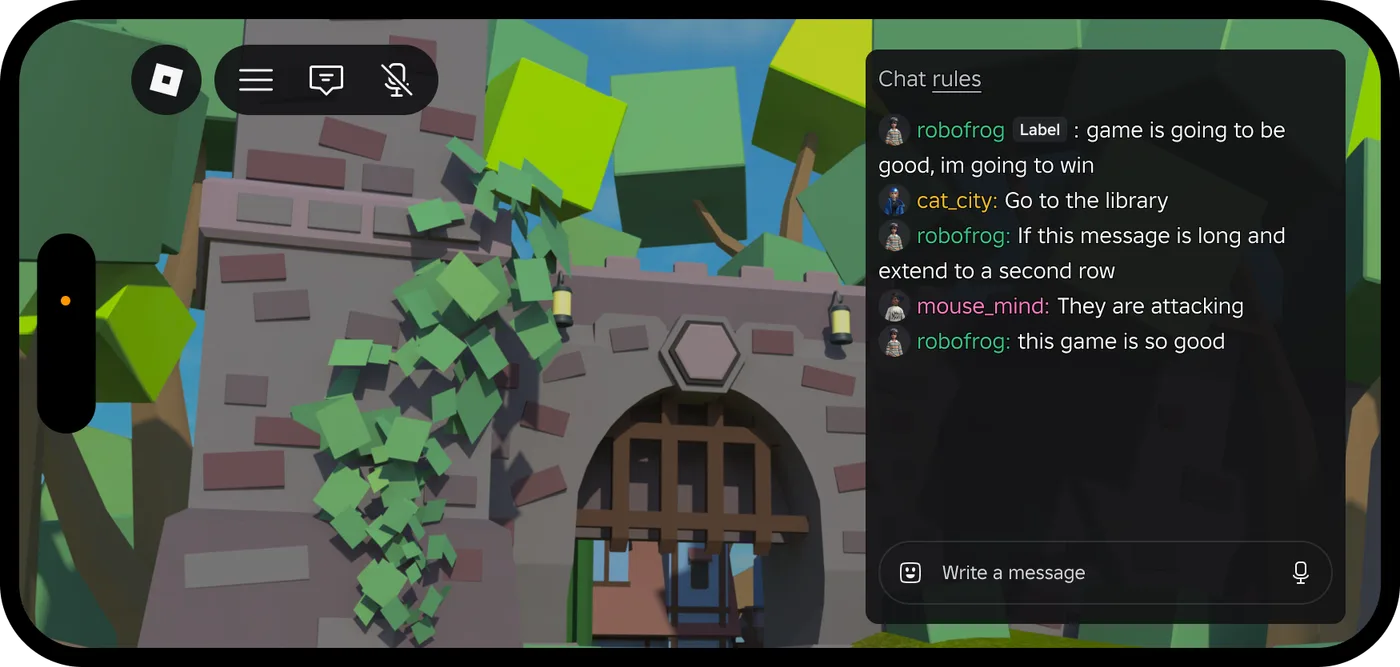
Roblox Platform-Integrated Chat: Migrate Your Custom Chat
On October 21, 2026, Roblox announced that chat message text will stop being readable from game code. It is opt-in today, the default from February 2027 and required from May 2027. Here is what stops working, the replacement for each custom chat feature, which one has no replacement yet, and how to test it in Studio now.
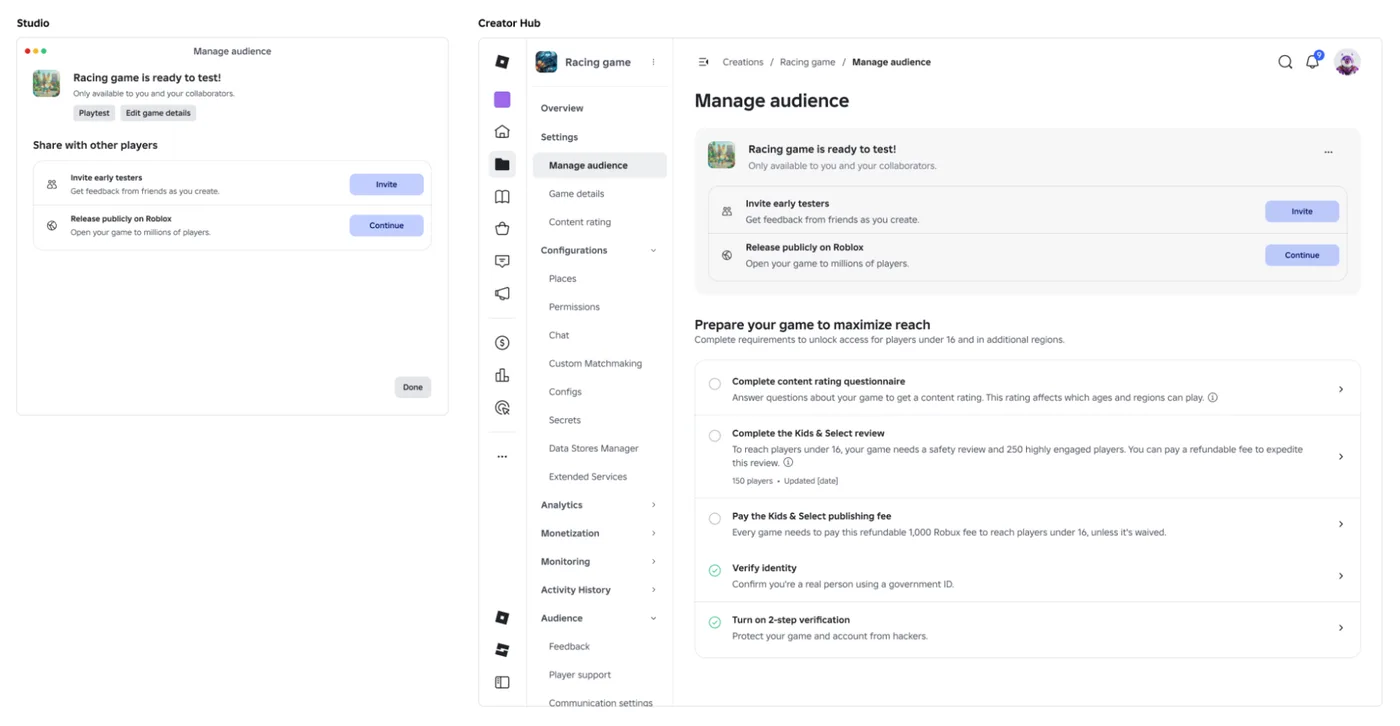
Roblox Early Testers and the New Publish Flow: What Changed
Since October 12, 2026, you can let up to 10 friends play your unreleased, unrated Roblox game, and Roblox is rolling out a path that lets a game with no age-restricted content reach age-checked players 16 and older by answering one question instead of the full questionnaire. Here is who can be an early tester, what replaced the Private and Limited audience settings, what the one question actually covers, and what still takes the long road to players under 16.

Roblox BadgeService Guide: Award, Check, Debug
Call AwardBadgeAsync on a player who isn't currently in your server and it fails one of five documented requirements — silently, the same way it fails for a disabled badge or a place outside the badge's own experience. Here is every BadgeService method, which four are dead, the rate limit two of them share despite a 10x difference in batch size, and the deprecated check that Roblox says will now always return true.
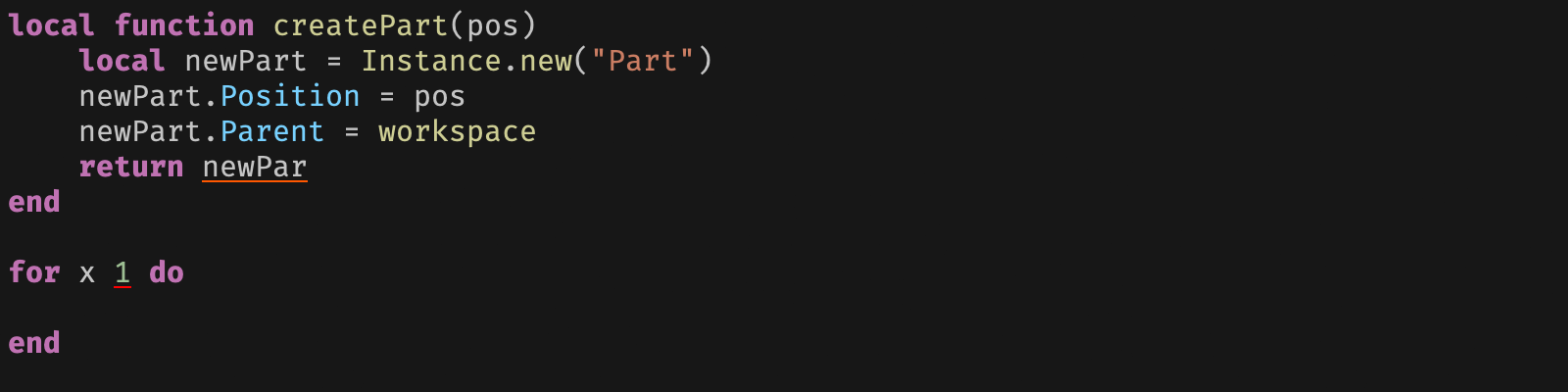
Roblox Luau Type Checking: nocheck, nonstrict, strict
Roblox says every script used to default to no typechecking. That is no longer how it works: a Workspace property now sets the default mode, projects using only nocheck and nonstrict were moved to the New Type Solver automatically, and strict mode projects were not. Here is what each mode reports, what the new solver changed, and the annotation syntax that covers most code.
Best Roblox Games to Play in 2026
Roblox's front page is engagement bait. This is the filtered version: the games with real, sustained player counts and actual staying power, sorted by what you're in the mood for.
How to Get Robux Safely (Legit Ways + Scams to Avoid)
There is no free Robux generator. There never was. Here are the actual legit ways to get Robux without overpaying, the earning methods that really work, and the scams that exist purely to steal your account.