Roblox Instance Streaming and the Client Scripts It Breaks
StreamingEnabled is on by default for every new place you make in Studio, and it rewrites the contract your client scripts were built on. workspace.House.Door is no longer a thing that exists — it's a thing that might exist, depending on where the player is standing. Here is what the engine actually does, which of the eight Workspace properties matter, and the five script patterns that break the moment streaming is live.
There is a checkbox on the Workspace object that changes what your code is allowed to assume, and Roblox ticks it for you. Per the Creator Documentation, StreamingEnabled is "enabled by default for new places created in Studio." If you made your place any time recently and never went looking, streaming is already on.
Here is what that means in one line. This:
local door = workspace.House1.Door
is no longer a lookup. It is a bet that both House1 and Door happen to be loaded on this particular client at this particular moment. Lose the bet and you get attempt to index nil with 'Door' — on some machines, sometimes, usually far from spawn. That is a miserable shape for a bug to have.
Streaming is worth having. It gets players in faster, keeps the game alive on low-memory phones, and cuts what the server has to synchronize. But it is a contract change, not a toggle, and the docs are spread across three pages plus the class reference. This is all of it in one place.
Streaming only touches Workspace
The scope rule is narrow: streaming applies exclusively to descendants of Workspace. Instances in ReplicatedStorage and ReplicatedFirst are ineligible. The docs spell out the consequence — parking an atomic model under ReplicatedStorage "does not guarantee atomic replication," because atomicity is a streaming feature and nothing in ReplicatedStorage streams.
When a player joins, everything under Workspace replicates except four deferred categories:
BaseParts, meaningParts andMeshPartsModels set to Atomic, Persistent, or PersistentPerPlayerModels set to Nonatomic (the default) whenModelStreamingBehavioris Improved- Descendants of any of the above
Everything else — folders, values, scripts hanging directly off Workspace — arrives on join like it always did. That is why streaming feels invisible until the first time a LocalScript reaches for a part.
Physical assemblies get a guarantee worth knowing: they stream in as complete units, including their Constraints and Attachments, so clients don't simulate half a vehicle. The exception is anchored assemblies, where only the BaseParts inside the radius come in. On the way out, an assembly holds until every one of its parts is eligible. The docs pair that with a warning — avoid moving assemblies with unnecessarily large instance counts, since streaming them all in unison can spike network and CPU.
The eight properties, and what Roblox says to set them to
Every streaming property lives in the Streaming category on Workspace, and every one of them is non-scriptable. You set them in Studio's Properties window, not at runtime.
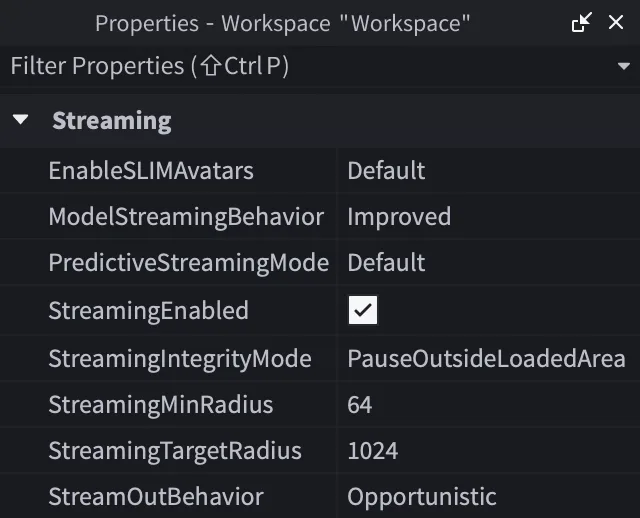
| Property | What it controls | Recommended setting |
|---|---|---|
StreamingEnabled | Whether streaming runs at all | Enabled |
StreamingMinRadius | Radius around each replication focus that loads at highest priority, and never streams out | Default of 64 |
StreamingTargetRadius | Maximum distance content streams in | Default of 1024 |
ModelStreamingBehavior | How Nonatomic models stream | Improved |
StreamingIntegrityMode | What happens when a player outruns their loaded area | PauseOutsideLoadedArea |
StreamOutBehavior | When the client is allowed to unload | Opportunistic |
EnableSLIMAvatars | Lightweight stand-ins for streamed-out avatars | Enabled |
PredictiveStreamingMode | Opt-in prediction of where the player is going | Opt in if you have respawns or CFrame jumps |
Two of those deserve more than a row.
The gap between min and target radius is a buffer, and you need it. The docs are explicit: target radius should be larger than minimum radius, because "3D content between the target radius and the minimum radius acts as a buffer in case the client temporarily stops receiving new content from the server." Set them equal and there is no buffer, which the docs link directly to an increase in network pauses. The 64/1024 default gives you a wide one.
StreamOutBehavior defaults to the conservative option. Under LowMemory (the default), the client only unloads regions beyond the minimum radius when it is actually under memory pressure. Under Opportunistic, it can drop regions beyond the target radius even with memory to spare, while still never removing anything inside the target radius except in a genuine low-memory situation. Roblox recommends Opportunistic specifically to help prevent out-of-memory crashes.
If you are converting an existing place and want the recommended baseline in one shot, Workspace:ApplyRecommendedStreamingSettings() applies Roblox's current recommended streaming settings, touching only the values that differ. It is plugin-only, and it returns true if it changed anything.
StreamingIntegrityMode decides whether players freeze
This is the property with the most visible player-facing consequence, and it has four values:
| Value | Behavior |
|---|---|
Default | Default behavior, which the reference notes is subject to change |
Disabled | Simulation of the replication focus is never paused, however little is loaded |
MinimumRadiusPause | All client-side simulation pauses when content is not streamed in up to the minimum radius |
PauseOutsideLoadedArea | Simulation of the replication focus pauses when any part of its bounding box is not in a streamed-in area |
MinimumRadiusPause and PauseOutsideLoadedArea both set Player.GameplayPaused and show a default message. That property is set on the client and replicated to the server, so server code can read it too.
The default pause modal is fine for a prototype and jarring in a finished game. Swap it:
local Players = game:GetService("Players")
local GuiService = game:GetService("GuiService")

local player = Players.LocalPlayer

GuiService:SetGameplayPausedNotificationEnabled(false)

player:GetPropertyChangedSignal("GameplayPaused"):Connect(function()
	if player.GameplayPaused then
		-- show your own loading GUI
	else
		-- hide it
	end
end)
Model streaming modes are your real control surface
Radii are blunt. Model.ModelStreamingMode is where you actually shape behavior, and picking correctly removes most of the WaitForChild() noise from your client code.
Nonatomic, and the Legacy vs Improved split
Nonatomic is the default, and what it does depends on Workspace.ModelStreamingBehavior.
Under Legacy — still the default value of that property — the Model container and its non-BasePart descendants, scripts included, replicate on join. The parts stream in later. So on a big map, every client gets the full skeleton of every model up front and fills in geometry as it moves.
Under Improved, a model with BasePart descendants streams in only when one of those parts becomes eligible, and the model, that part and the model's non-part descendants all arrive together. When the last remaining part streams out, the model goes with it. A model with no BasePart descendants — the classic script-holder folder-as-model — replicates soon after join and is exempt from streaming out, unless you parent it under a BasePart.
Improved is the recommendation, and the reason is straightforward: under Legacy the client pays for containers it may never approach.
Atomic
Set a model to Atomic and all of its initial descendants stream in together as soon as any descendant BasePart is eligible. It streams out only when every descendant part is eligible to go.
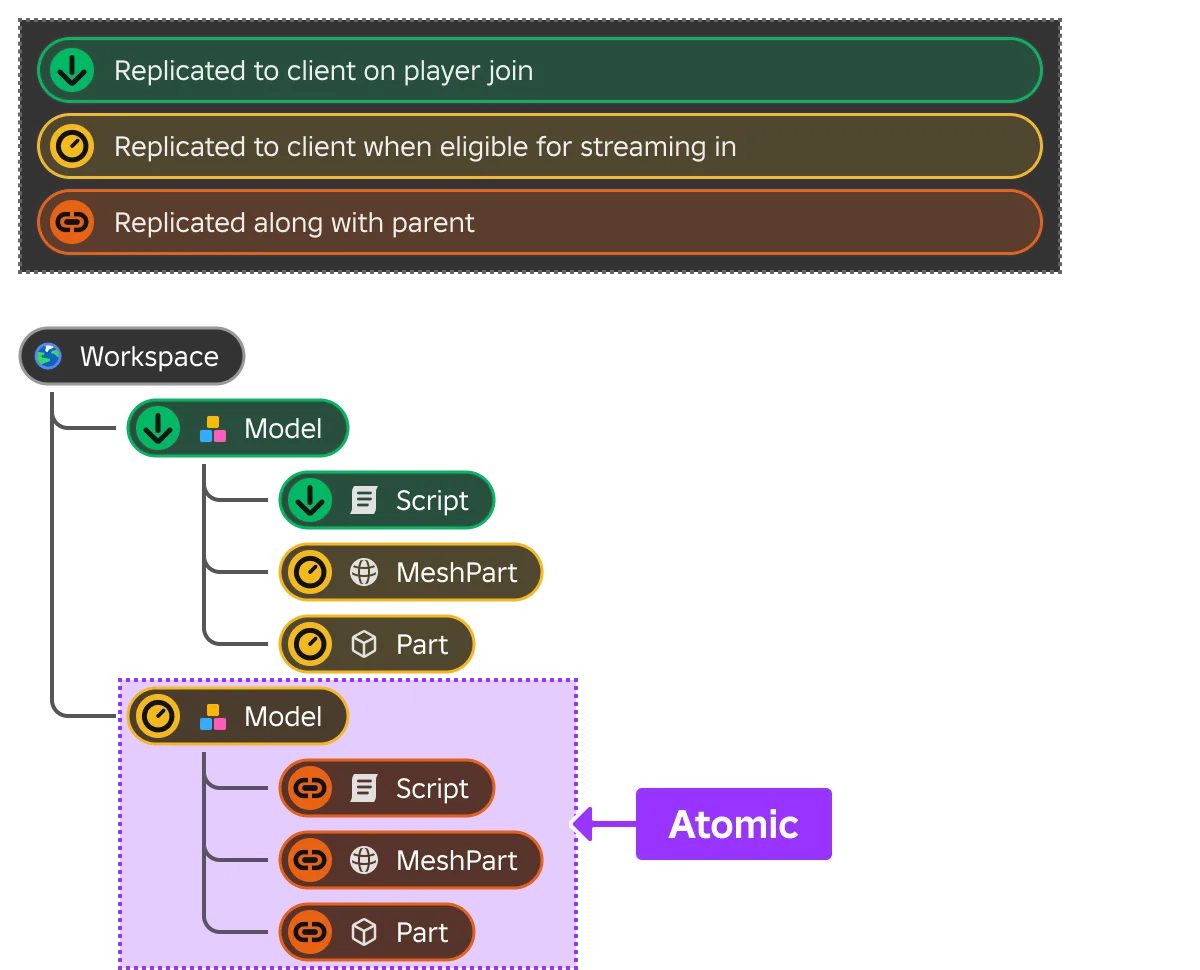
That buys you a real guarantee for client code: you still need WaitForChild() on the model itself, but not on its descendants.
local house1 = workspace:WaitForChild("House1")

-- House1 is Atomic, so its initial descendants are guaranteed present
local door = house1.Door
Here is the trap, straight from the docs: "Atomicity guarantees apply only during initial replication." Once an atomic model has replicated to a client, anything you add under it afterwards is streamed normally, not atomically. If a system spawns loot or furniture into an atomic model at runtime, that new instance needs the same WaitForChild() or nil-check treatment as anything else.
Atomic is also the fix for client-side Model:GetBoundingBox() returning nonsense, since bounds computed over a partially streamed model are simply wrong.
Persistent and PersistentPerPlayer
Persistent models are sent as a complete unit soon after join, before Workspace.PersistentLoaded fires, and are never streamed out.
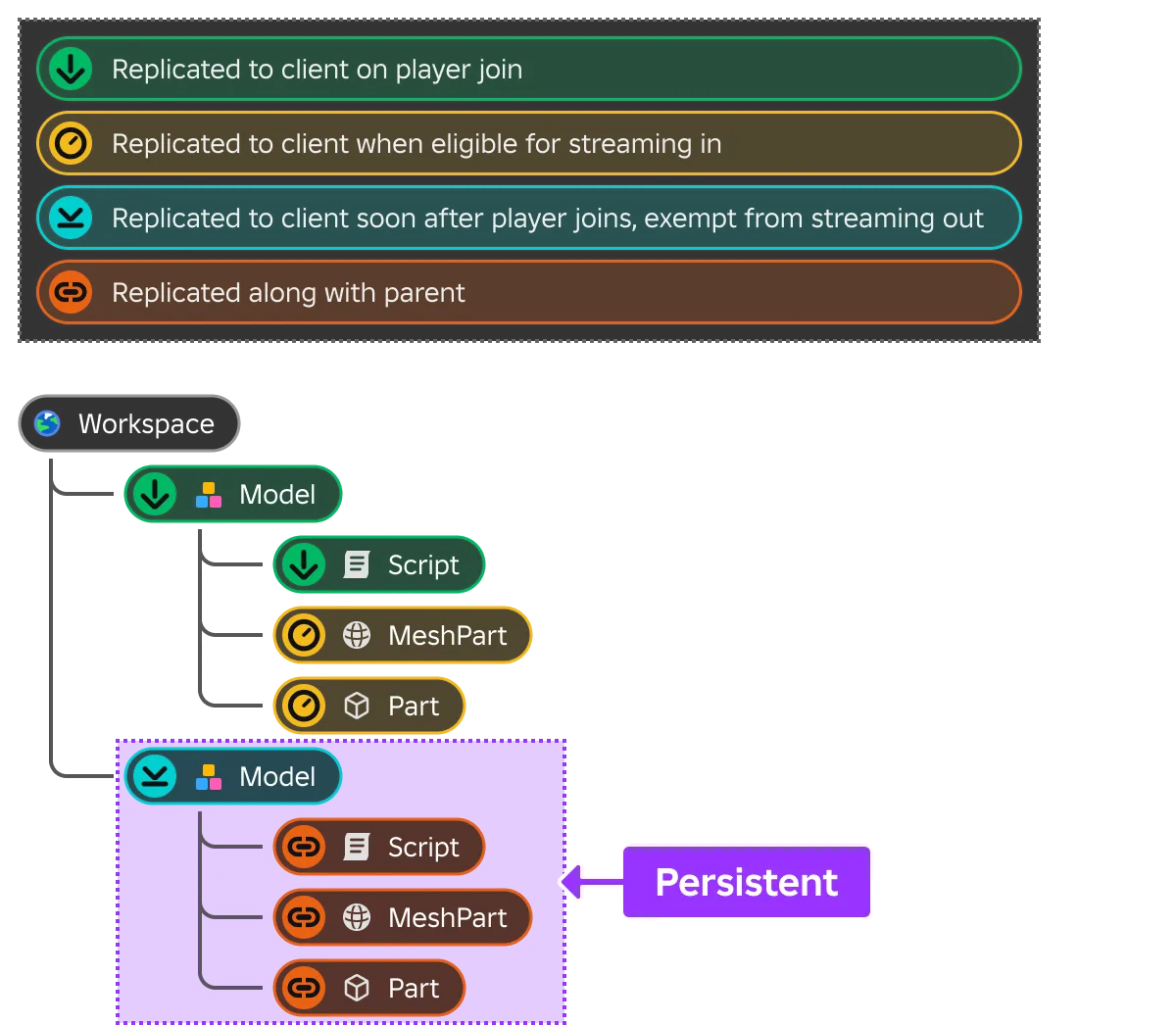
Client scripts should wait on PersistentLoaded rather than assuming. And note the sequencing detail in the reference — experience loading happens before persistent loading, so DataModel.Loaded firing does not mean persistent models have arrived.
Roblox's own framing is unusually blunt here: persistent models are "intended for very rare circumstances," are "not intended to circumvent streaming," and overuse "may negatively impact performance." They never stream out, so they permanently occupy memory on every client. Treat the mode as a scalpel — a handful of parts client scripts genuinely must reach from any distance.
PersistentPerPlayer is the version with a per-player switch: persistent for players added via Model:AddPersistentPlayer(), Atomic for everyone else, revertible with RemovePersistentPlayer(). A roster of player-owned plots is the case the docs call out — small, game-critical, and different per player.
One structural warning: nesting a persistent model inside an atomic model effectively forces the atomic model to behave as persistent. Flat hierarchies are easier to reason about, and the docs recommend decomposing big container models into smaller, spatially coherent ones.
Stream out parents to nil, not Destroy
This distinction causes real bugs. When an instance streams out, it is parented to nil, deliberately, so that existing Luau state reconnects if it streams back in. Removal signals like ChildRemoved and DescendantRemoving fire on its parent or ancestor, but the instance is not destroyed the way Instance:Destroy() destroys it.
Three consequences follow:
- Local-only property changes can be lost. Anything a
LocalScriptchanged that was never replicated to the server may be gone when the instance streams back in. - Signals lie about spawns.
ChildAdded/ChildRemovedandCollectionService'sGetInstanceAddedSignal/GetInstanceRemovedSignalfire on stream in and out, indistinguishable from a real spawn or removal. If you play a sound when an enemy appears, players will hear it every time they walk back into range. The docs' fix is an attribute flag on first spawn:
local CollectionService = game:GetService("CollectionService")

CollectionService:GetInstanceAddedSignal("Enemy"):Connect(function(enemy)
	if not enemy:GetAttribute("Spawned") then
		enemy:SetAttribute("Spawned", true)
		playSpawnEffects(enemy)
	end
end)
- Client-created instances are exempt. Anything a client script creates or clones is exempt from streaming out, unless it is parented under a server-created instance.
That last one has a nasty inverse. Reparenting an instance locally from ReplicatedStorage into Workspace makes it eligible to stream out. Cloning locally into Workspace creates a client-only copy that no longer receives property updates from the server original. And calling Destroy() on the client for a server-owned object only removes it locally — the server still has it, and it streams back in with its original state.
The five client patterns that break
Server scripts see the whole world at all times. Client scripts see a slice. These are the patterns to audit, with the strategy the docs recommend for each.
1. Direct indexing. The . operator throws if any instance in the path isn't streamed in. FindFirstChild(), FindFirstChildWhichIsA() and FindFirstChildOfClass() return nil. The same hits CharacterAdded handlers — under streaming, the character model is parented to Workspace before all of its descendants replicate, so character.Humanoid fails. Use WaitForChild() when you can't proceed without it, nil-check when you can, or make the parent Atomic.
2. Instances sent over remotes. A RemoteEvent and the instance it refers to travel independently, so the signal can land before the instance exists on that client — or the instance may never arrive. Passing a path as a string has the same problem, since the path may resolve to nothing. WaitForChild() with a timeout, pre-fetch first, or tolerate the miss.
3. Stale property reads. This one is silent, which makes it the worst. Once an instance streams out, its property updates stop replicating to that client, but reads keep succeeding — they return the last replicated value, which can be arbitrarily old. A client-side distance check against a streamed-out target is measuring where the target used to be. Move the check to the server, or test Instance:FindFirstAncestorWhichIsA("Workspace") and skip the calculation when it comes back false.
4. Partial collections. GetChildren() and GetDescendants() on the client return only the streamed-in subset — even when the parent itself is always replicated, like a Folder directly under Workspace whose contents come and go. A loop over workspace.Homes:GetChildren() looking for the player's house will silently miss houses that aren't loaded. Enumerate on the server, or use PersistentPerPlayer for small, critical sets.
5. Spatial queries. WorldRoot:Raycast(), GetPartBoundsInBox() and Model:GetBoundingBox() on the client only see streamed-in content. A line-of-sight raycast at a distant target will happily report a clear shot through a wall the client hasn't loaded. Server-side for anything authoritative; local queries around the player are already fine.
Beyond those five, a short list of things that just stop working when their anchor streams out: a Sound or AudioPlayer parented to a 3D object stops playing; BillboardGui, SurfaceGui, Beam and Highlight stop rendering when their adornee or attachment goes; and Touched events, ProximityPrompts, DragDetectors and ClickDetectors do not operate for a client that doesn't have the part. Client-side pathfinding only sees streamed-in geometry too, so it can route straight through obstacles that exist on the server.
Replication focus and pre-fetching
Streaming radiates from the local player's character PrimaryPart by default. Player.ReplicationFocus moves that point, and Player:AddReplicationFocus() / RemoveReplicationFocus() let you have several at once — useful for a home base plus a trading hub, or for enemy bases a player views through a scope.
Additional foci are not free, and the docs quantify it: "a single player with nine dynamically moving foci could generate server networking and streaming processing comparable to ten players moving around the game." On the client, too many foci limit the engine's ability to adapt to memory pressure.
One consequence worth flagging: client-side physics simulation, including prediction and resimulation under server authority, only occurs in streamed areas — even for locally created instances and even for Persistent models. If you need something simulating far from the player, it needs a focus near it, not just persistence.
For a one-off jump, pre-fetch instead. Player:RequestStreamAroundAsync(position, timeOut) is a yielding server-side call that asks for parts and terrain around a Vector3:
local function teleportPlayer(player, teleportTarget)
	player:RequestStreamAroundAsync(teleportTarget)

	local character = player.Character
	if character and character.Parent then
		character:PivotTo(character:GetPivot() * CFrame.new(teleportTarget))
	end
end
Read the guarantees carefully, because there aren't many. The effect is temporary, and the reference states there are "no guarantees of what will be streamed in around the specified location" — client memory and network conditions decide. Omit timeOut and it is effectively infinite, but a low-memory client abandons every streaming request regardless. Treat it as a strong hint that reduces pop-in, not a load barrier. If you need certainty, this is a job for a full place teleport with a loading screen instead.
PredictiveStreamingMode automates two common cases without any code: on death it creates temporary foci at possible spawn locations, and when a player CFrames away from an area it leaves a temporary focus behind in case they come straight back. Predictions are additive, expire if unused, and are skipped on resource-constrained clients. It also won't double up where you already placed a pre-fetch or focus.
SLIM keeps the world visible after it streams out
Streamed-out geometry is invisible, which is how you get a game world that dissolves 1,024 studs out. SLIM — Scalable Lightweight Interactive Models — is Roblox's cloud-transcoding answer: it composites a model into fewer draw calls with several levels of detail, and the engine picks one based on distance, device and available resources.
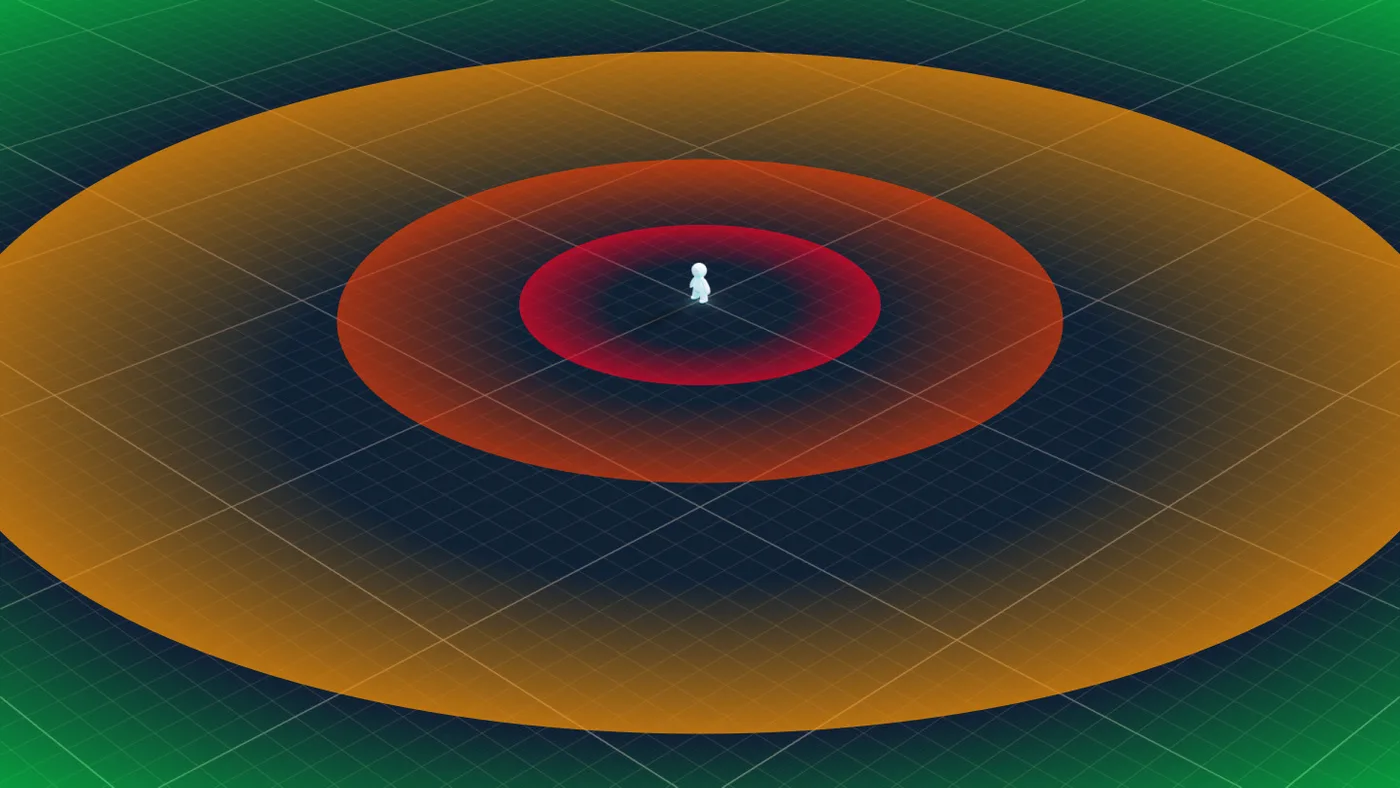
The four zones, nearest to farthest: full instances with normal part-by-part rendering; full instances streamed in but the SLIM composite rendered when that's cheaper; instances streamed out with only a minimal placeholder in the DataModel, rendered as SLIM; and finally placeholder only, not rendered.
The avatar numbers from Roblox's own test scene are the most concrete argument for turning it on. In the far-distance crowd shot, SLIM enabled measures roughly 170,000 triangles and about 4,000 client instances; disabled, the same scene is roughly 2,600,000 triangles and about 60,000 client instances. Up close it is roughly 100,000 triangles and 31,000 instances enabled, against 670,000 and 60,000 disabled.
The constraints are strict, so check them before budgeting on it:
- Streaming is required. Without
StreamingEnabled, SLIM-eligible models fall back to traditional level-of-detail. - The place must be published, not a local
.rbxl, and Team Create must be enabled — transcoding happens in the cloud. Allow 1–2 minutes after first publish and rejoin. - Static models only. Parts added or removed at runtime, changed materials, or animation prevent correct SLIM rendering. Models containing a
Humanoidare excluded entirely, as are models withScaleof0. - Avatars must be R15 player characters on a standard or advanced R15 rig, including rigid and layered accessories. R6, NPCs even on R15 rigs, and avatars with custom proportions or experience-applied settings fall back to default rendering. So do avatar changes made after
CharacterAppearanceLoaded— equipping a tool, adding aHighlight.
Two practical notes from the troubleshooting section: SLIM regenerates UVs during transcoding, so default materials can tile slightly differently, and z-fighting between coplanar faces is fixed by nudging overlapping parts apart — 0.01 studs is enough. For model LOD generally, the docs suggest keeping each model's spatial extent under roughly 64 cubic studs so the whole thing tends to stream in together.
How to actually test a streaming game
Streaming bugs live at the edges of the loaded area and during transitions, which is why the docs say testing near spawn or at the target radius is not sufficient on its own.
- Drop
StreamingTargetRadiusto its minimum of64and play. A tiny streamed area forces every latent bug to the surface in minutes. - Use the streaming debug overlay. Open the Network Stats overlay with Shift + Ctrl + F3 on Windows or Shift + ⌘ + F3 on Mac when playtesting in Studio (Shift + F3 in a live game), then press Shift + 1 repeatedly — the fourth panel is Streaming. Regions colour by distance: red inside the minimum radius, yellow between minimum and target, blue at the target radius, green beyond it. Temporarily raising
CameraMaxZoomDistanceto something like1000lets you see the whole picture. - Watch the Output window for
attempt to index nil with. Most of the script patterns above error loudly rather than failing silently — the stale-property-read case being the exception, and the reason to audit for it by hand. - Exercise the transitions. Teleport between distant areas, leave and return, equip and fire tools, trigger every interaction. Those are the code paths streaming actually stresses.
There is also an official AI streaming conversion skill for existing places, rbx-convert-to-streaming. You can run it directly in Studio's Assistant or through any LLM connected via the Studio MCP server: make sure it is toggled on under Assistant Settings ⟩ Skills, then prompt Assistant (or your MCP-connected model) to use it. It applies the recommended settings, sets model LOD, adds WaitForChild() calls and nil checks, and runs a playability check afterwards. Roblox's own sizing note is worth quoting before you start: "for a typical conversion, a frontier model might take 20-30 minutes and utilize roughly 200,000 tokens of context." Back the place up first with File ⟩ Publish As (Roblox's older docs call it Publish to Roblox As, and the streaming conversion steps still do), and playtest the result properly, because it is still generated output.
Quick Action Checklist
- Check whether
StreamingEnabledis already on. For places made in Studio recently, it is. - Set the recommended baseline: min radius
64, target radius1024,ModelStreamingBehaviortoImproved,StreamingIntegrityModetoPauseOutsideLoadedArea,StreamOutBehaviortoOpportunistic. - Keep a wide gap between min and target radius so the client has a buffer.
- Mark models whose parts a script needs together as
Atomic, and remember the guarantee covers initial descendants only. - Use
Persistentsparingly, and wait onPersistentLoadedrather thanDataModel.Loadedbefore touching persistent models from the client. - Audit client scripts for direct indexing, remote-passed instances, stale property reads,
GetChildren()loops, and spatial queries. - Make signal handlers idempotent — stream in and out fire the same signals as real spawns and removals.
- Replace the default pause modal via
GameplayPausedandSetGameplayPausedNotificationEnabled(false). - Pre-fetch with
RequestStreamAroundAsync()before a CFrame jump; add a replication focus only when an area must stay loaded. - Turn on SLIM and
EnableSLIMAvatarsso distant content stays visible, after publishing the place with Team Create on. - Test at target radius
64with the streaming debug overlay open.
Frequently Asked Questions
Is StreamingEnabled on by default in Roblox?
What are the default StreamingMinRadius and StreamingTargetRadius values?
What is the difference between Atomic and Persistent models in Roblox streaming?
Why does my LocalScript error with "attempt to index nil" after enabling streaming?
Does an instance get destroyed when it streams out?
What does SLIM do in Roblox and what does it require?
How do I pre-load an area before teleporting a player with CFrame?
Keep Reading
- Roblox Creator Documentation — Instance streaming (official)
- Roblox Creator Documentation — Streaming techniques and conversion (official)
- Roblox Creator Documentation — SLIM (official)
- Roblox Creator Documentation — Workspace class reference (official)
- Roblox Creator Documentation — StreamingIntegrityMode enum (official)
- Roblox Creator Documentation — Player class reference (official)
- Roblox Creator Documentation — Create and publish games and places (official)
Related Guides
Roblox A/B Testing: Experiments and ConfigService Guide
Roblox has a built-in A/B testing system: configs hold the values, Experiments splits players between them, and since October 1, 2026 early harm detection watches the first 24 hours. Here is the rollout math, the one method call that decides who gets enrolled, the harm thresholds, and what Make decision actually does to your configs.
Roblox Animation Graph Editor: Blends and State Machines
Animation graphs left beta on July 15, 2026, and on October 8 Roblox added State Machine nodes and Expressions as a Studio beta. Here is how a graph loads like any animation, what each of the 15 node types does, how SetParameter drives it, what the beta features can't do in a live game yet, and who runs the graph under each authority mode.
Roblox Collision Summaries: Impact Speed, Point and Normal
Touched tells you what your part hit. BindToCollisionSummaries, live since October 6, 2026, tells you where, from which direction and how hard. Here are the seven fields, why one bump arrives as several summaries, the Normal field Roblox's own pages describe two ways, and the network-ownership rule that decides which machine sees a summary at all.
Roblox Localization: How to Translate Your Game
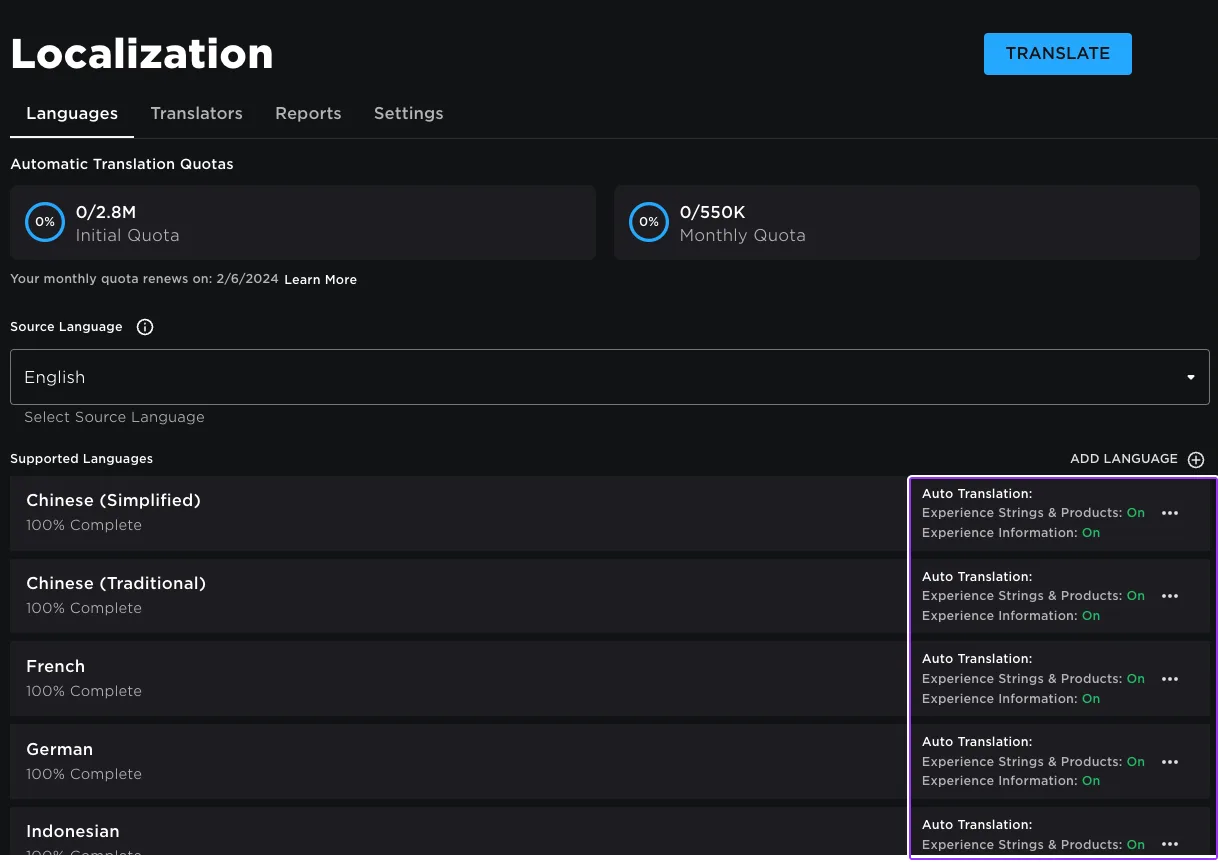
Since June 2026, any player can switch on Automatic Translations and read your game through Roblox's machine translator, whether or not you ever opened the Localization page. Here is what gets translated, how to stop it on text that should stay put, the five kinds of text automatic capture never sees, and the Translator and real-time APIs that cover the rest.
Best Roblox Games to Play in 2026
Roblox's front page is engagement bait. This is the filtered version: the games with real, sustained player counts and actual staying power, sorted by what you're in the mood for.
How to Get Robux Safely (Legit Ways + Scams to Avoid)
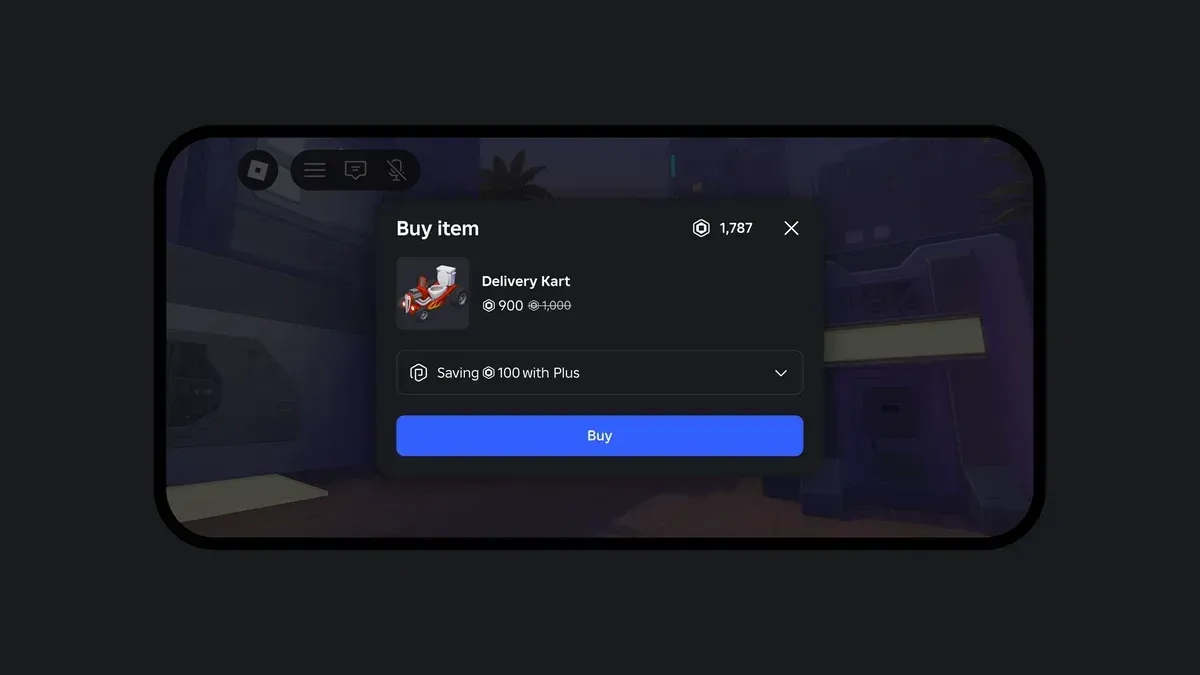
There is no free Robux generator. There never was. Here are the actual legit ways to get Robux without overpaying, the earning methods that really work, and the scams that exist purely to steal your account.